
Free Agentic AI for Creative Freedom Under your Control

Bring your idea to HarumAI, a desktop IDE where AI agents help you plan, edit and run code. Choose your model provider and review the work in your project.
Free to use, for personal and business work. Windows 10 and 11, 64 bit

Your model provider may charge for usage.See how to get started

10 / 10

Project Result

PreviewIllustrated workflow
OrbitReady to use
Y

Project dashboard

Your projects

Plan

Workspace layout

A
Build

Project cards

B
Ready

Keyboard access

C
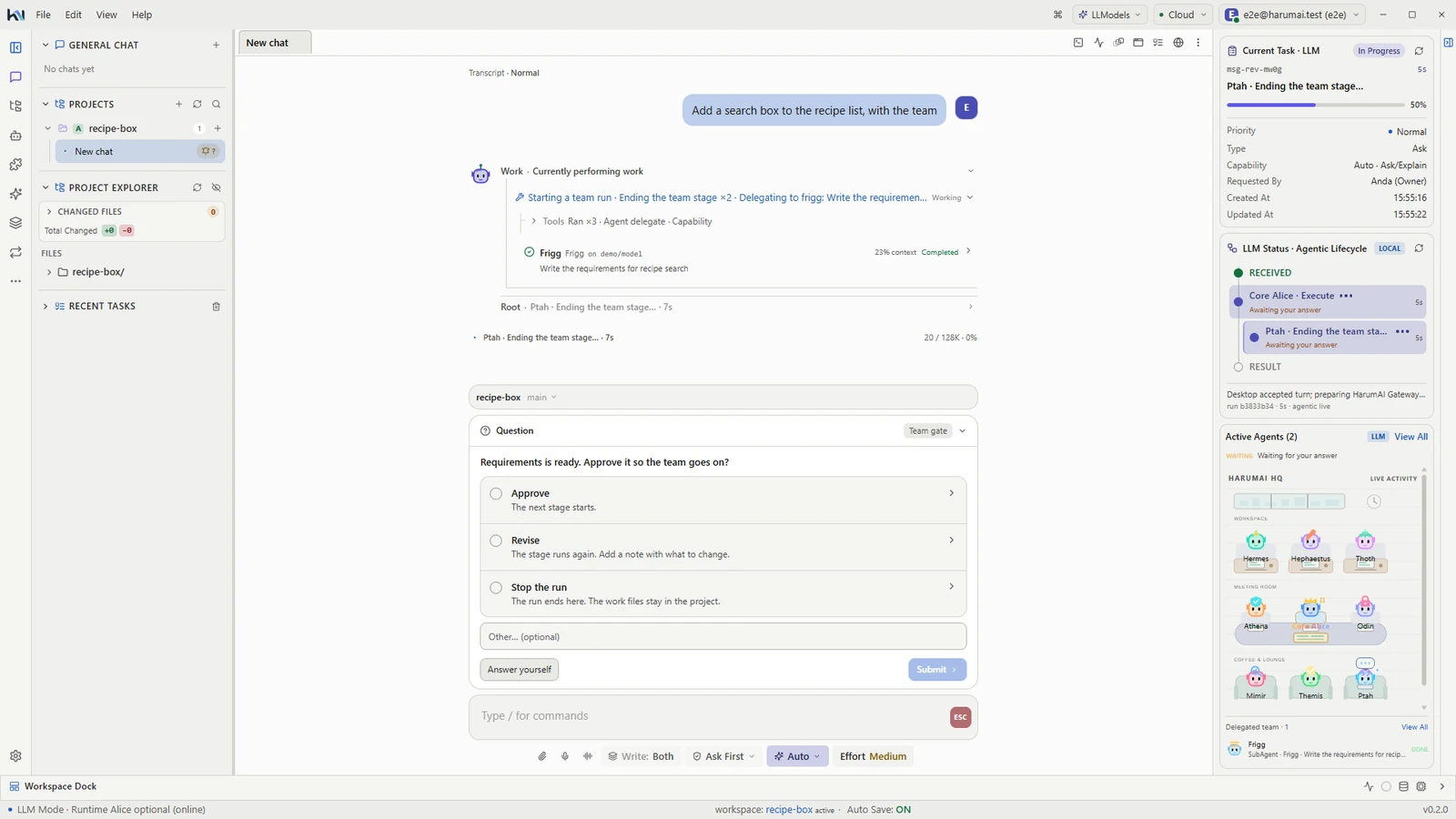
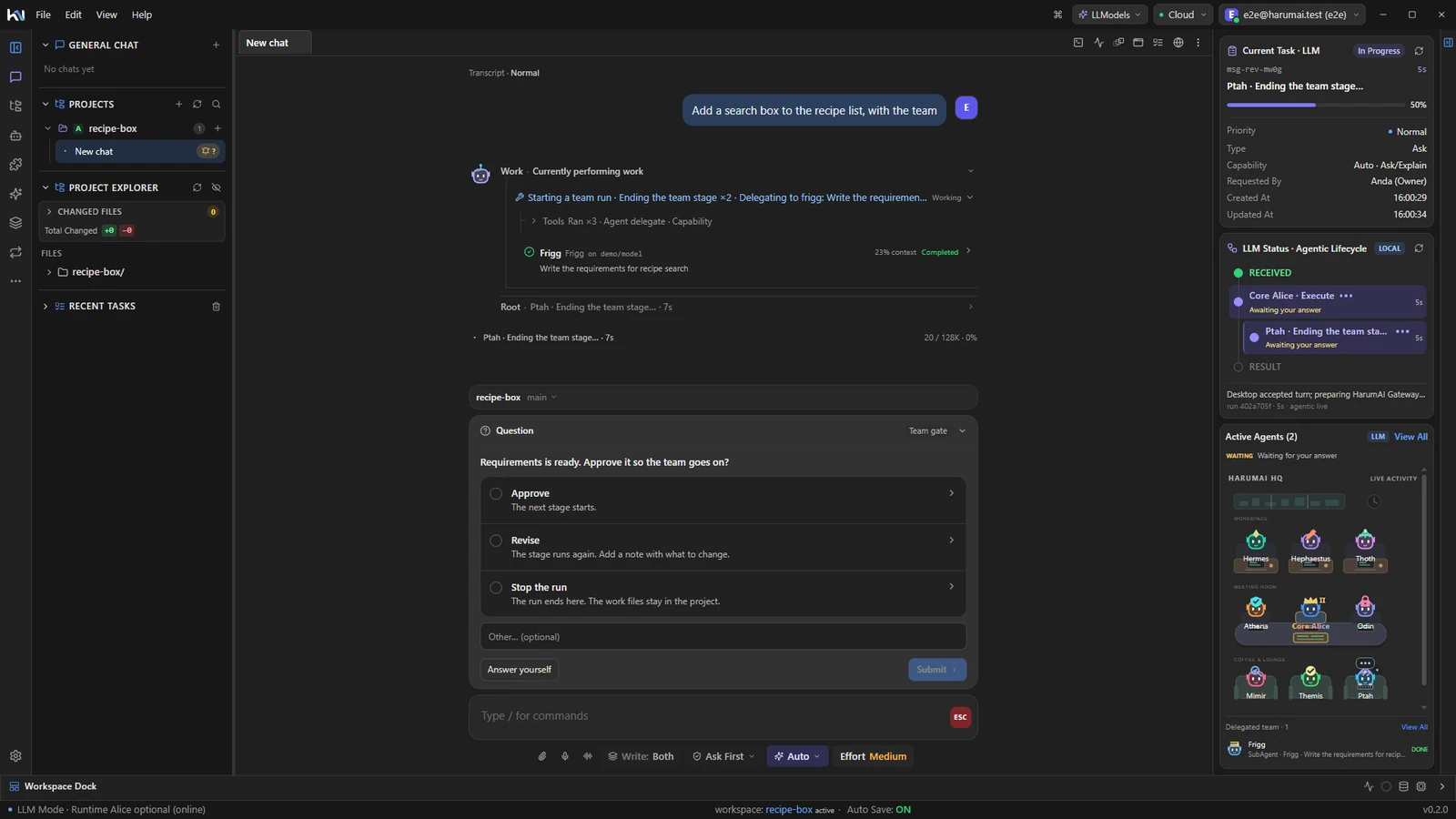
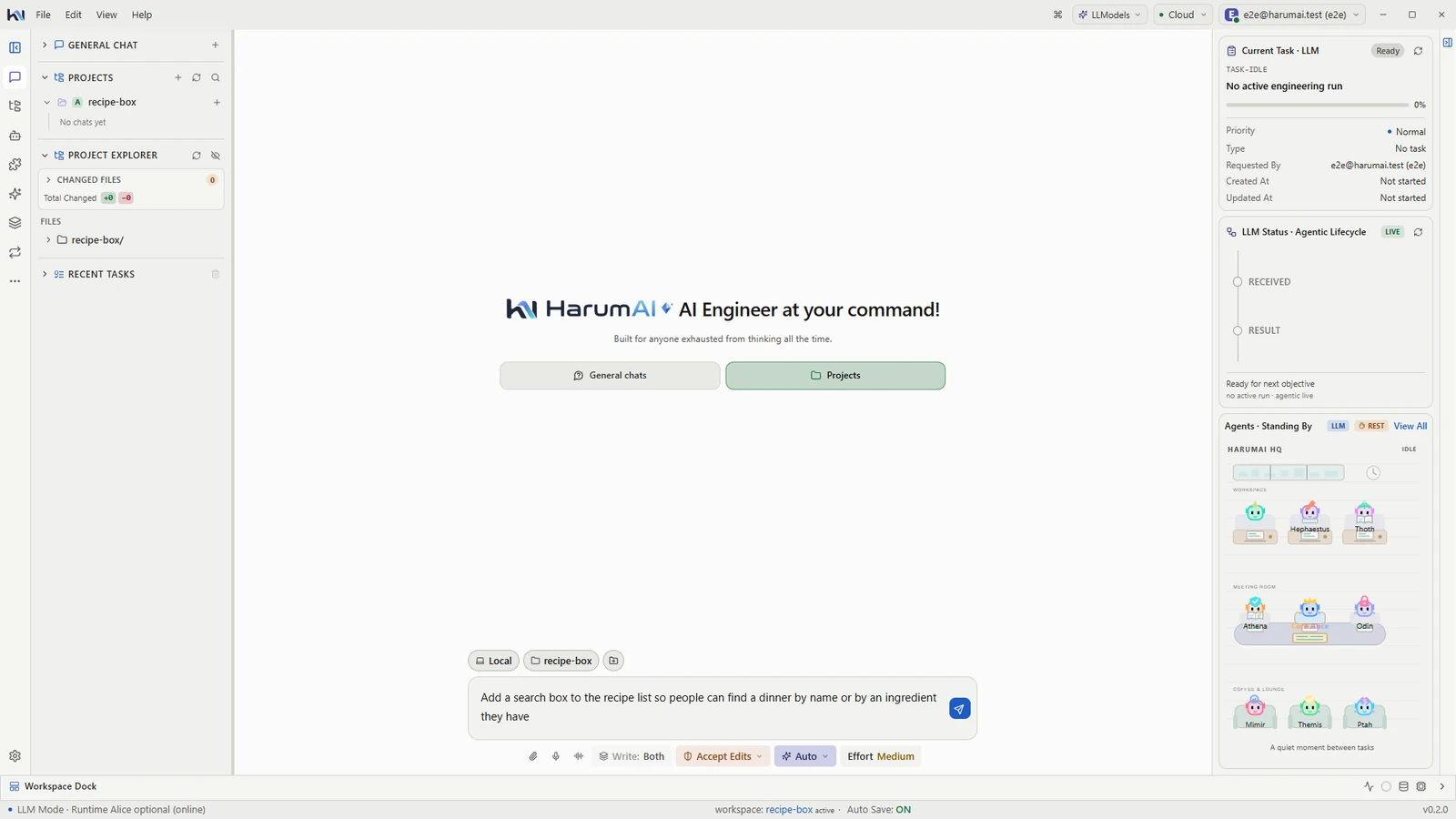
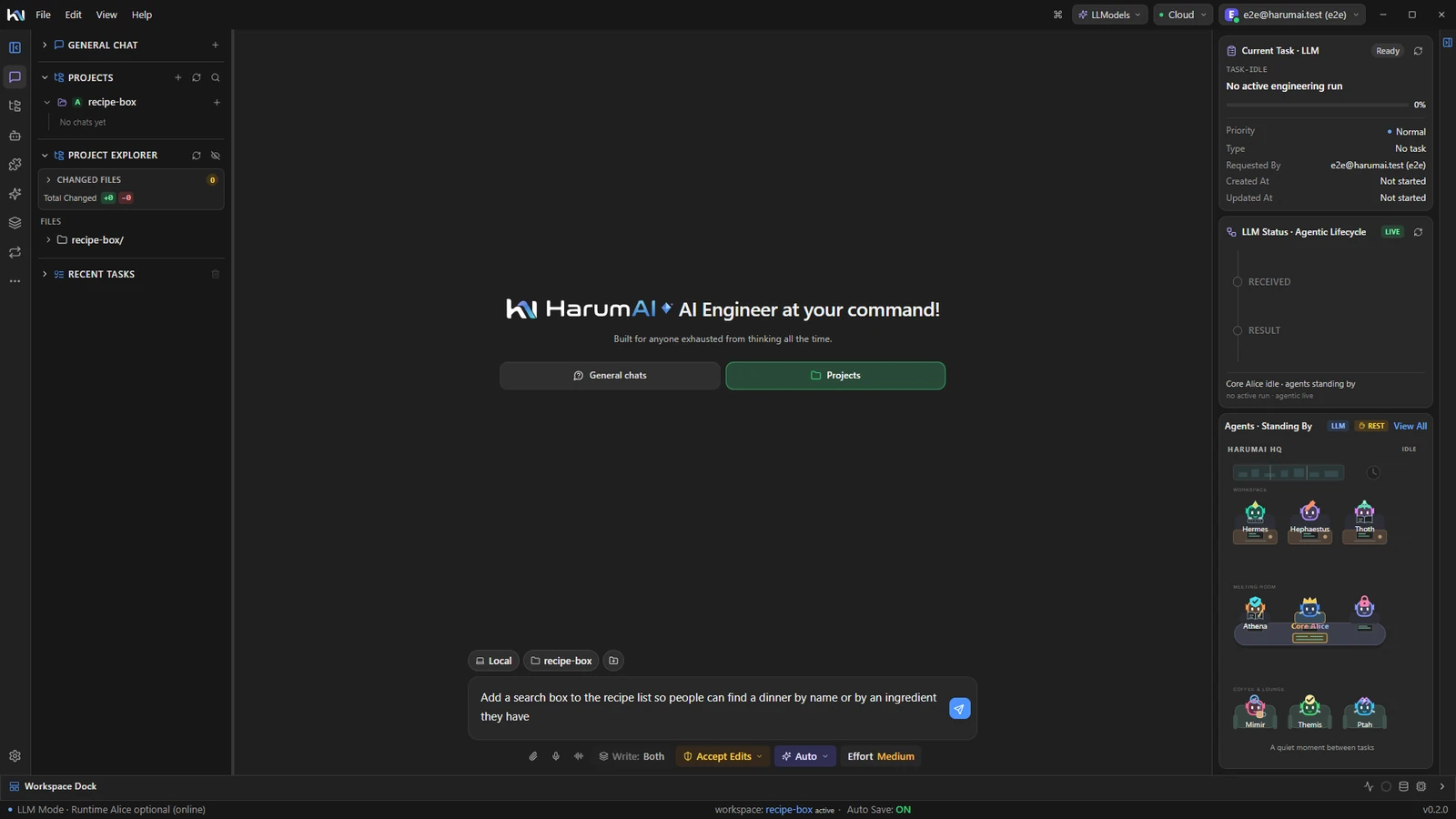
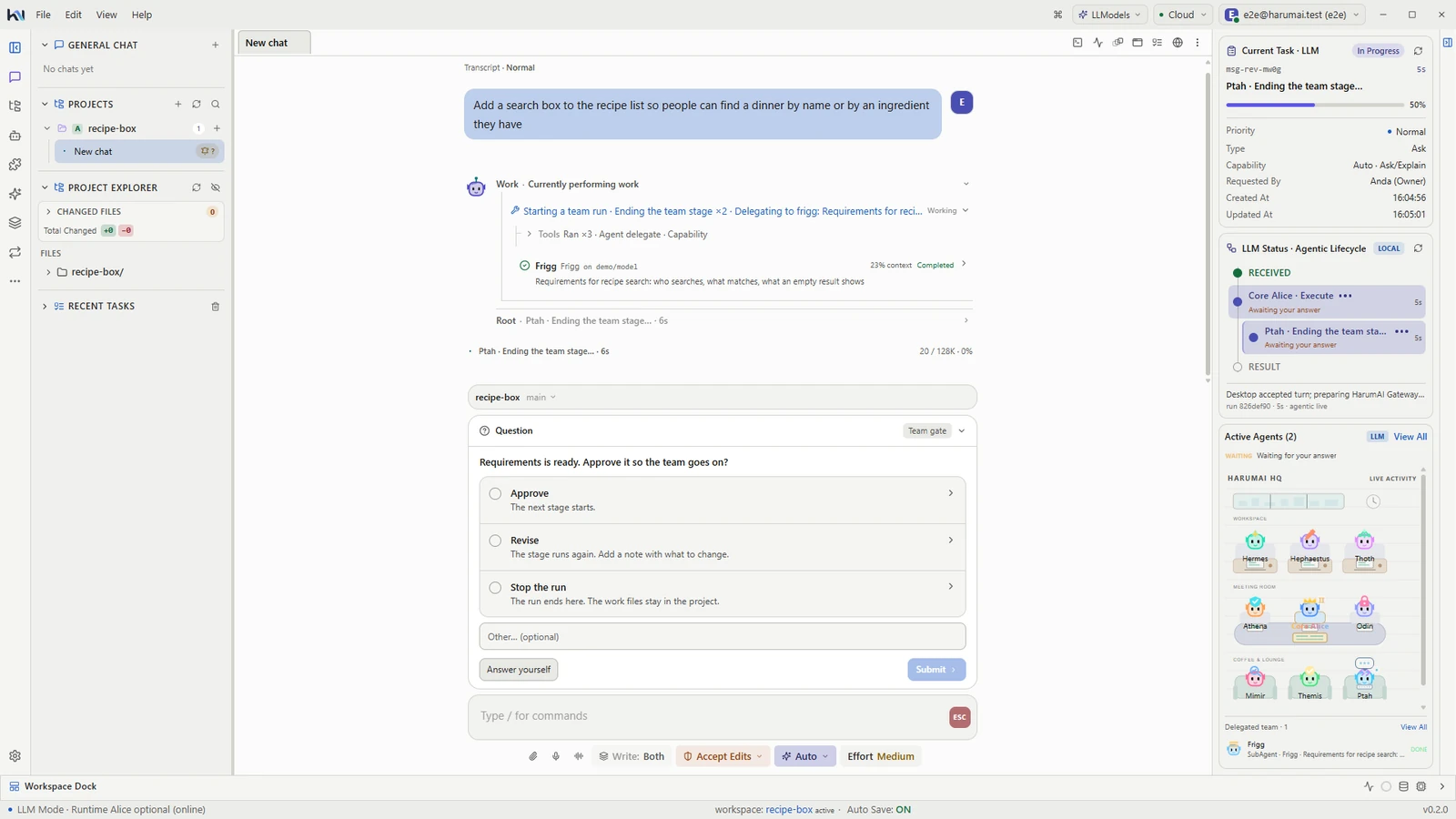
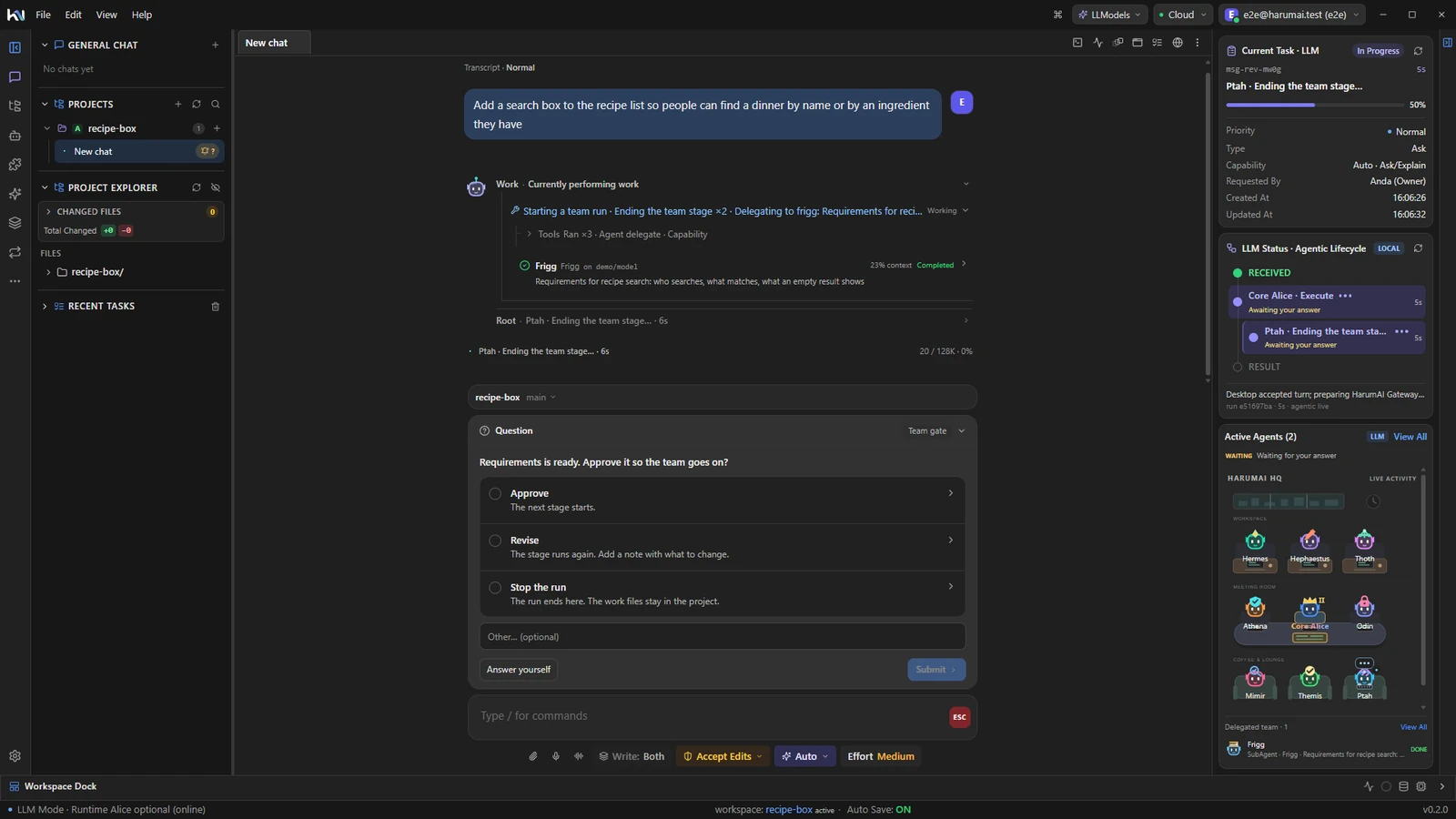
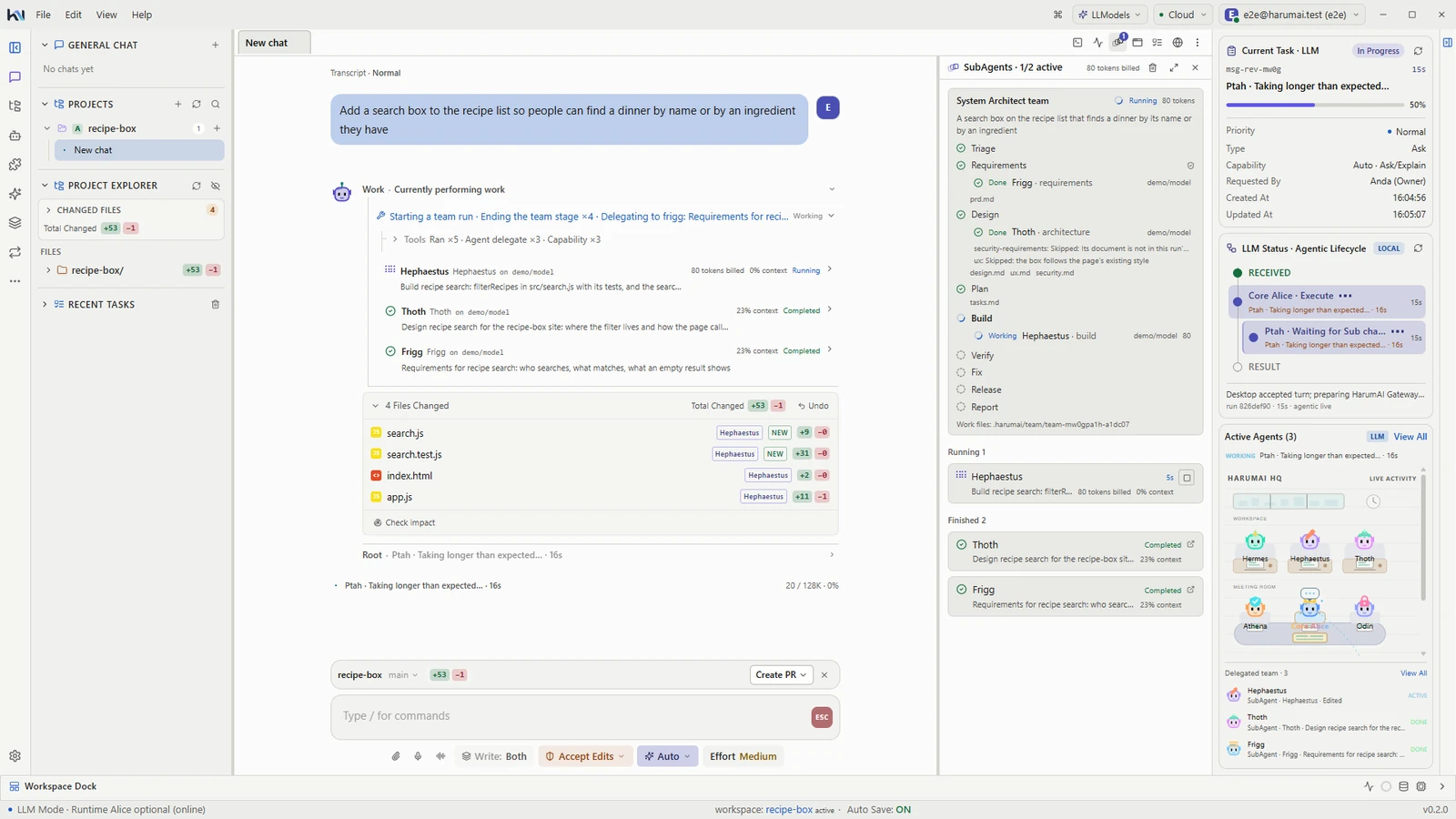
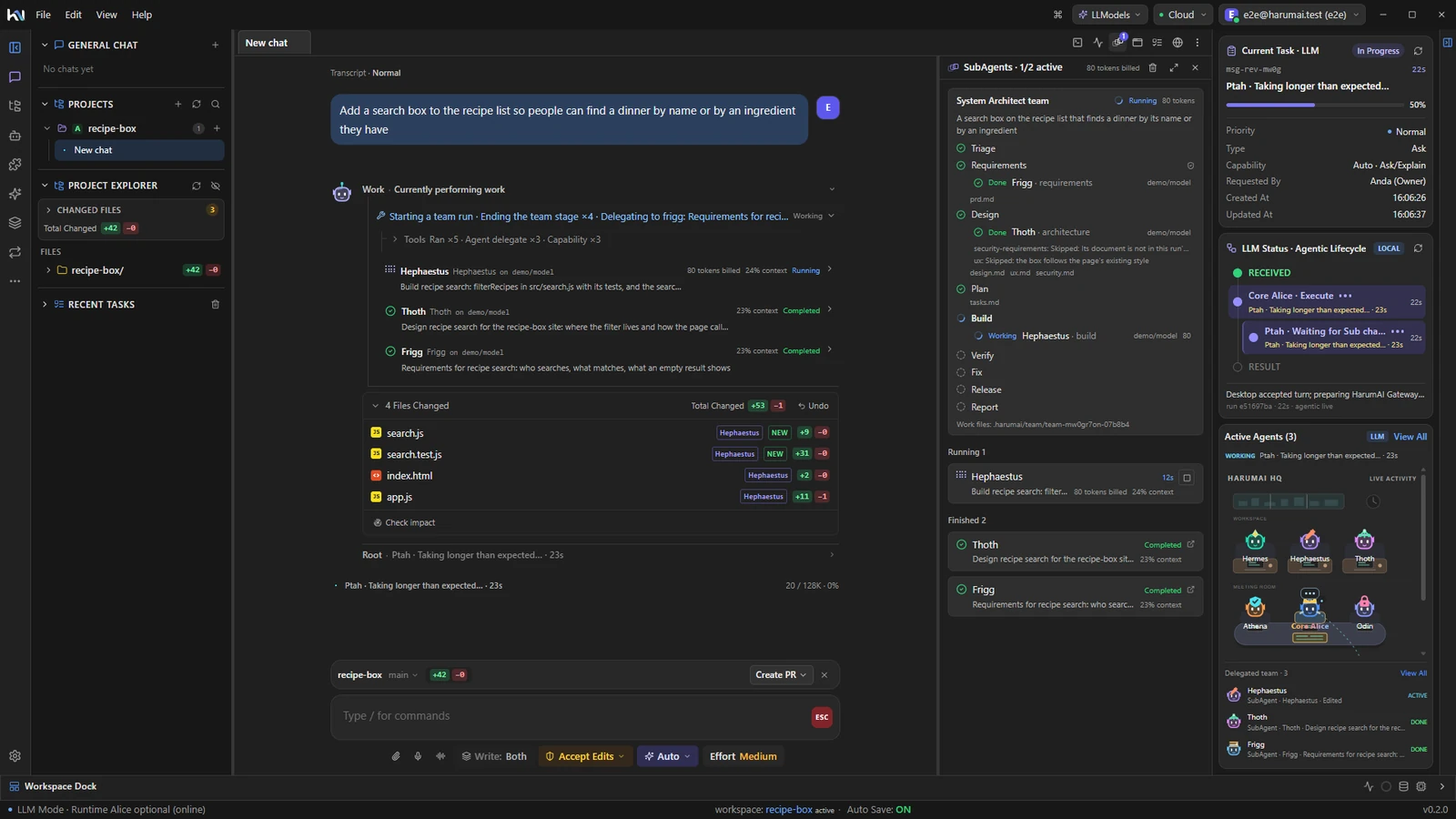
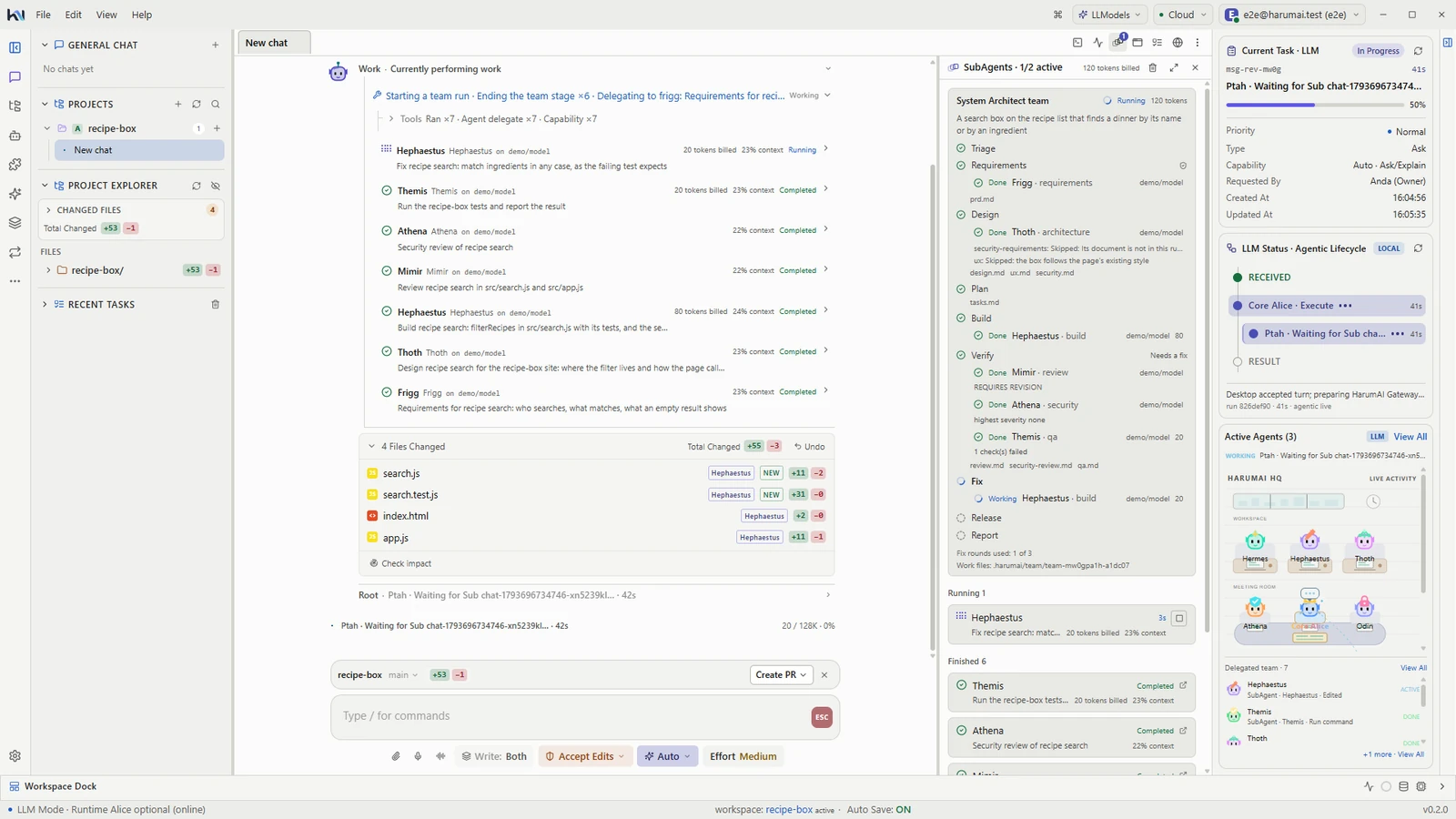
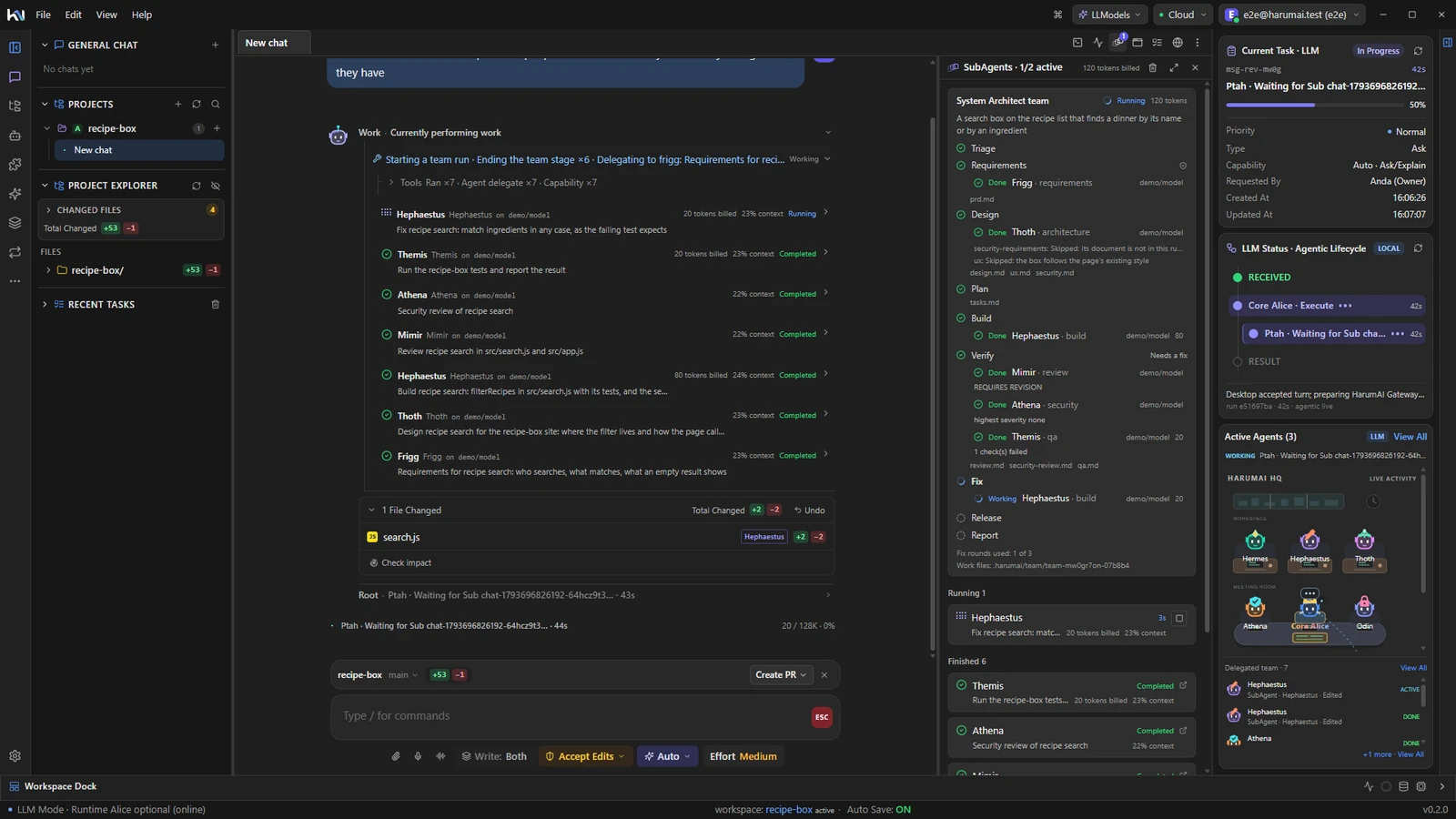
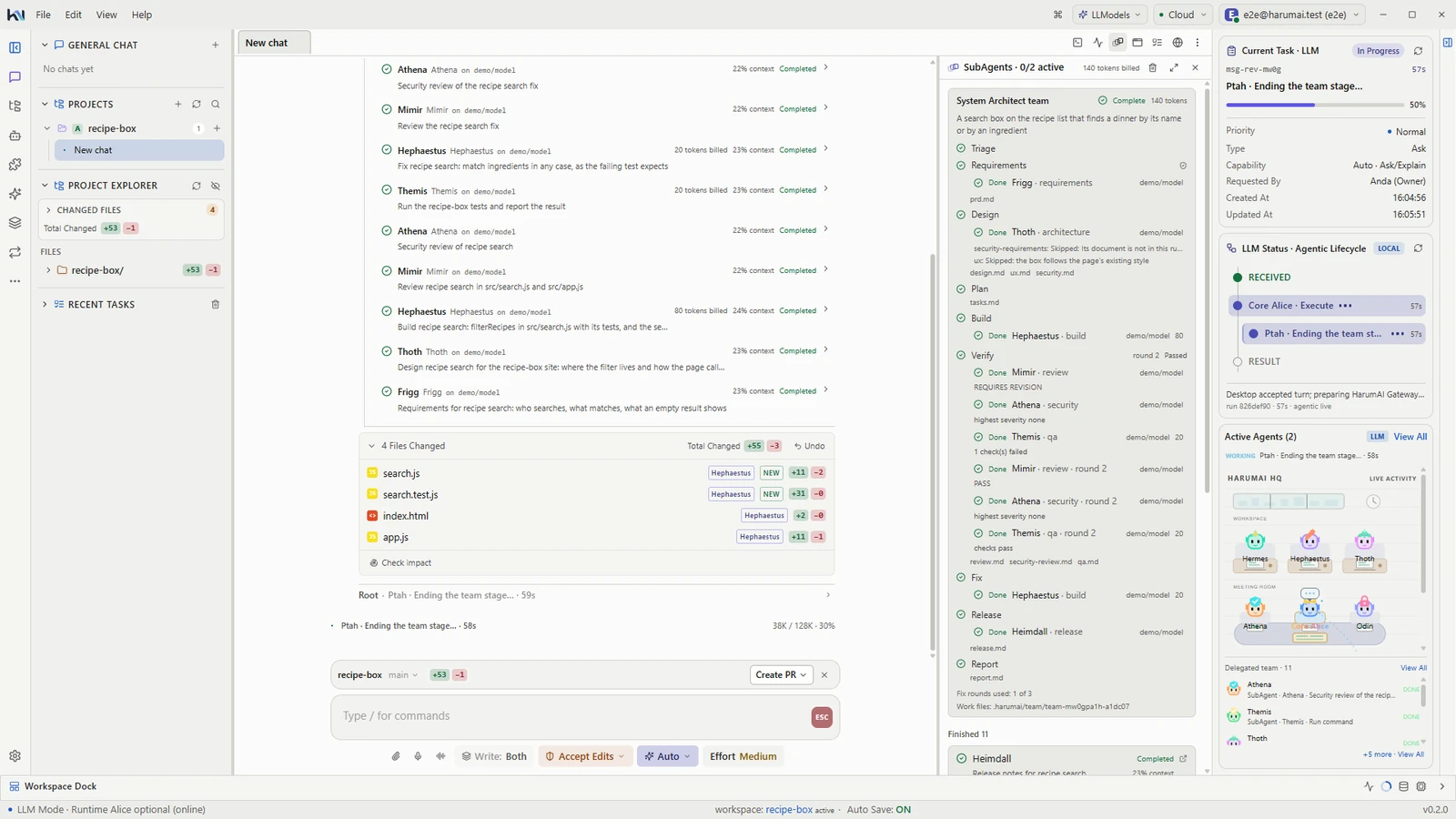
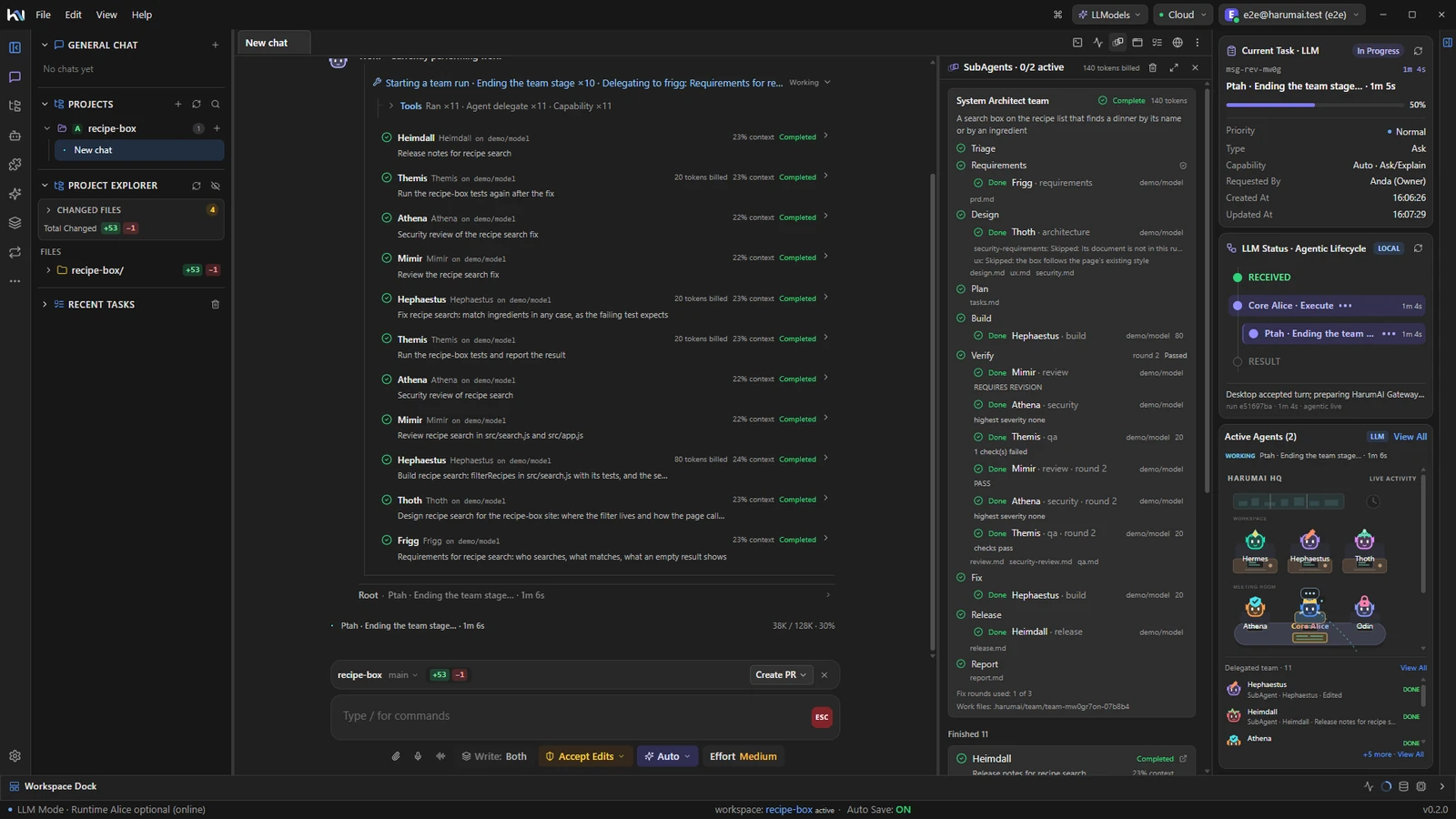
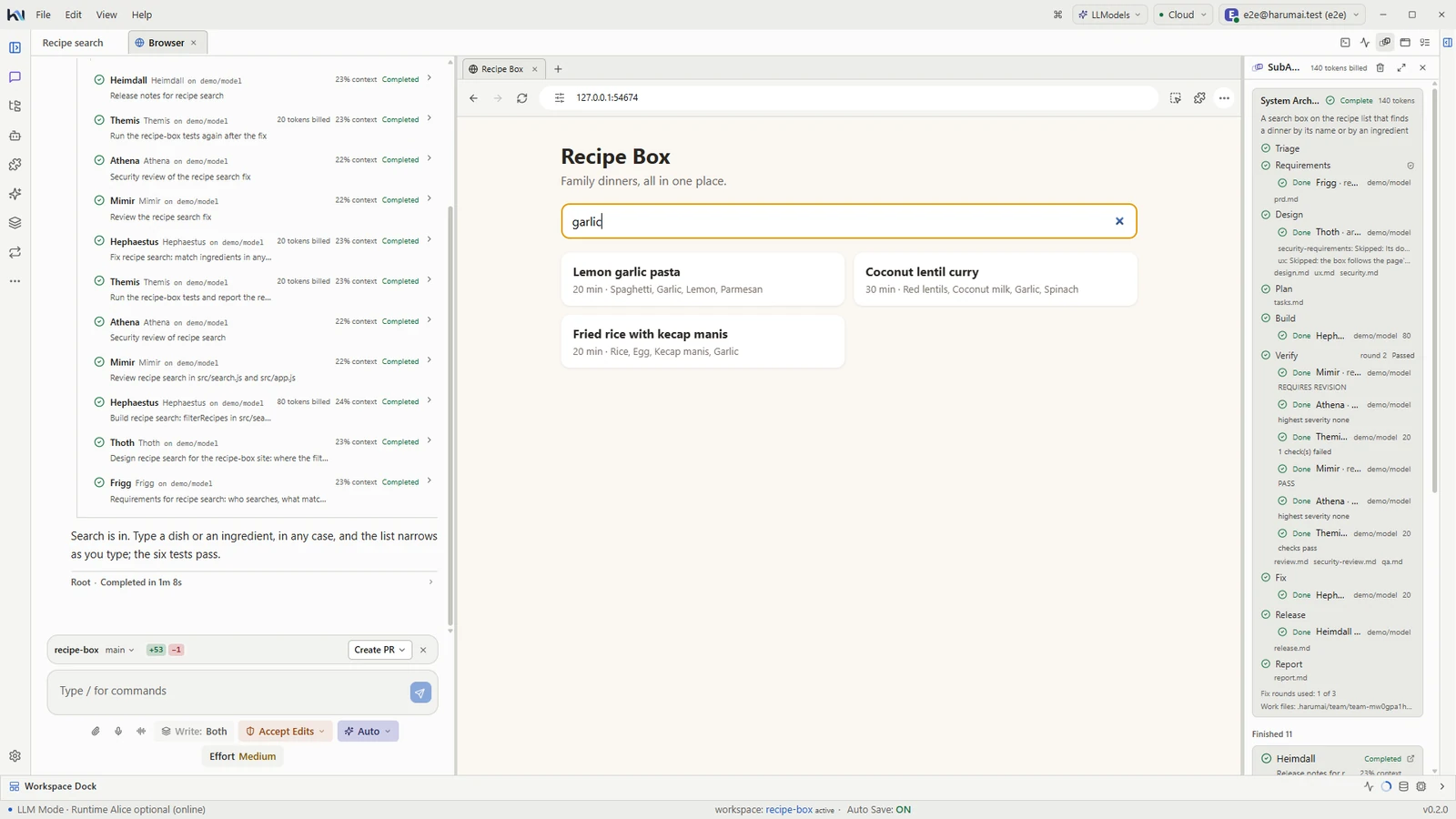
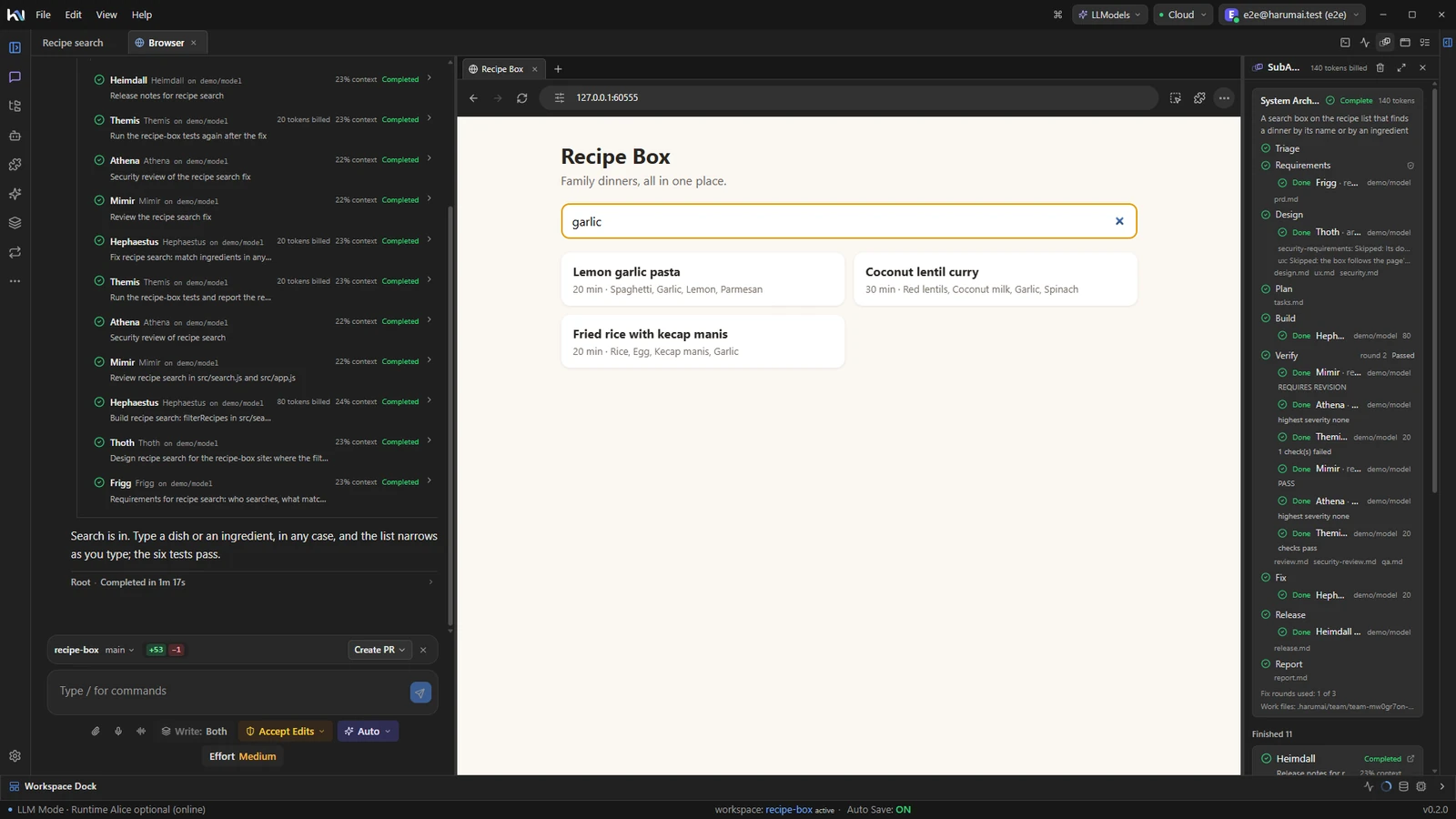
HarumAI with Team Orchestration on and a request typed in the recipe-site project: add a search box so people can find a dinner by name or by an ingredient.HarumAI with Team Orchestration on and a request typed in the recipe-site project: add a search box so people can find a dinner by name or by an ingredient.
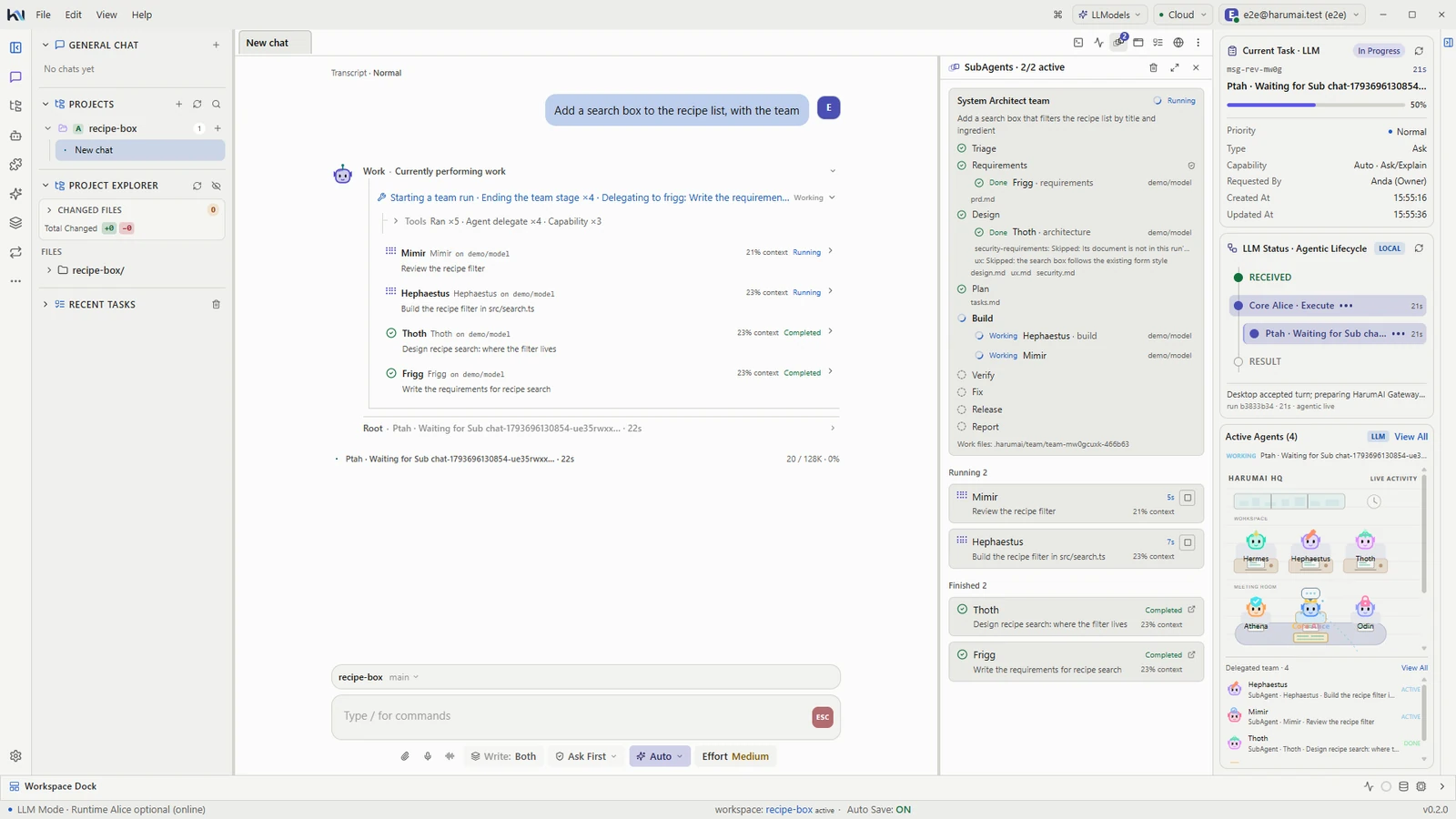
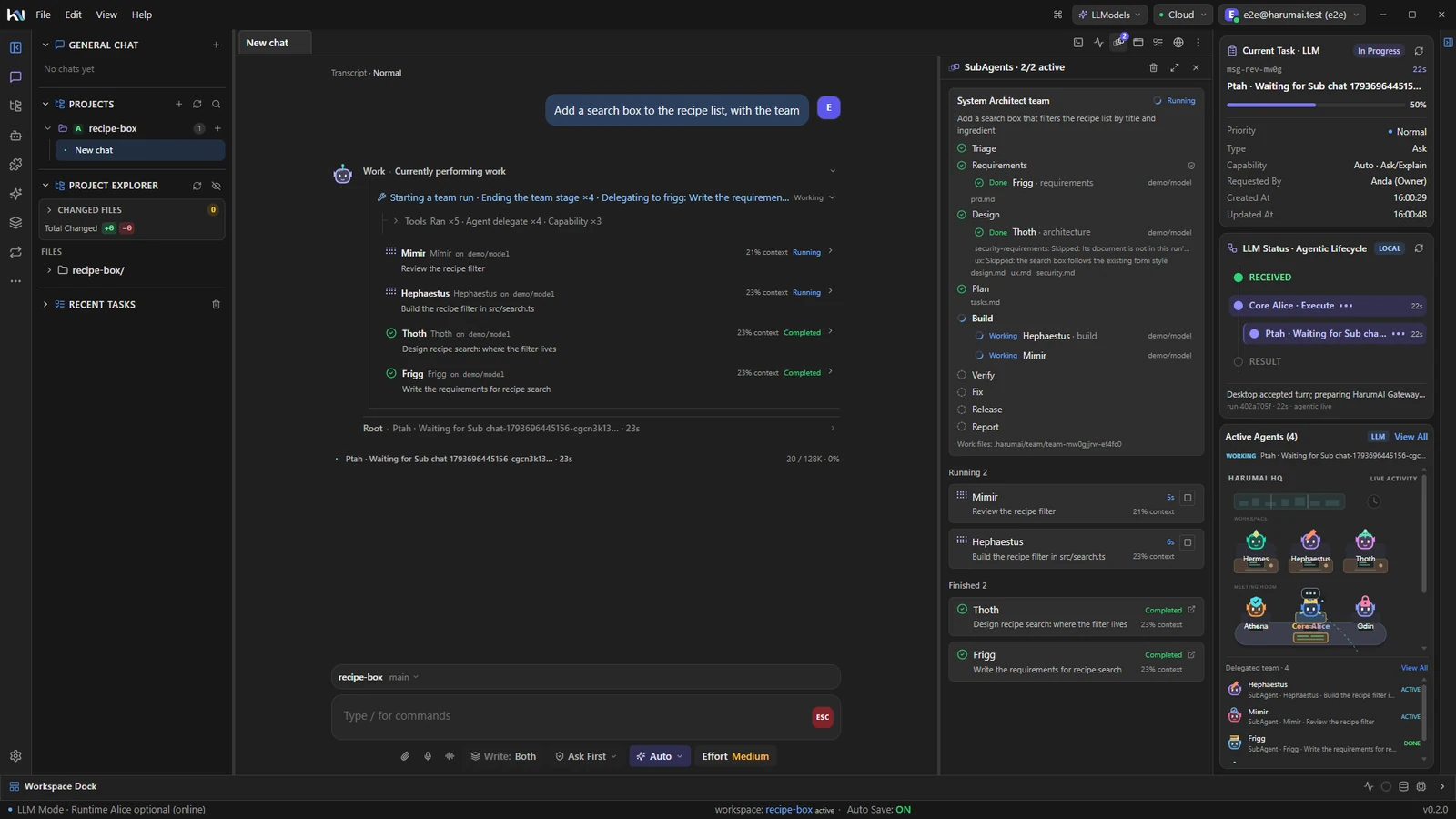
The real HarumAI app: a team run on a recipe site, from the request to the page in its own browser. Taken by an automated test with scripted replies.

HarumAI in numbers

Live Stats

Provider integrations
5
IDE configuration
Downloads
Not published yet
Registered users
Not published yet
Active in the last 30 days
Not published yet

Why HarumAI

Start with an idea and work through it with AI, with choices about your model, data and permissions.

You stay in control

  1. Cloud, local or your own server

    Choose HarumAI Cloud or the Local engine, which keeps its conversations on your computer. You can also connect to a model on your network.

  2. Choose the model that fits

    Pick a provider and model for your work. Check the provider's pricing to choose an option that fits your budget.

  3. Free to use

    Use HarumAI for personal or business work at no charge. Your chosen model provider may charge for usage.

Built to be trusted

  1. Choose your permissions

    Set how the agent can work and review requests when approval is needed. You can stop a run while it is working.

  2. Review changes in your project

    Inspect file changes and undo a turn when the files have not changed since. You can review the result before moving on.

  3. Bring your own model provider

    Connect providers including Anthropic, OpenAI and OpenRouter with your own key, then choose the model you want to use.

Room to grow

  1. Start with a conversation

    Describe a task in your own words. Discuss the approach with the agent and use Plan mode when you want to review a plan first.

  2. Grow alongside AI

    Ask questions about your project and explore the changes the agent proposes. Use the conversation to learn as you build.

  3. From idea to something real

    Have a website, app or automation in mind? Describe it and work with an agent on the code in your project.

What it does

The agent works inside your project folder, and you stay in charge of every change it makes.

  • Discuss, plan, then build

    Discuss what you want to make, answer questions and review a plan before continuing to the build.

    Discuss

    Describe the task in Plan mode before making project changes.

    Animated illustration based on a verified IDE E2E workflow with HQ Mode. The original test used the real IDE and Local engine with scripted sign-in and model responses.

    1. Discuss

      Describe the task in Plan mode before making project changes.

    2. Decide

      Answer the agent's question and choose how the project board should be organized.

    3. Review the plan

      Review the proposed step. The project file has not been created yet.

    4. Approve the edit

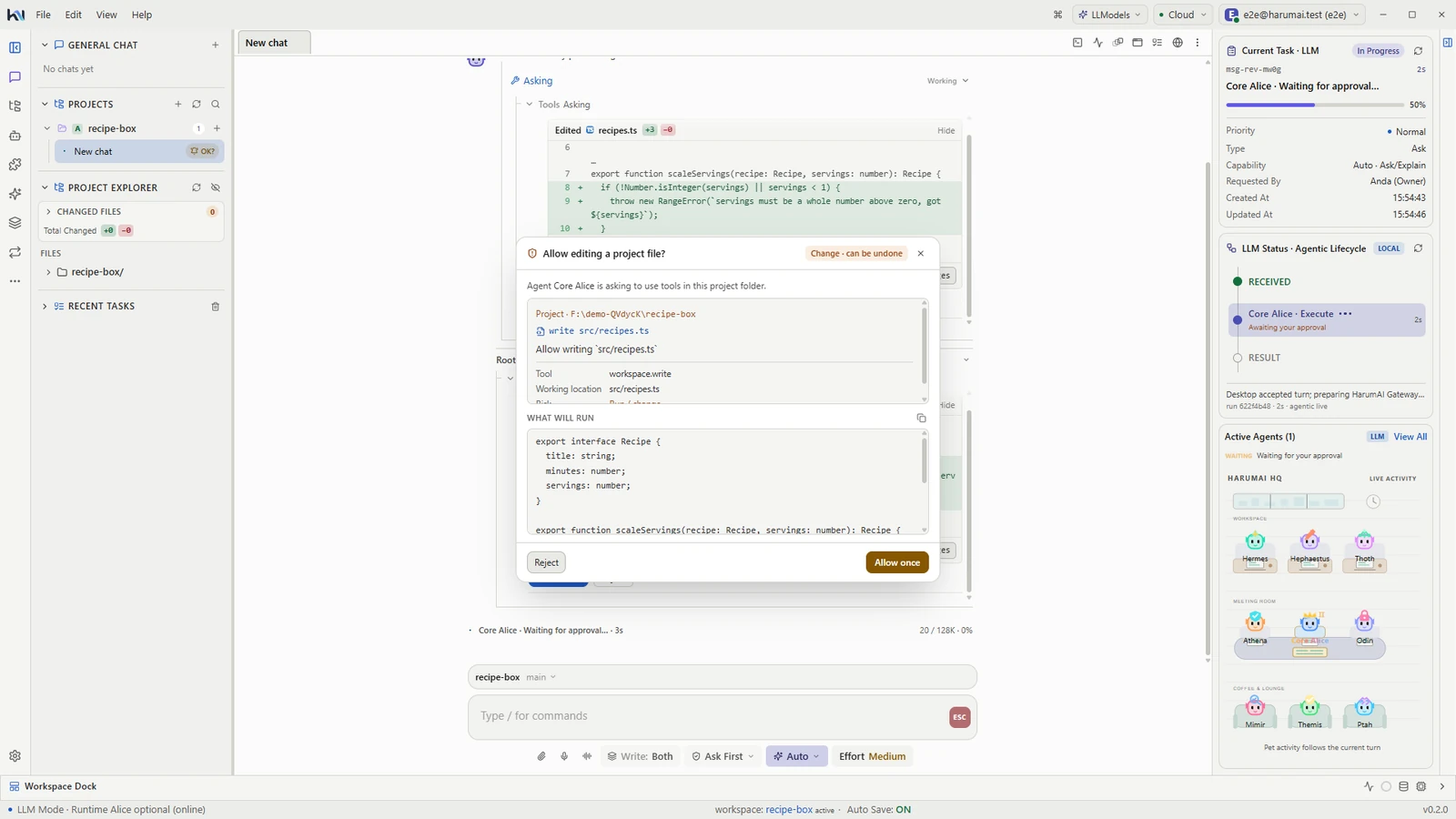
      Execute the plan, then approve the file write under Ask before edits.

    5. Building

      The IDE writes the file and completes the plan. The E2E test verifies the file contents on disk.

    6. View the result

      Open the generated page in the IDE browser. The E2E test checks its three status headings.

  • Review changes and undo a turn

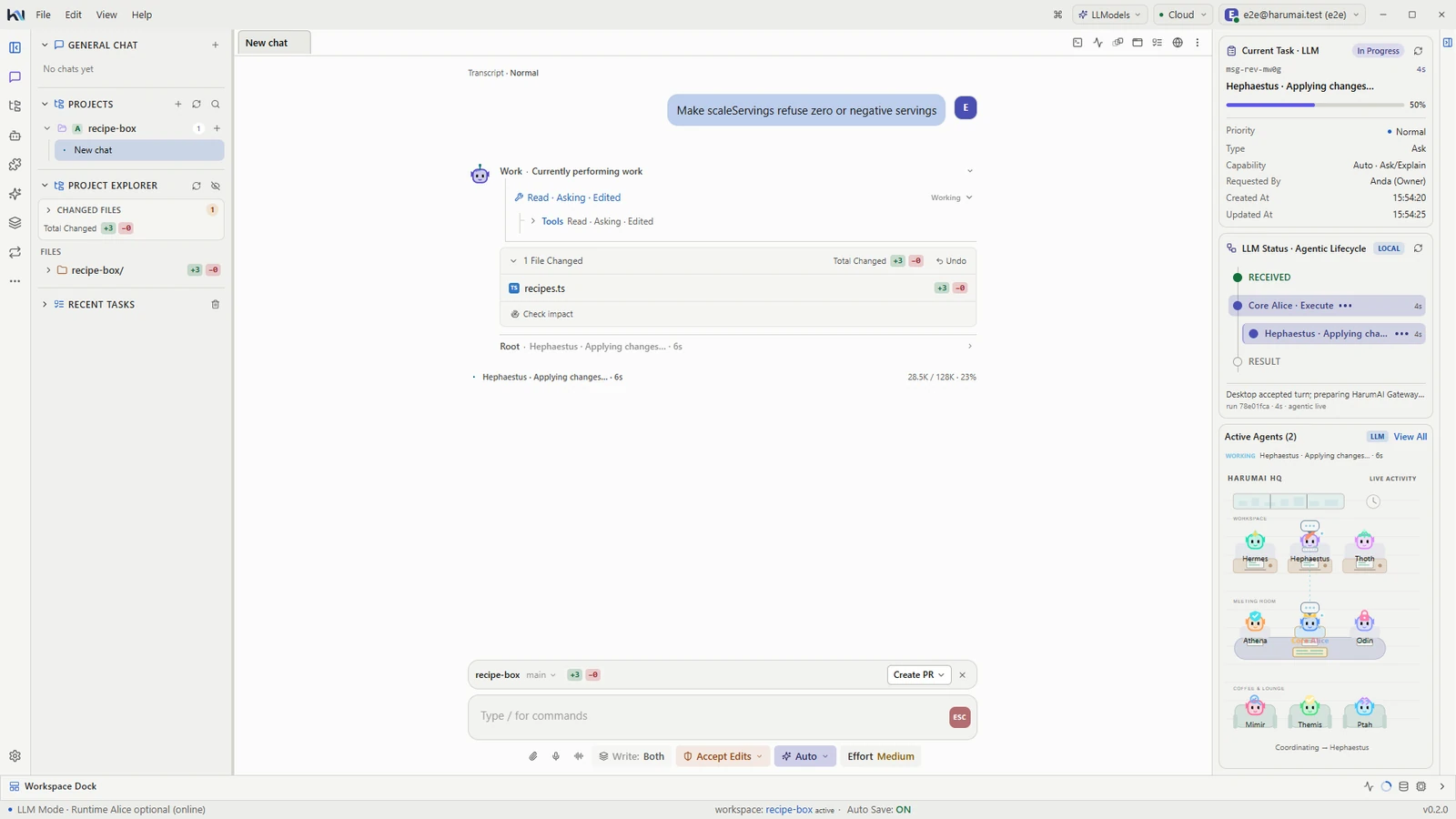
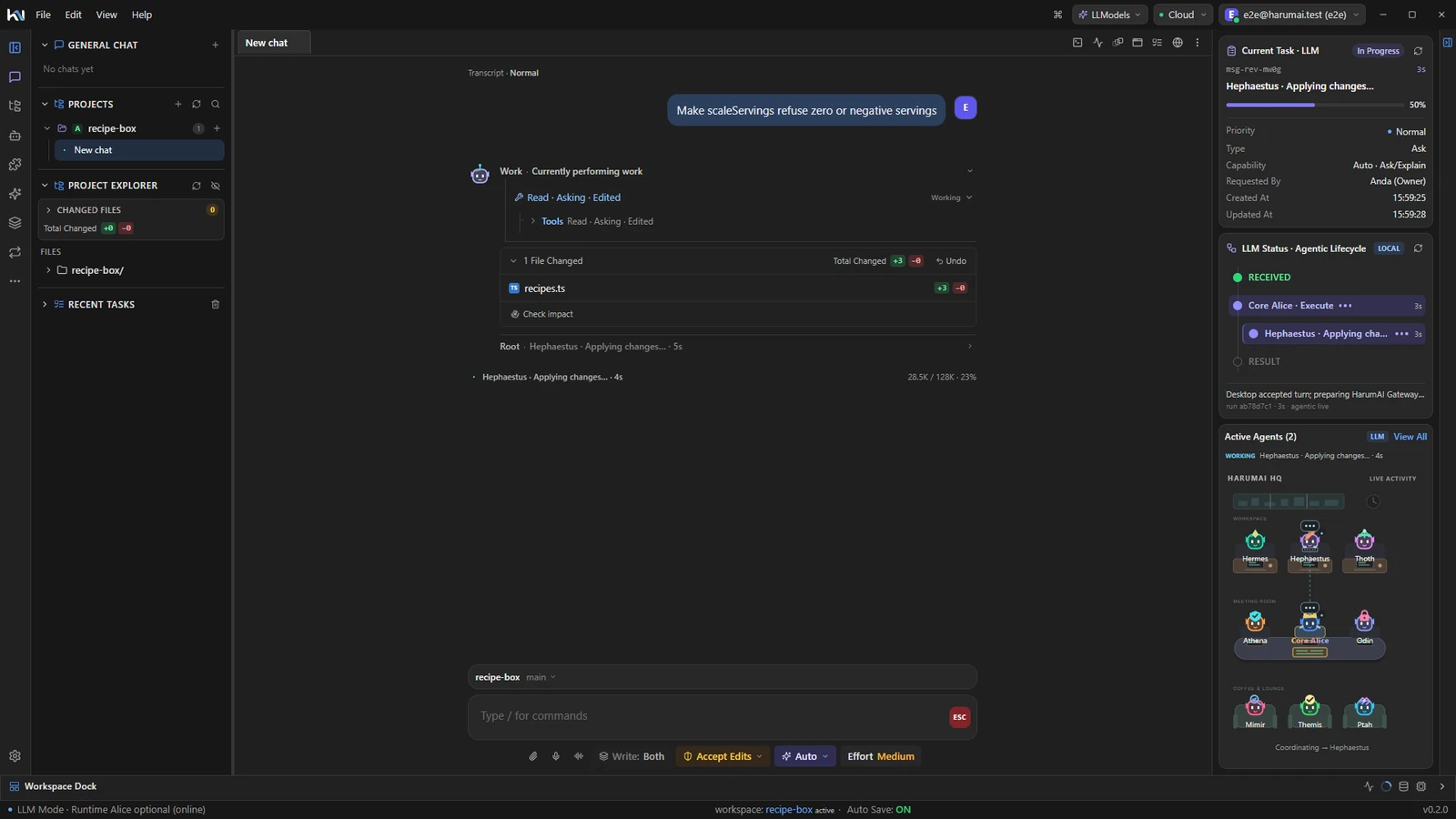
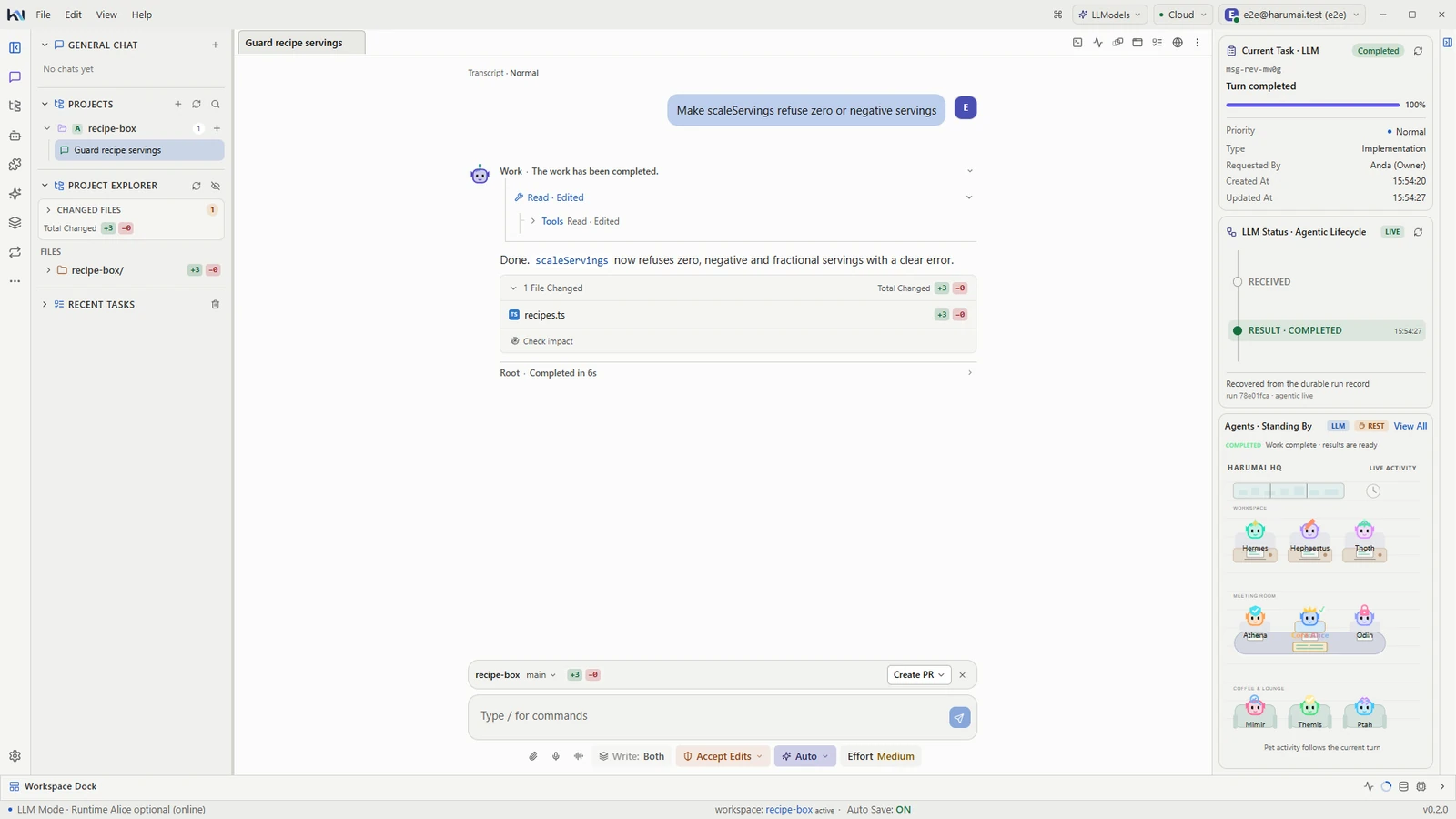
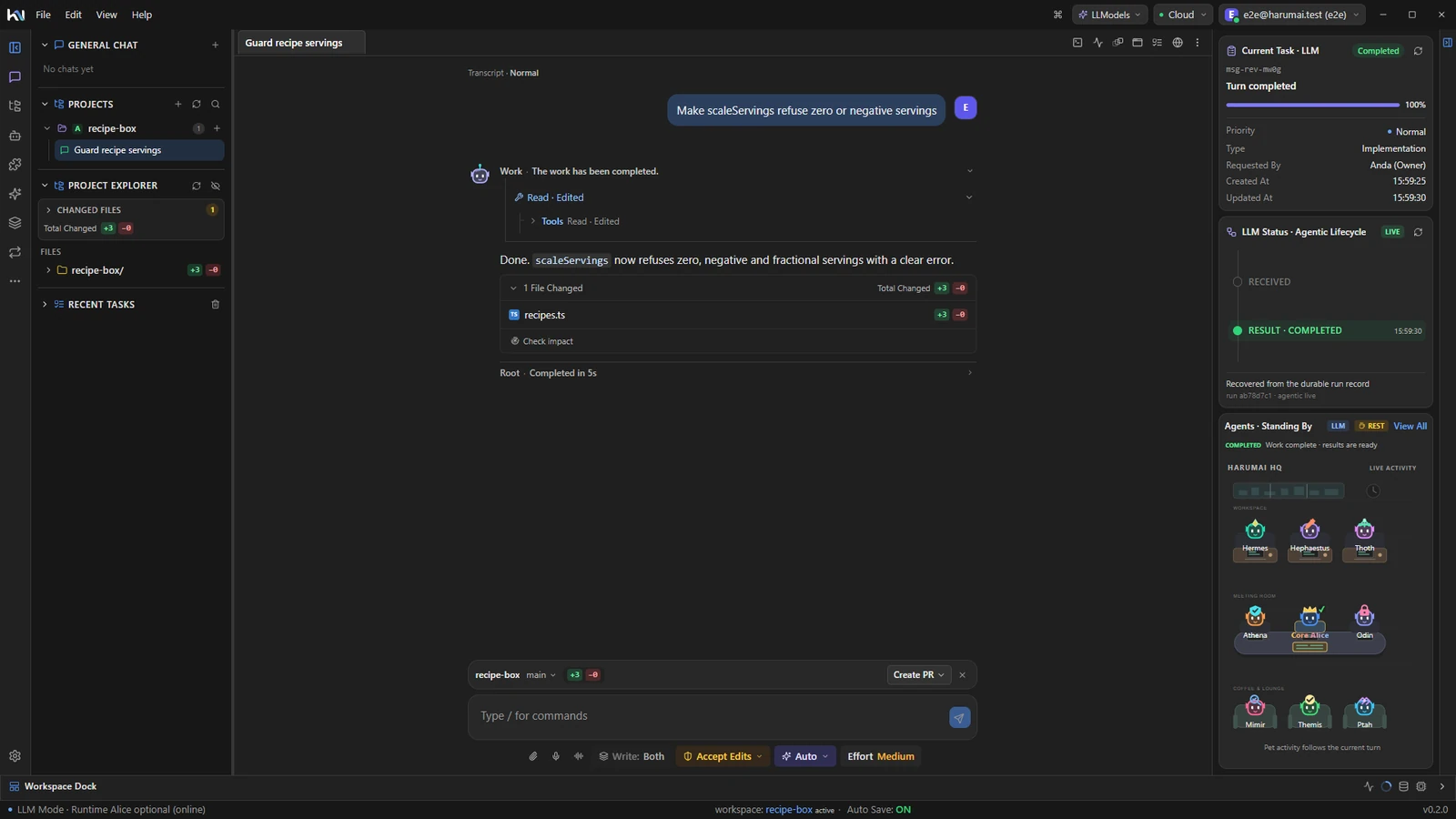
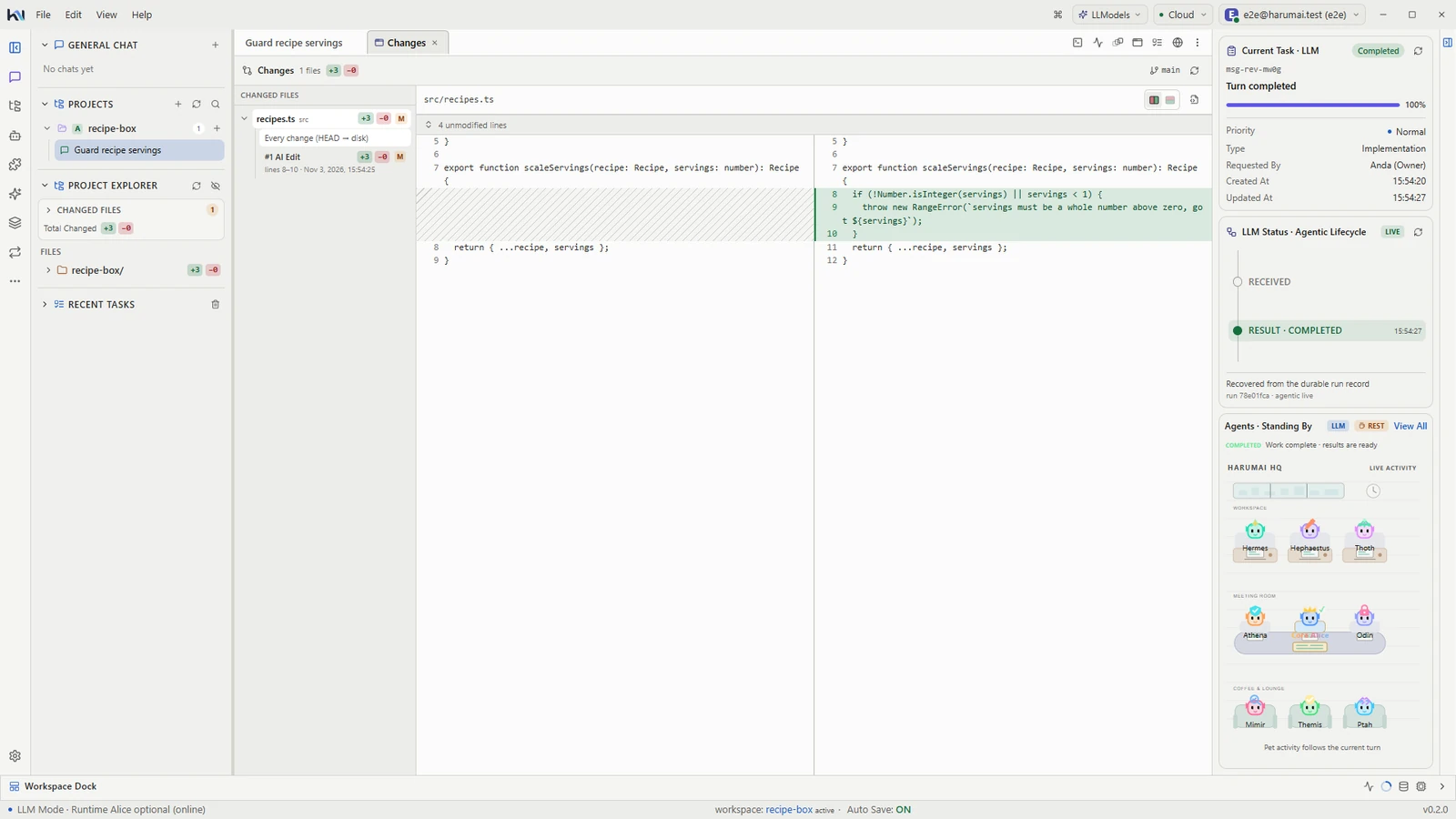
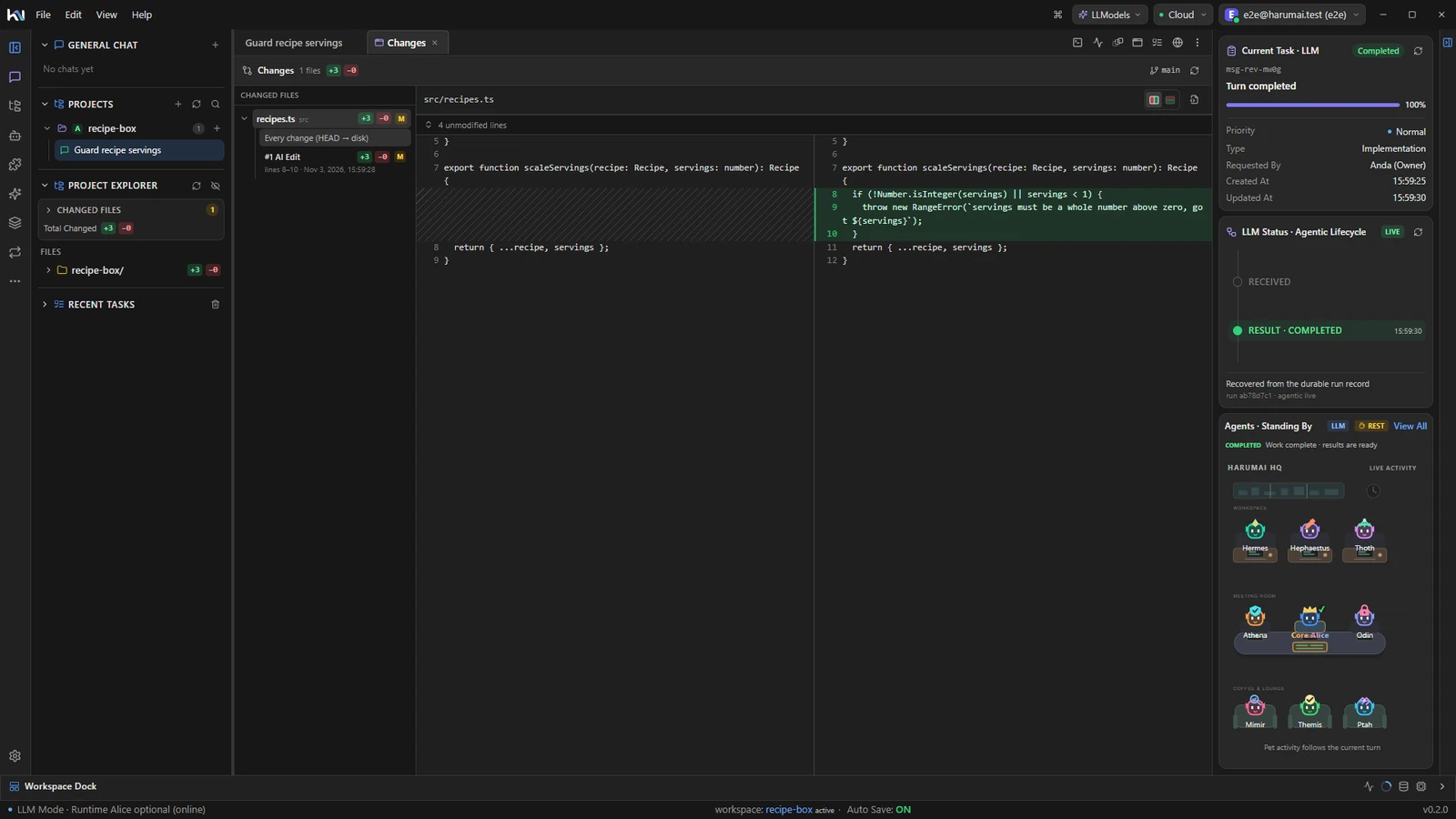
    Review file changes and undo a turn when its files have not changed since. Your uncommitted work is named before the agent writes over it.

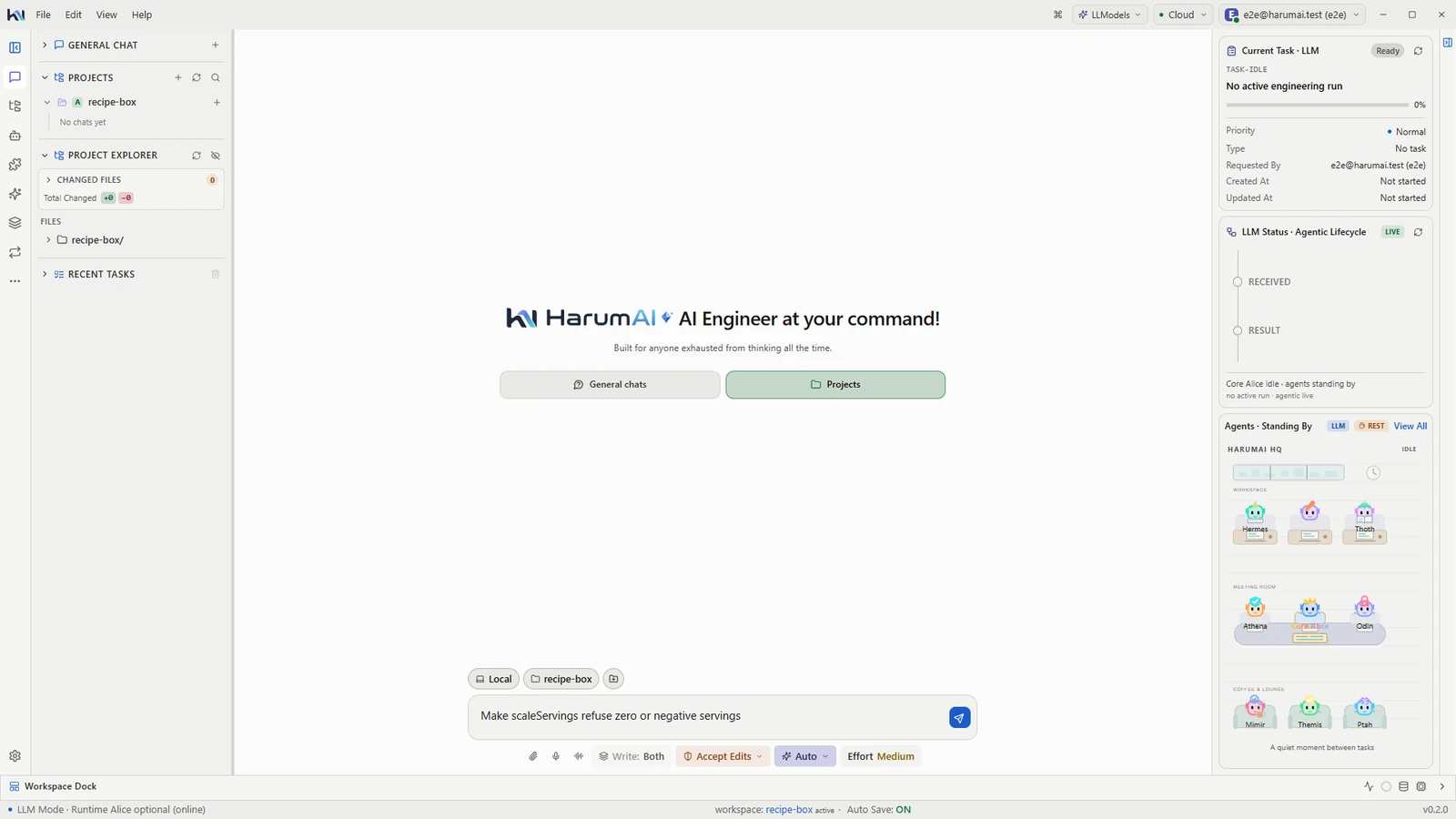
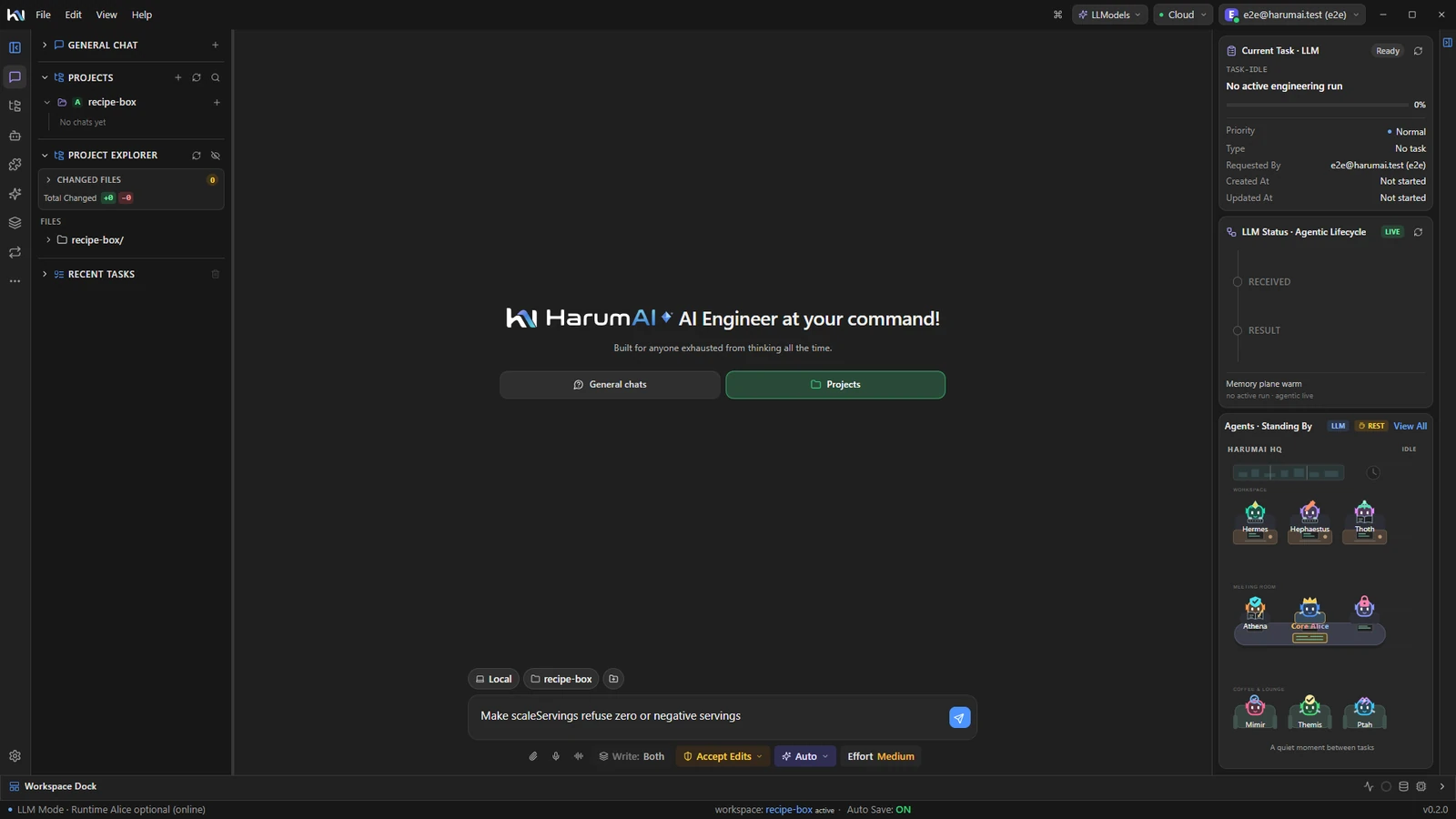
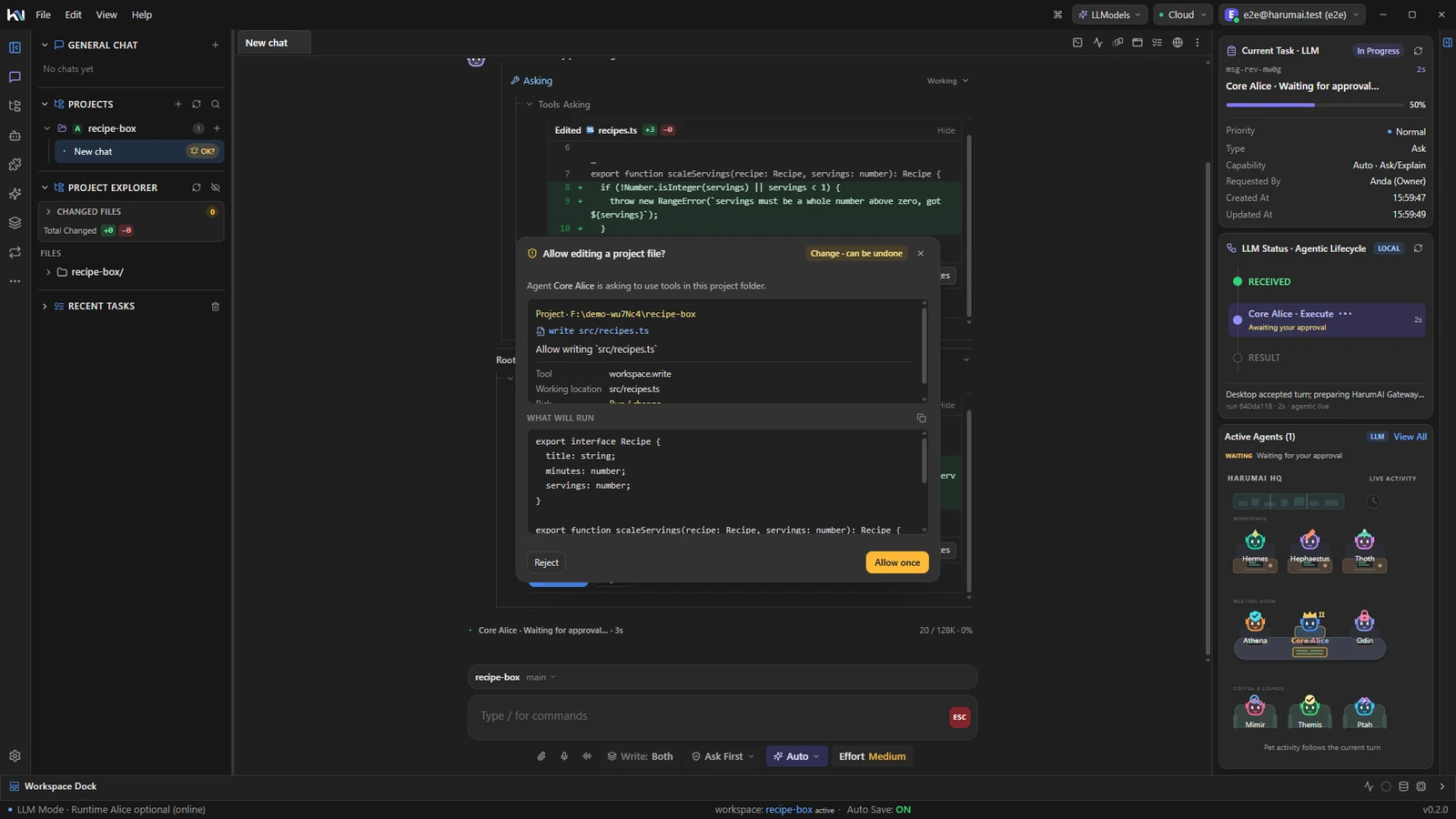
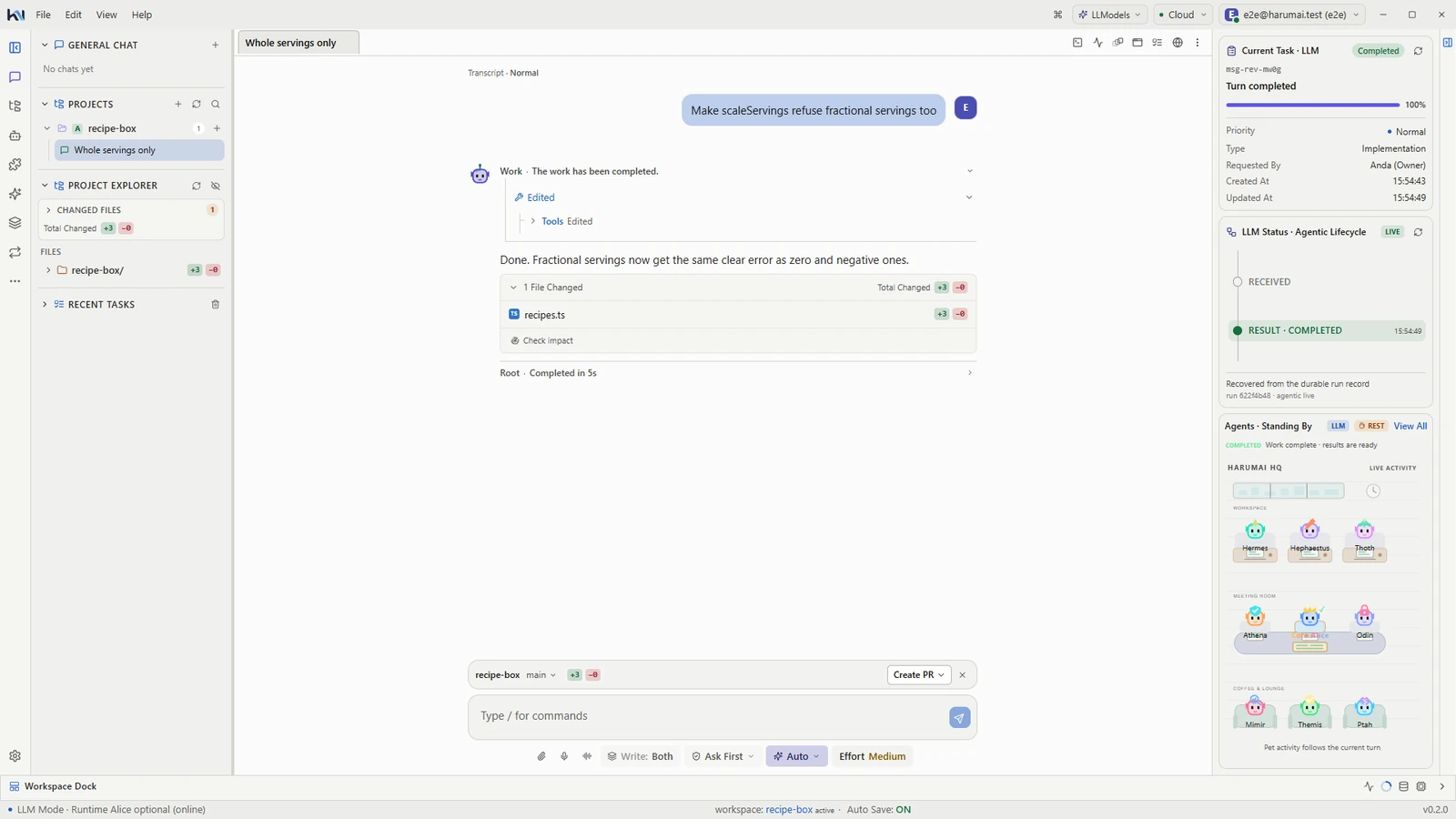
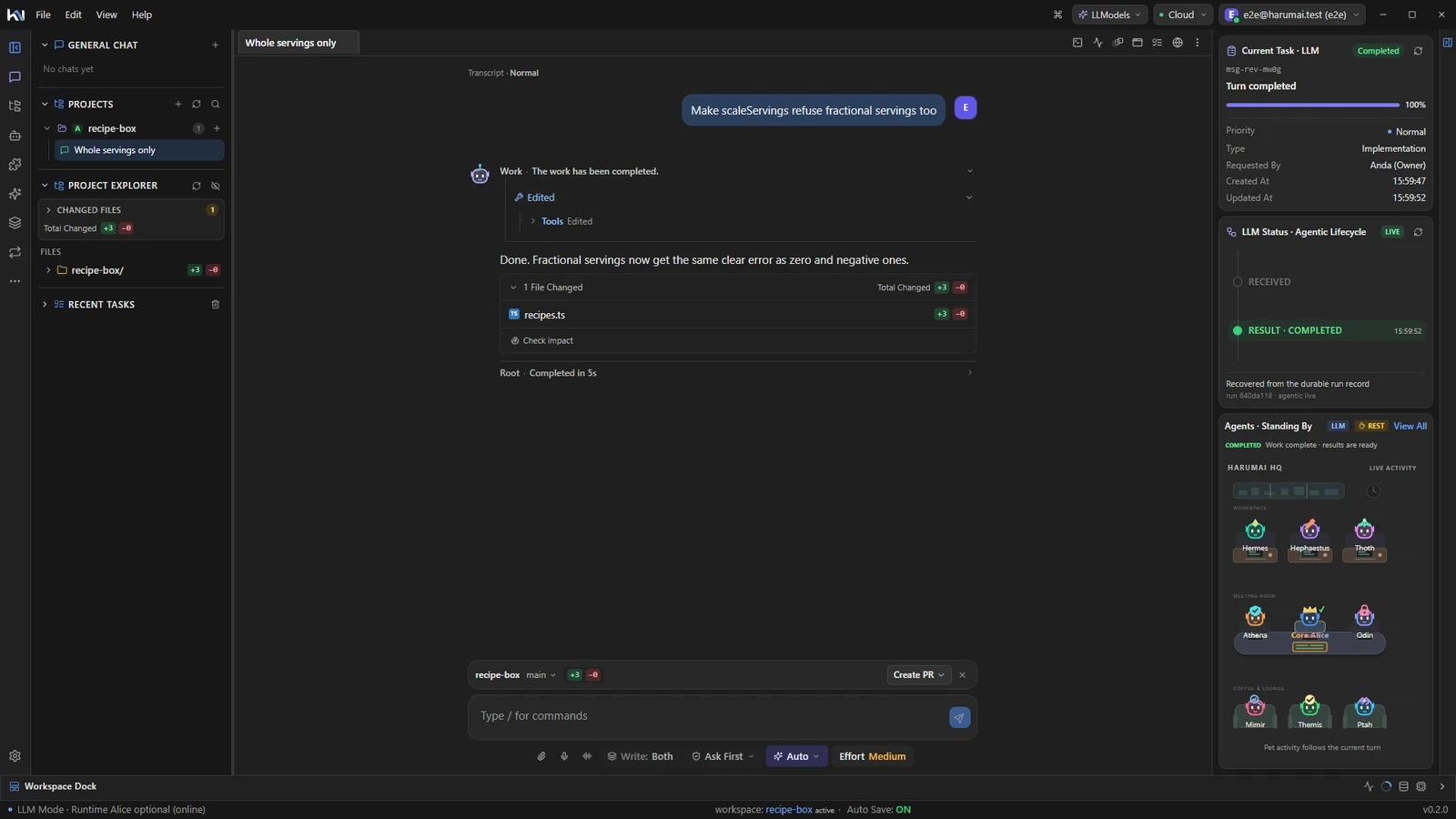
    HarumAI chat in the recipe-box project with a request typed in the prompt box: make scaleServings refuse zero or negative servings.HarumAI chat in the recipe-box project with a request typed in the prompt box: make scaleServings refuse zero or negative servings.
  • Set permissions for the way you work

    Choose permission settings and review actions when approval is required. You can stop a run while it is working.

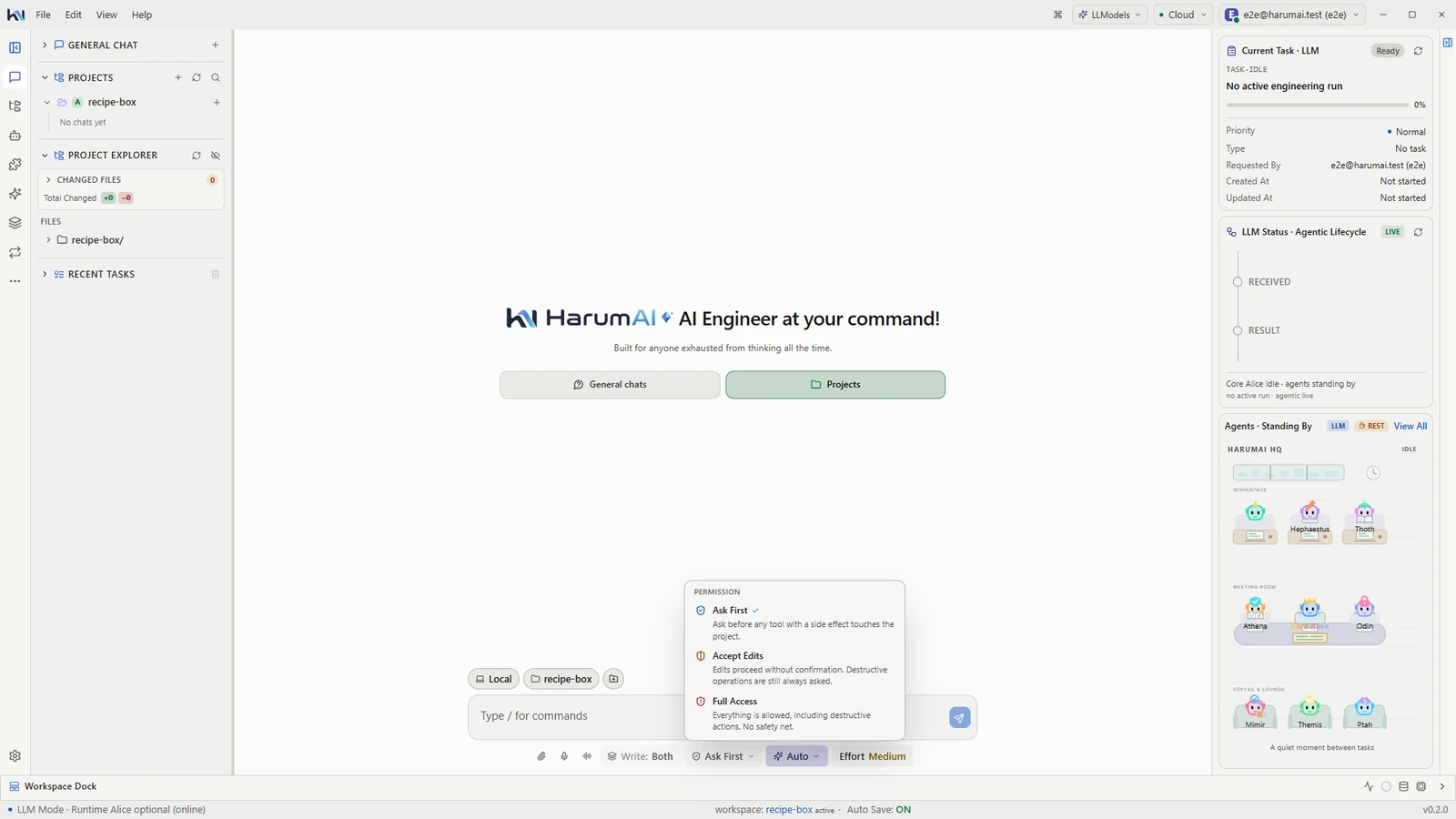
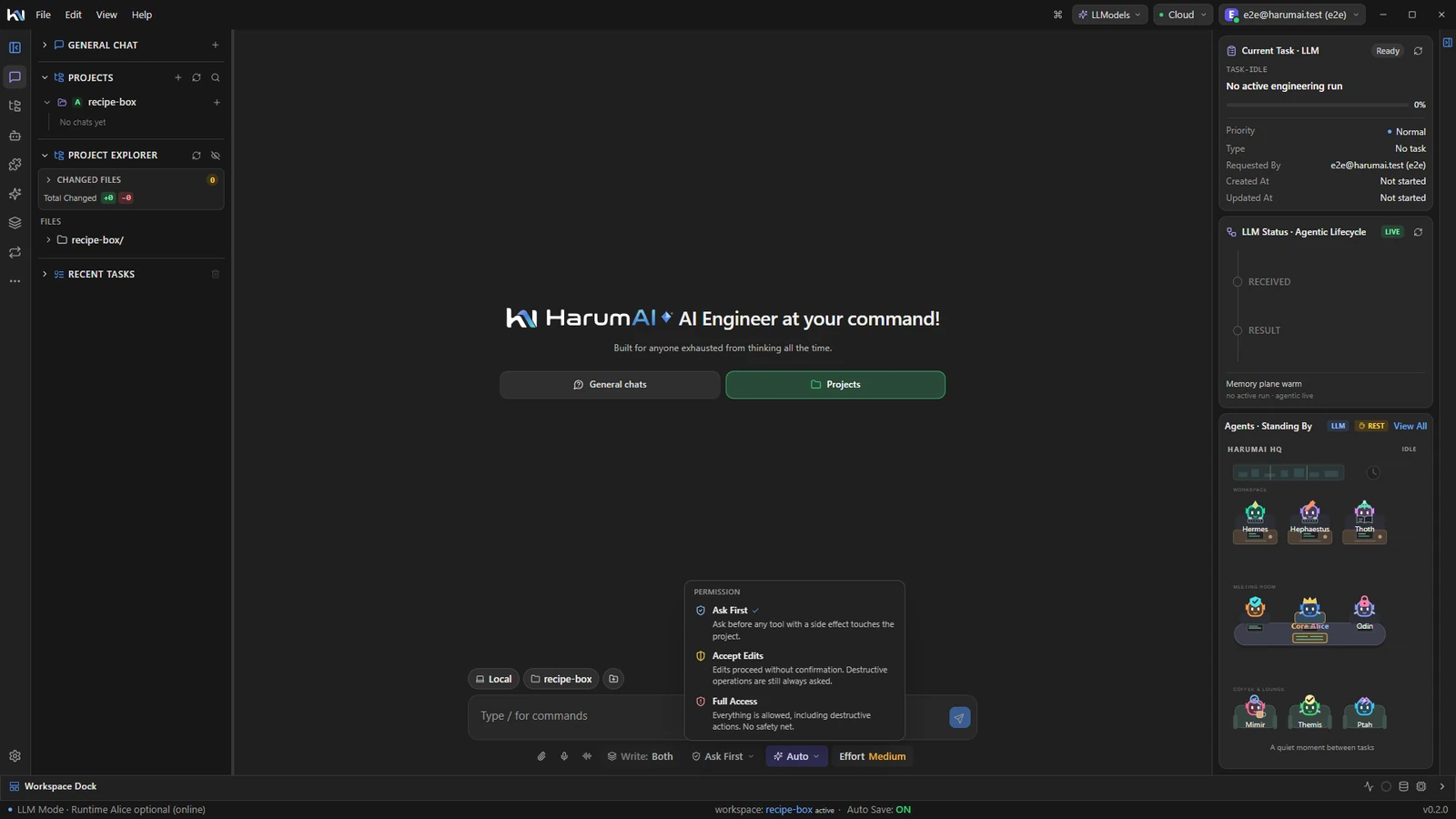
    HarumAI with the permission menu open under the prompt box: Ask First, Accept Edits and Full Access, each with what it allows.HarumAI with the permission menu open under the prompt box: Ask First, Accept Edits and Full Access, each with what it allows.
  • Bring the model provider you already use

    Connect providers such as Anthropic, OpenAI and OpenRouter with your own key, then choose a model for your work.

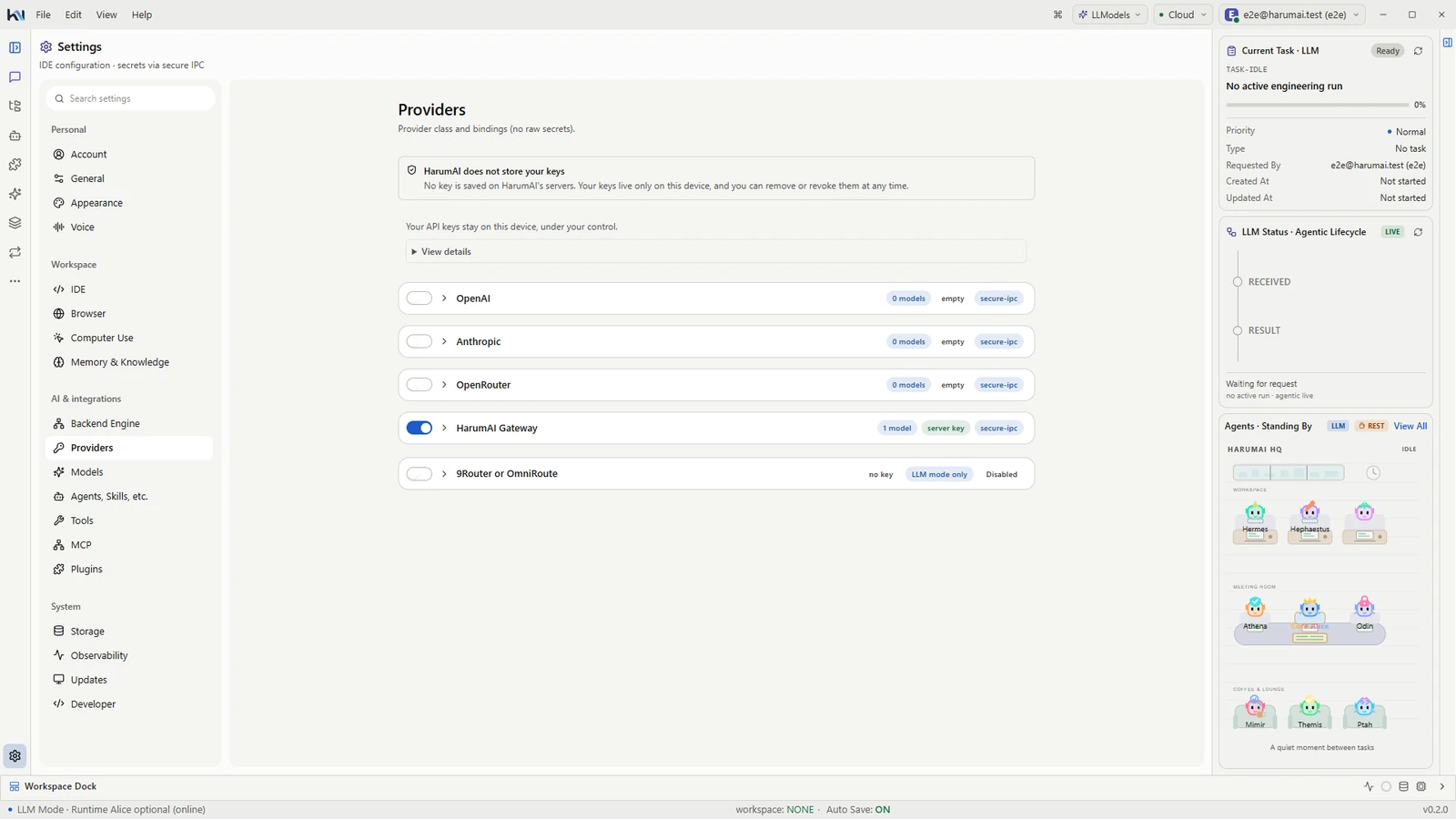
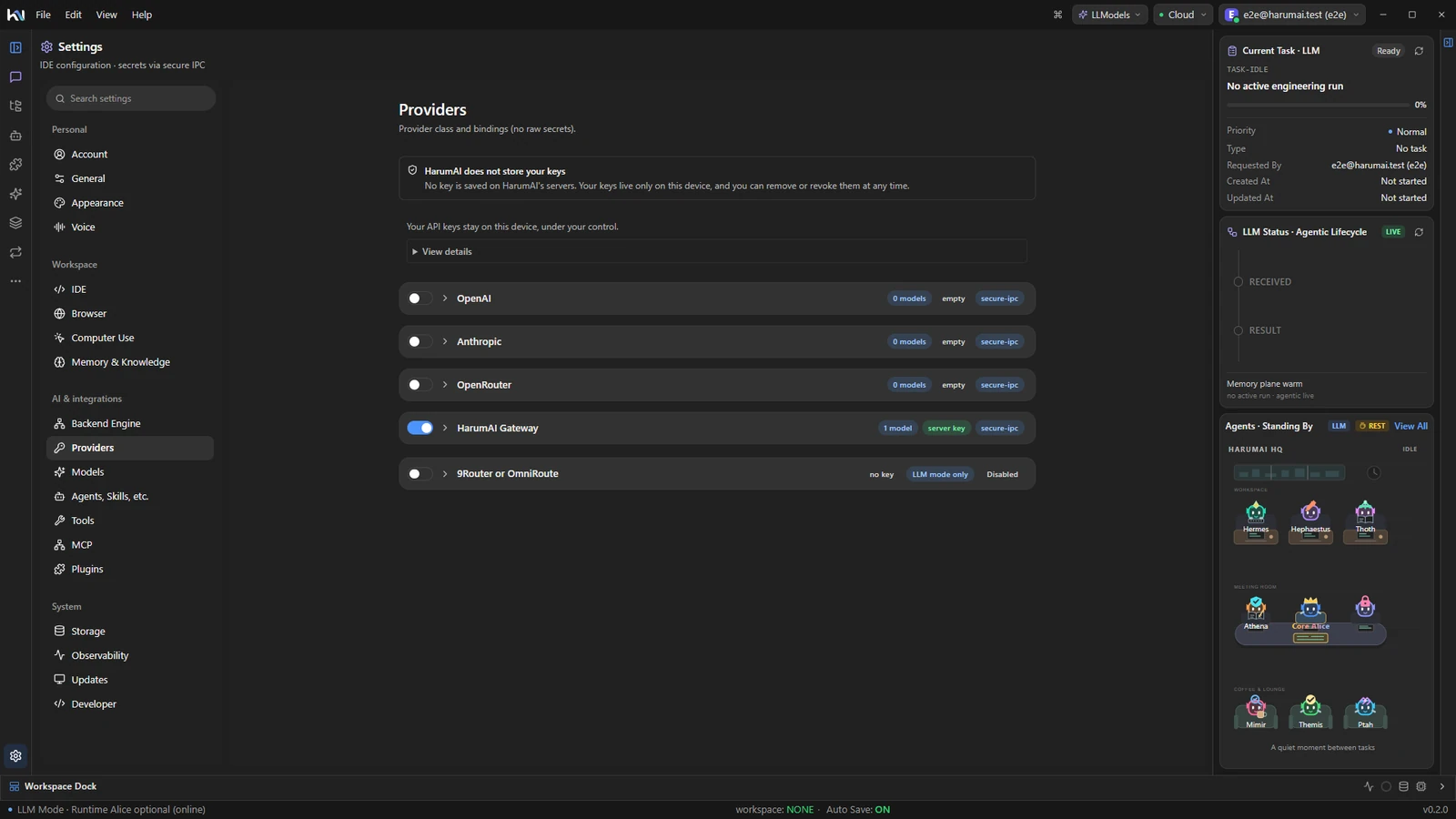
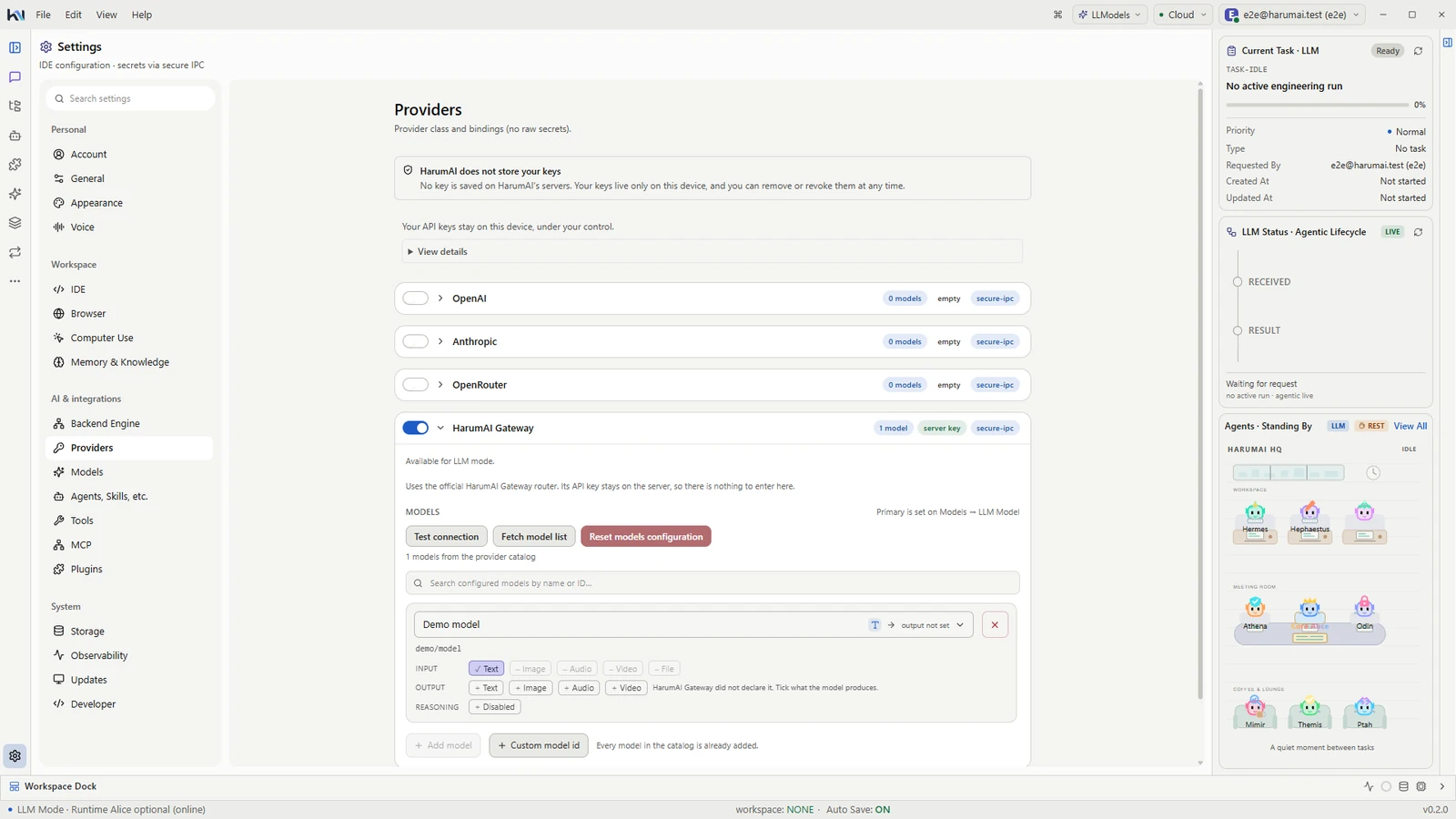
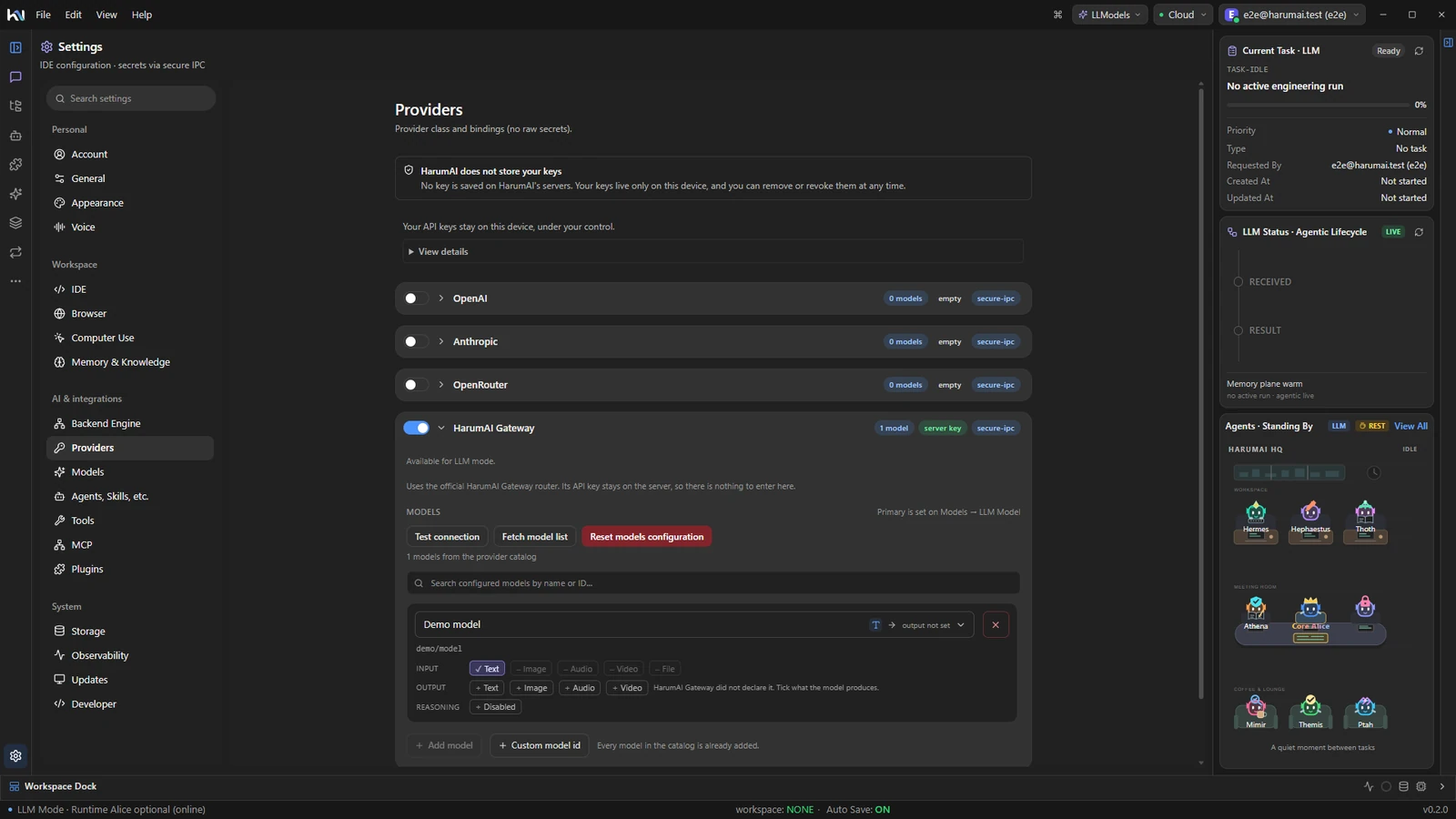
    HarumAI Settings, Providers page: OpenAI, Anthropic, OpenRouter, HarumAI Gateway and 9Router or OmniRoute, each with its own switch, under a note that keys stay on this device.HarumAI Settings, Providers page: OpenAI, Anthropic, OpenRouter, HarumAI Gateway and 9Router or OmniRoute, each with its own switch, under a note that keys stay on this device.
  • Work with a team of agents

    Enable Team Orchestration to share work across agents for planning, building and review, with progress visible in the IDE.

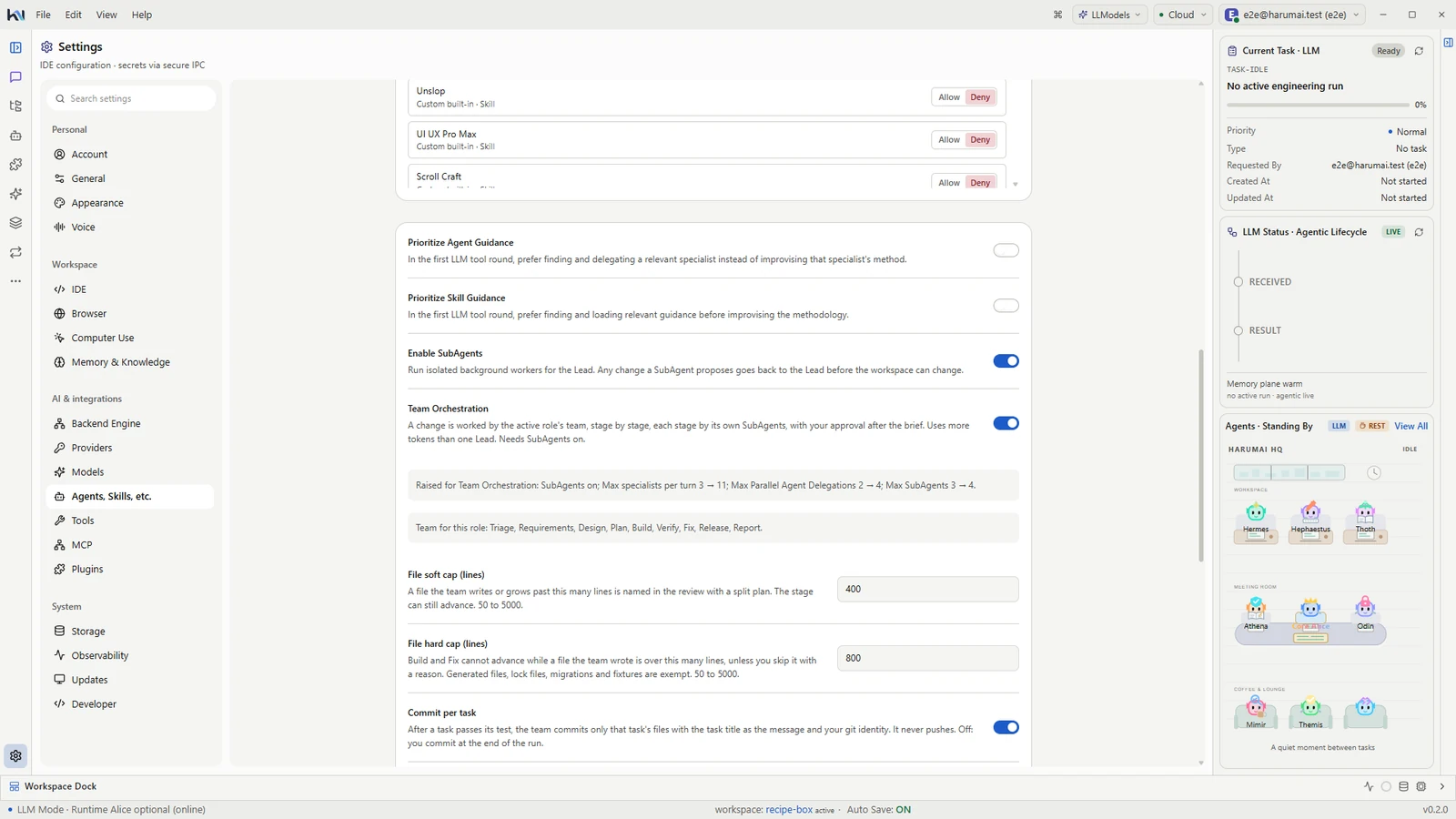
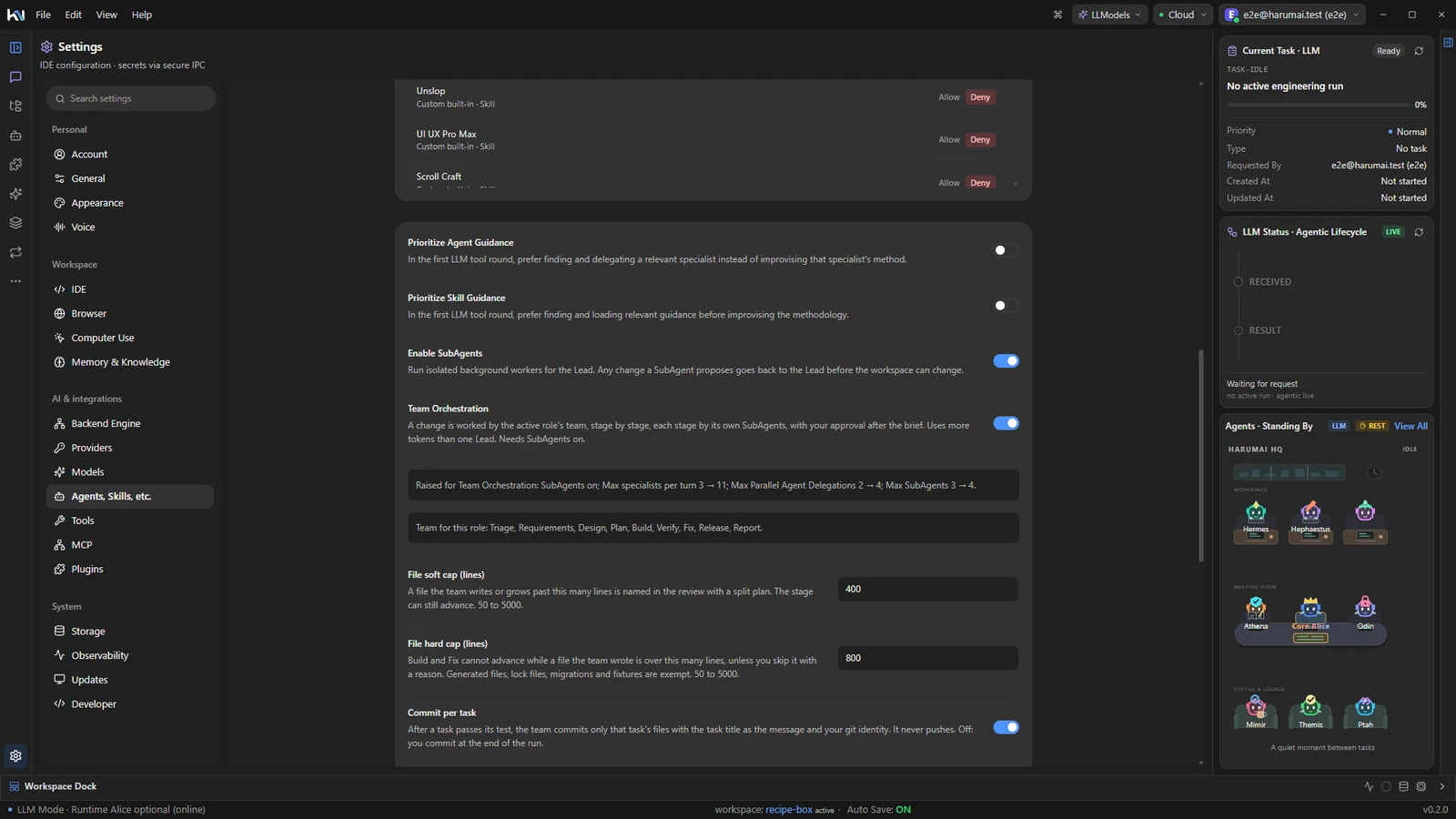
    HarumAI Settings, Agents and Skills page, with Team Orchestration switched on and SubAgents on with it.HarumAI Settings, Agents and Skills page, with Team Orchestration switched on and SubAgents on with it.
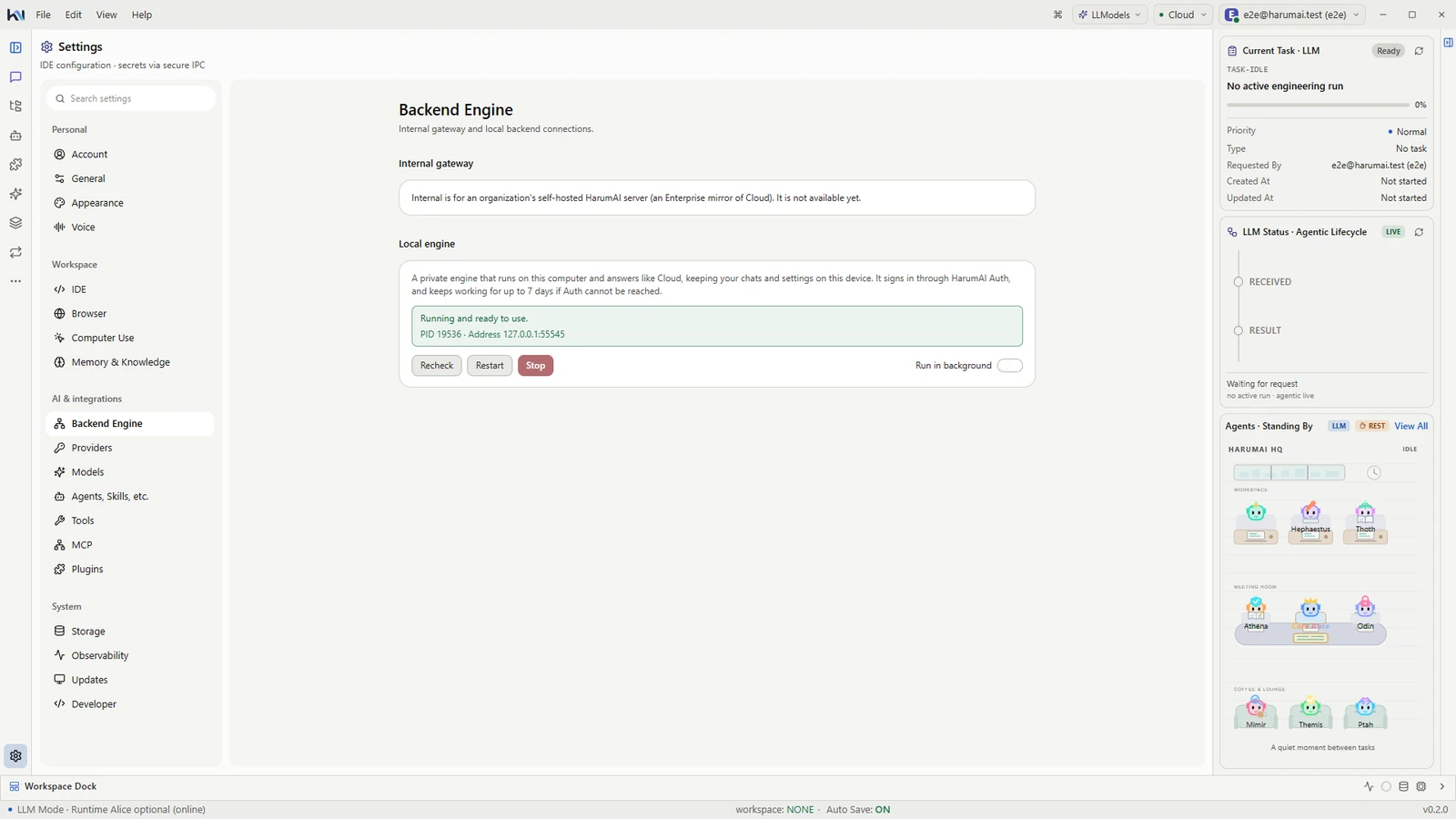
  • Run the backend on your own computer

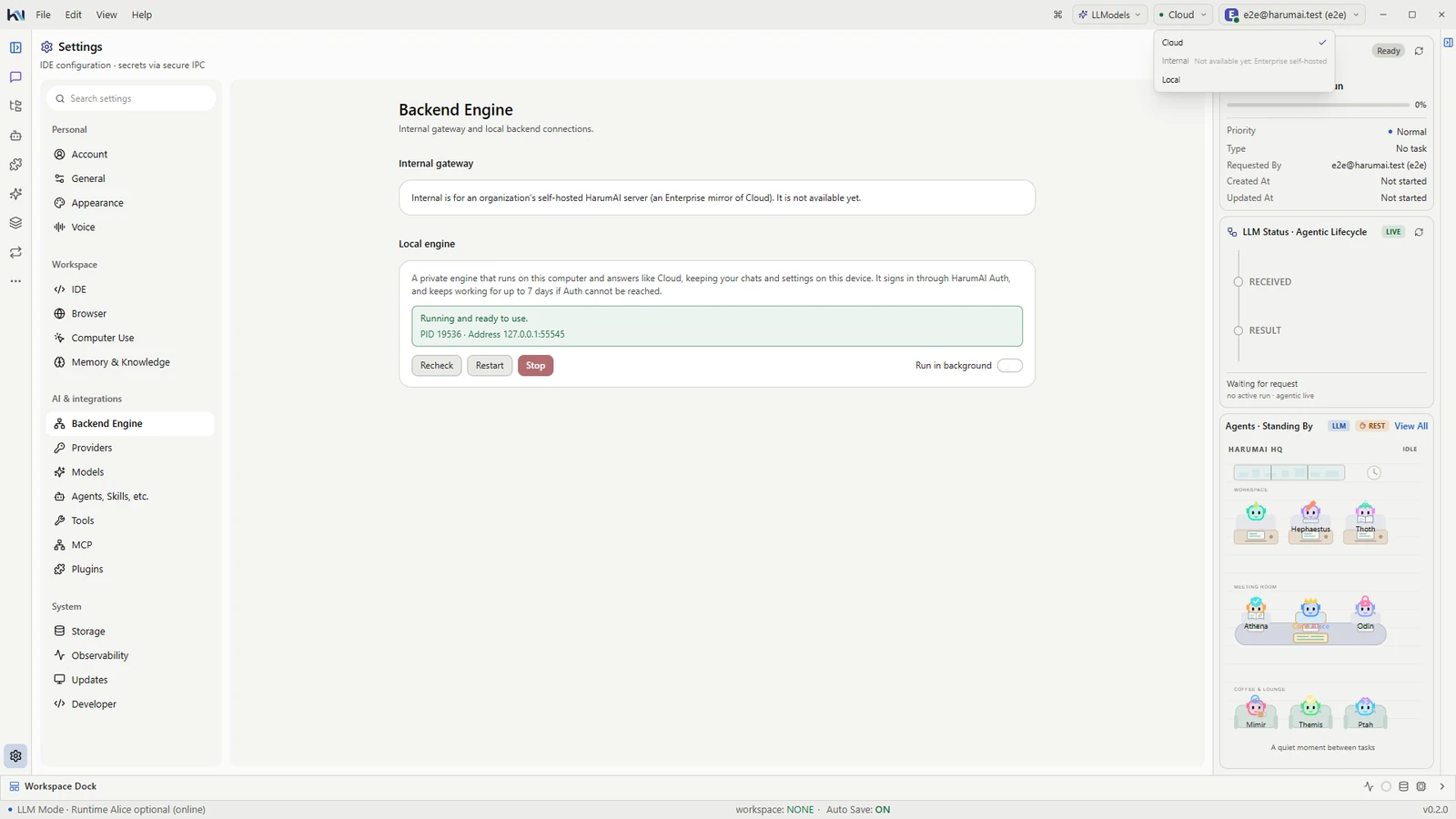
    Choose Local to run the HarumAI engine and store its conversations on your computer. Your chosen model provider may still be online.

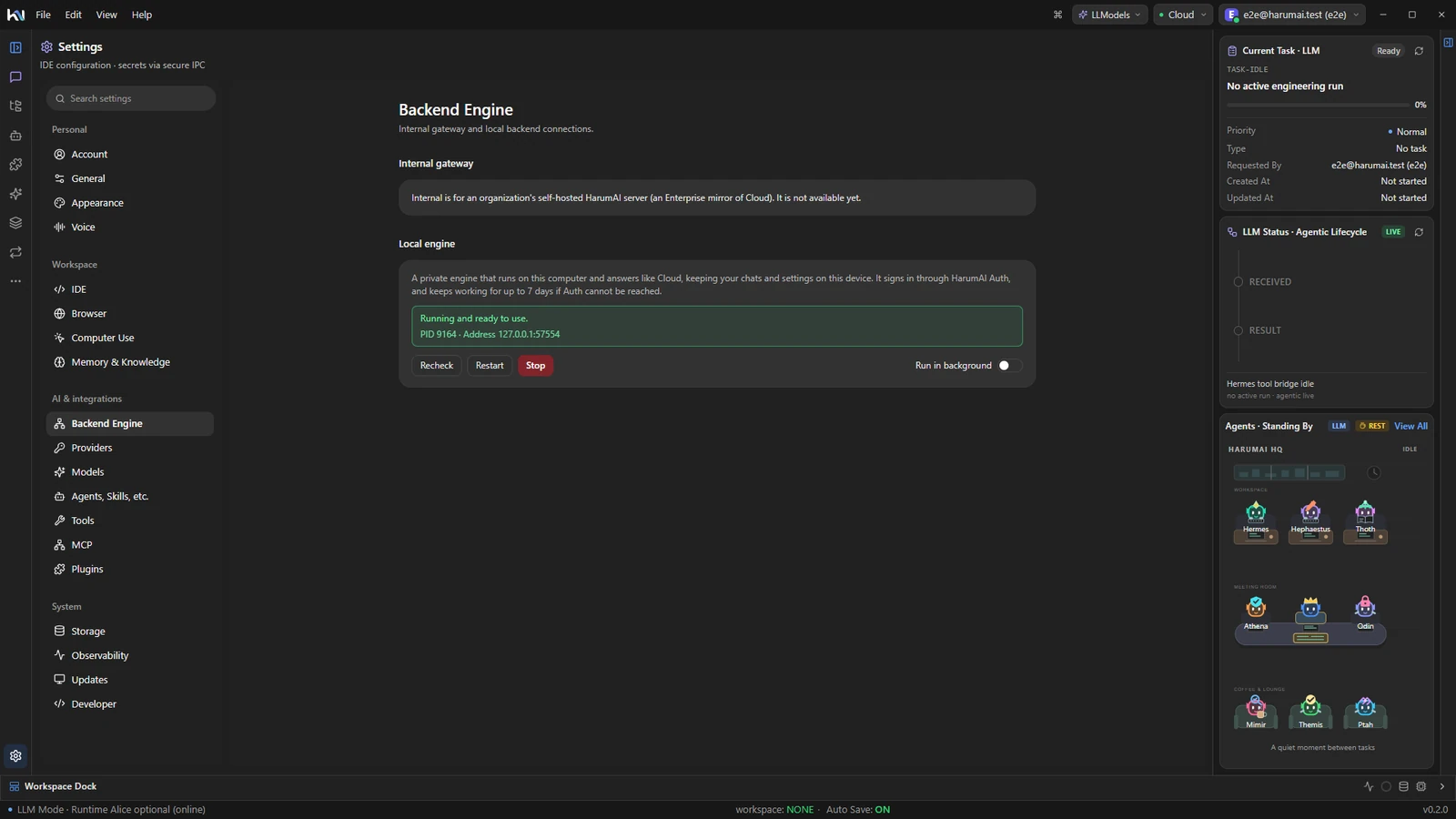
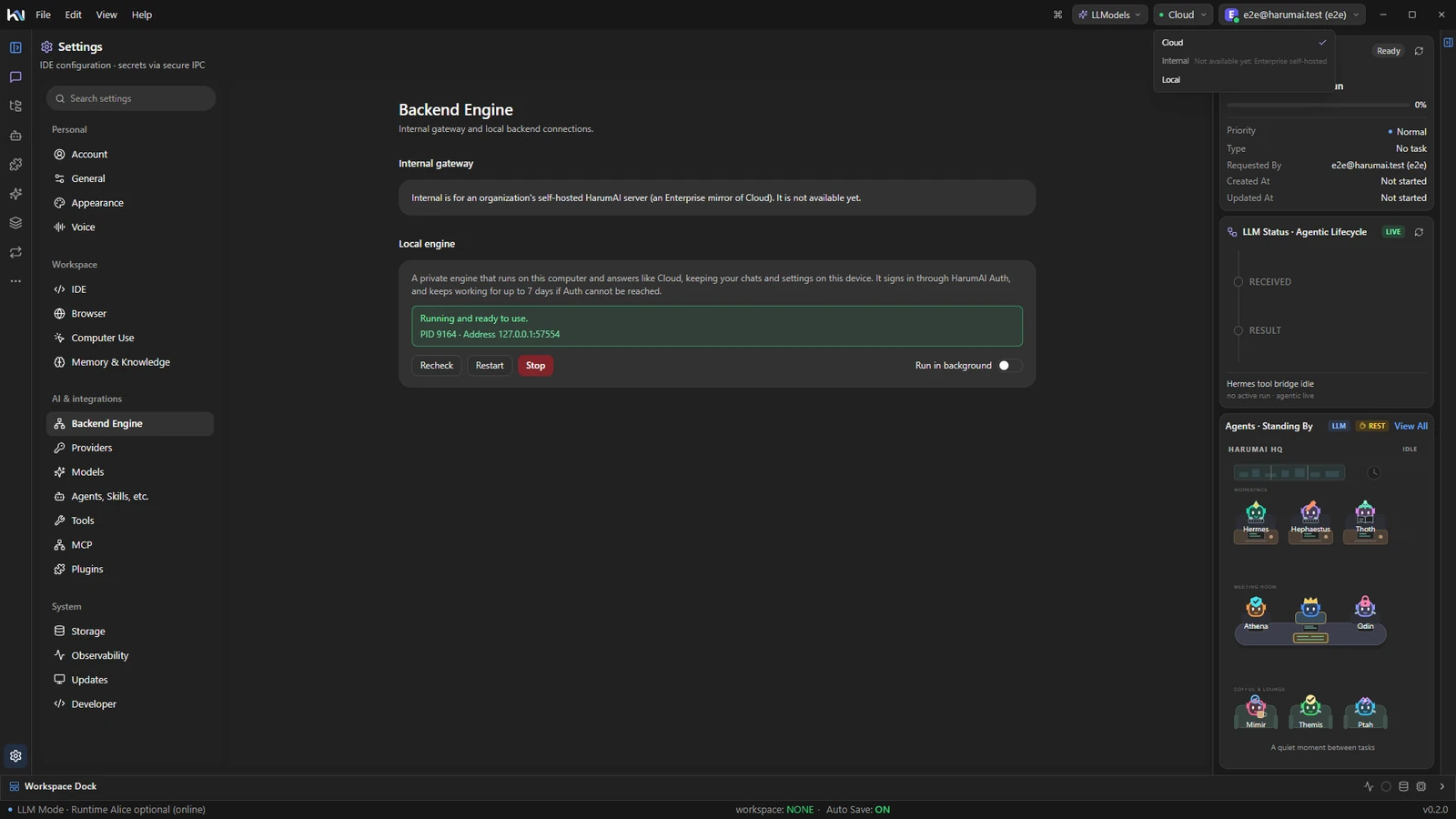
    HarumAI Settings, Backend Engine page: the Local engine card says the engine is running and ready to use on this computer, with Recheck, Restart and Stop buttons.HarumAI Settings, Backend Engine page: the Local engine card says the engine is running and ready to use on this computer, with Recheck, Restart and Stop buttons.
  • Create and refine useful results

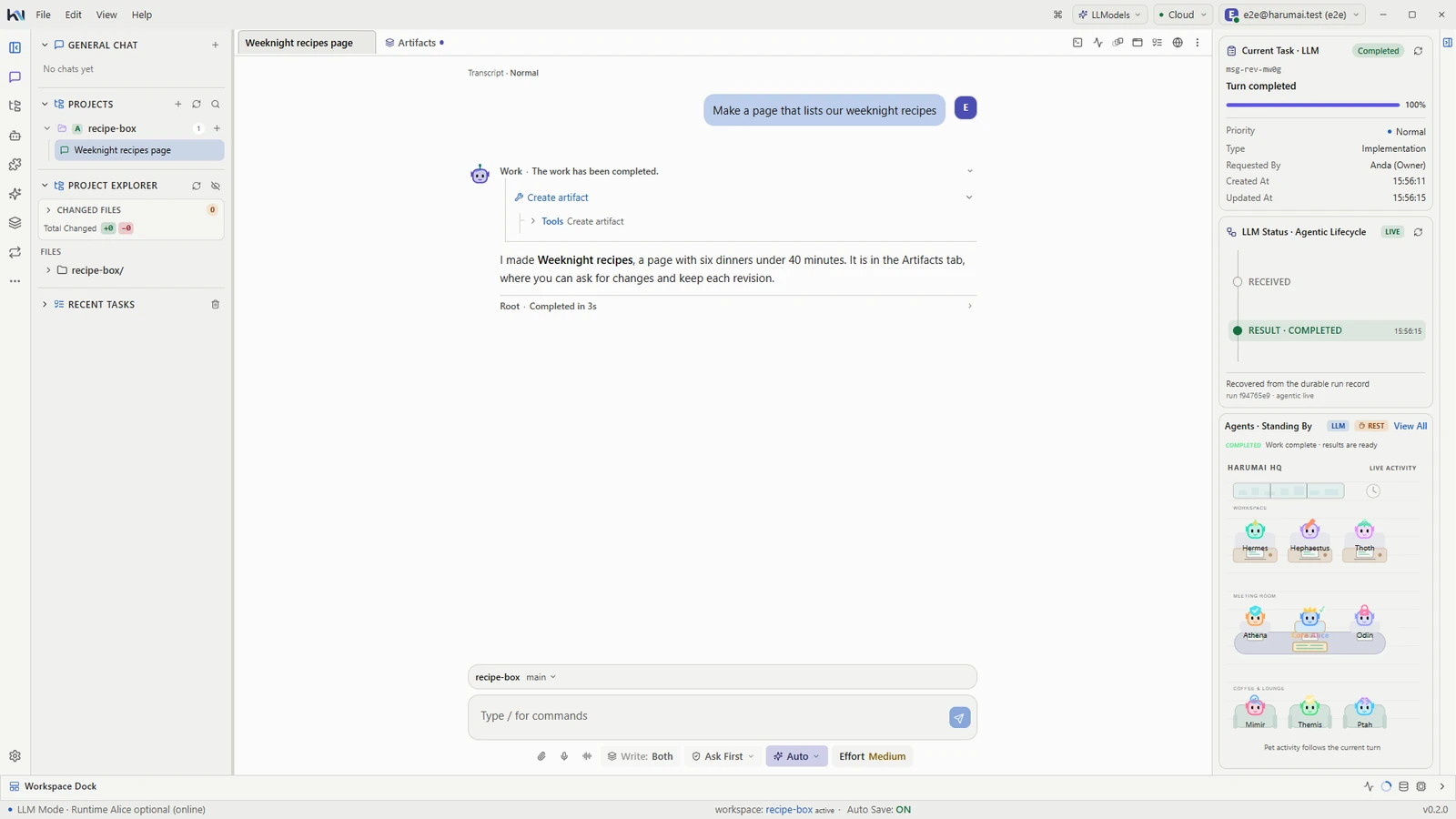
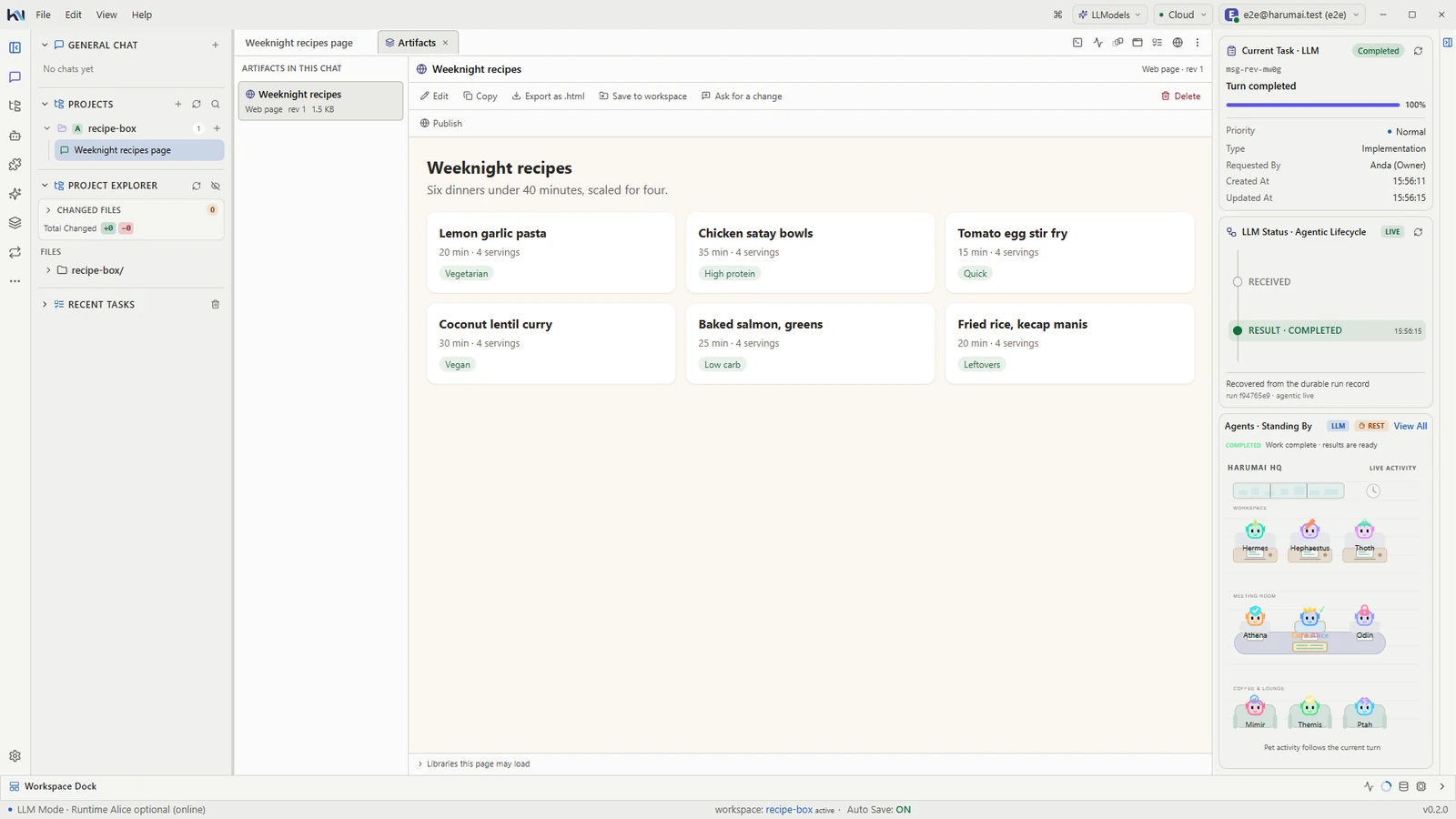
    Work with documents, diagrams and web previews in Artifacts. Review the result and return to an earlier revision.

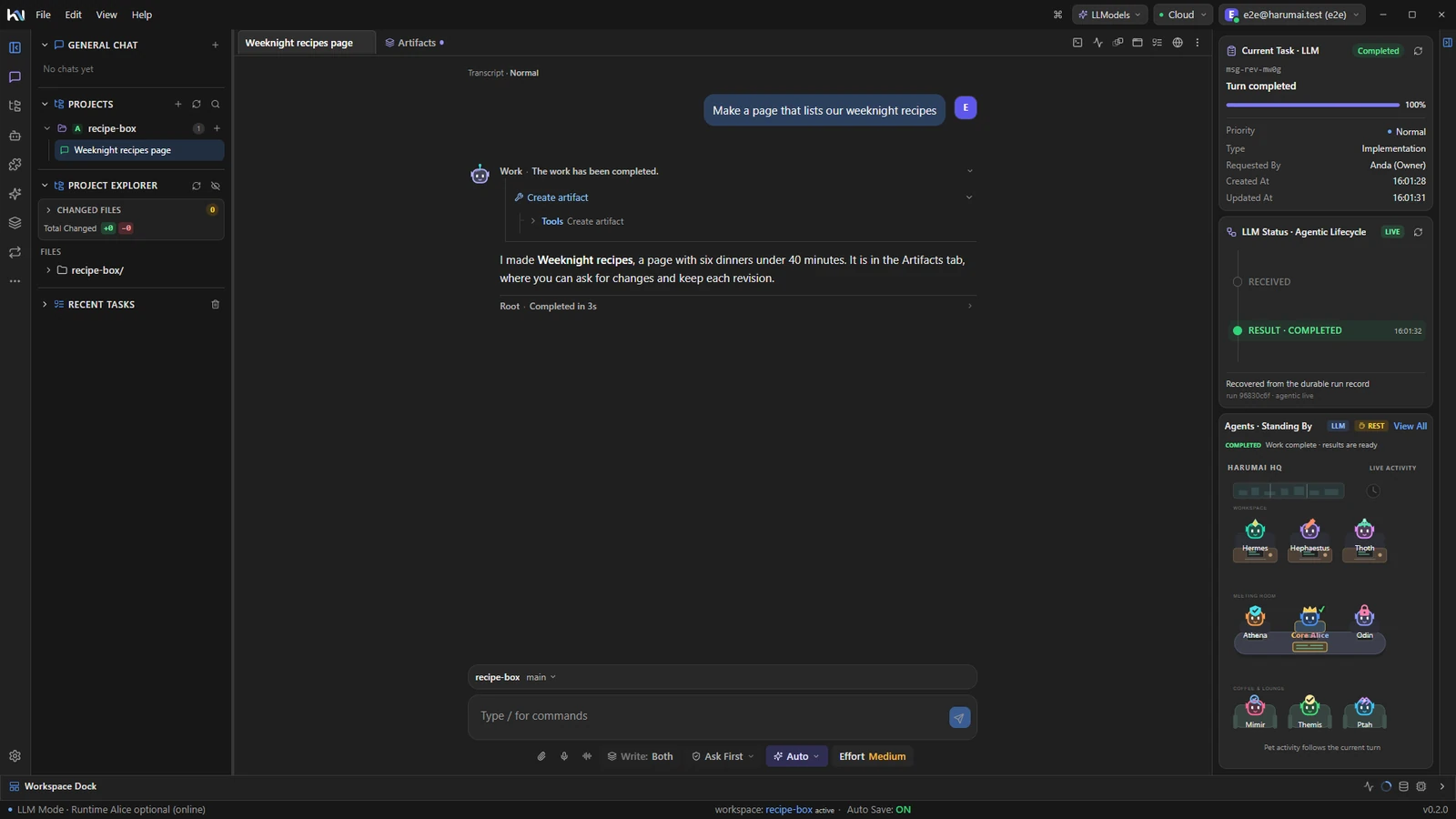
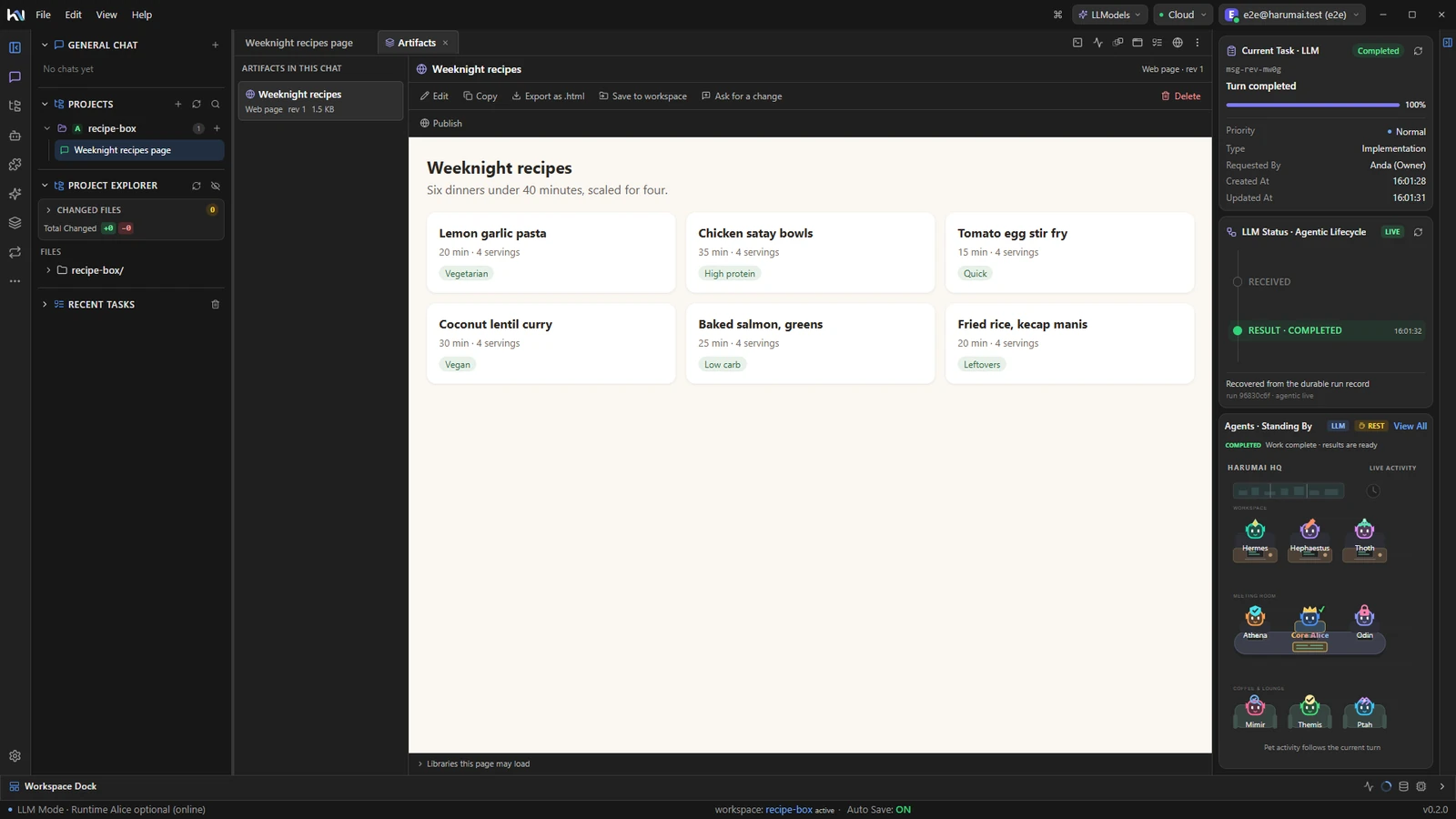
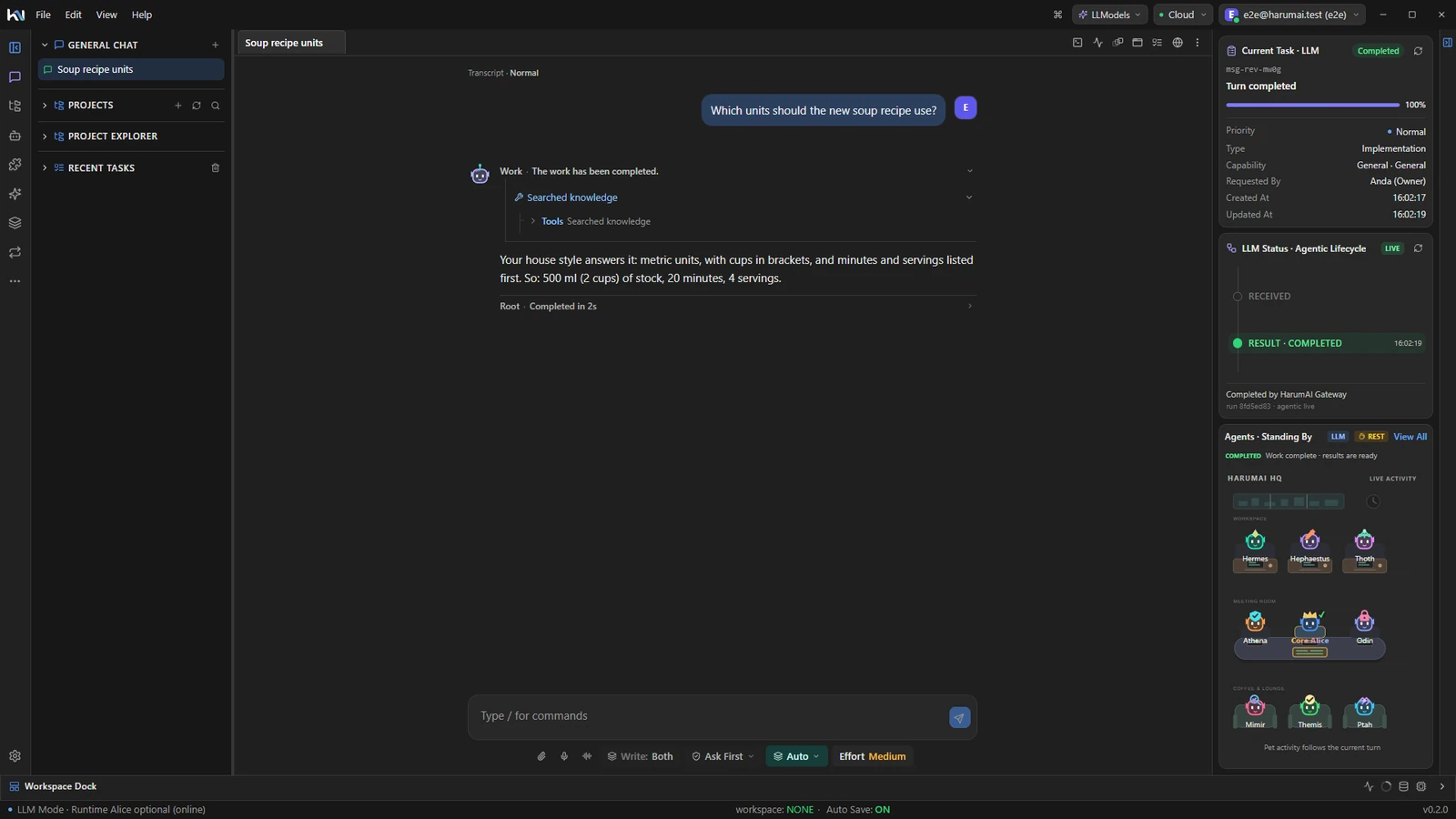
    HarumAI chat where the agent answers that it made Weeknight recipes, a page with six dinners under 40 minutes.HarumAI chat where the agent answers that it made Weeknight recipes, a page with six dinners under 40 minutes.
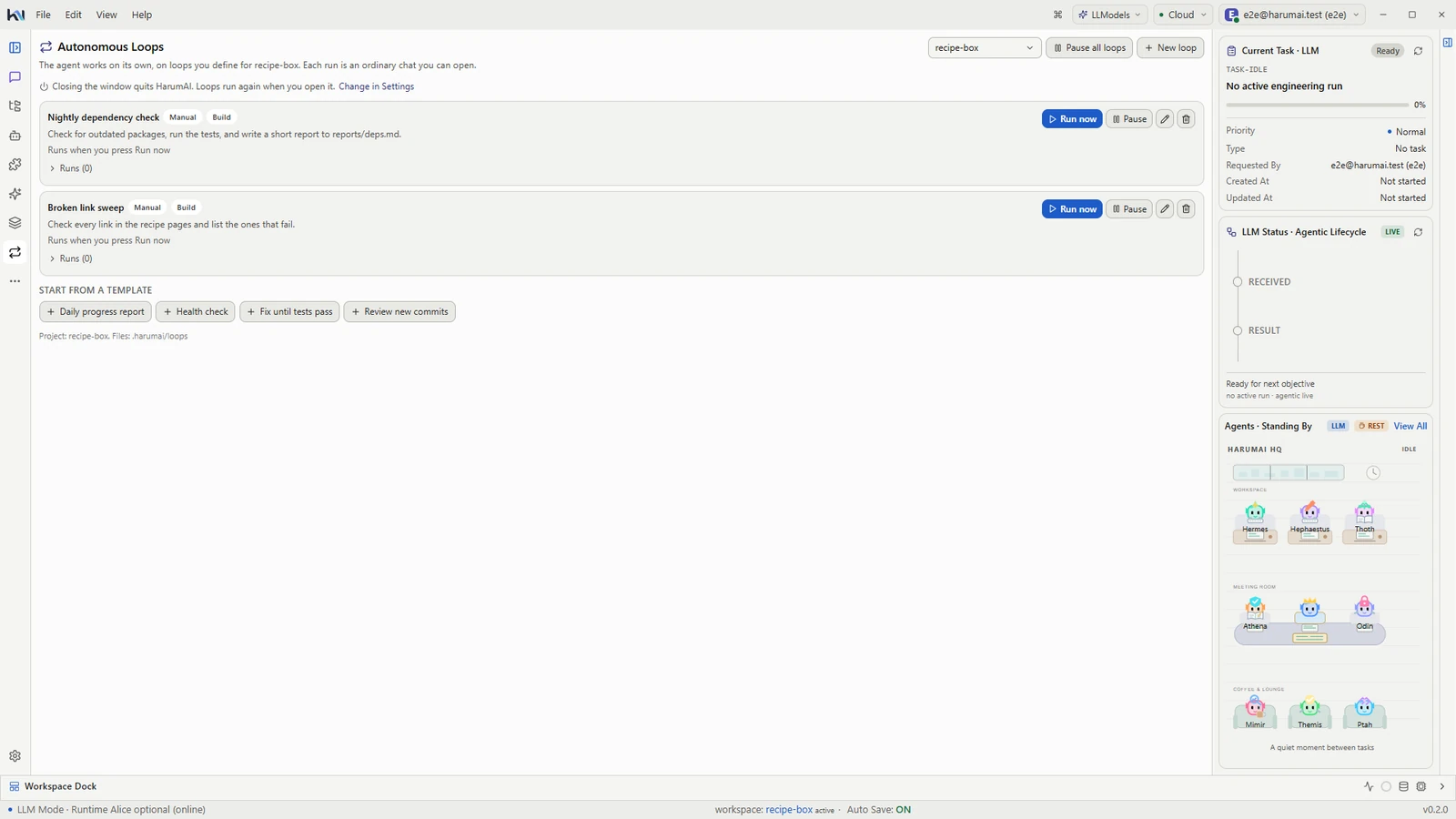
  • Schedule recurring work

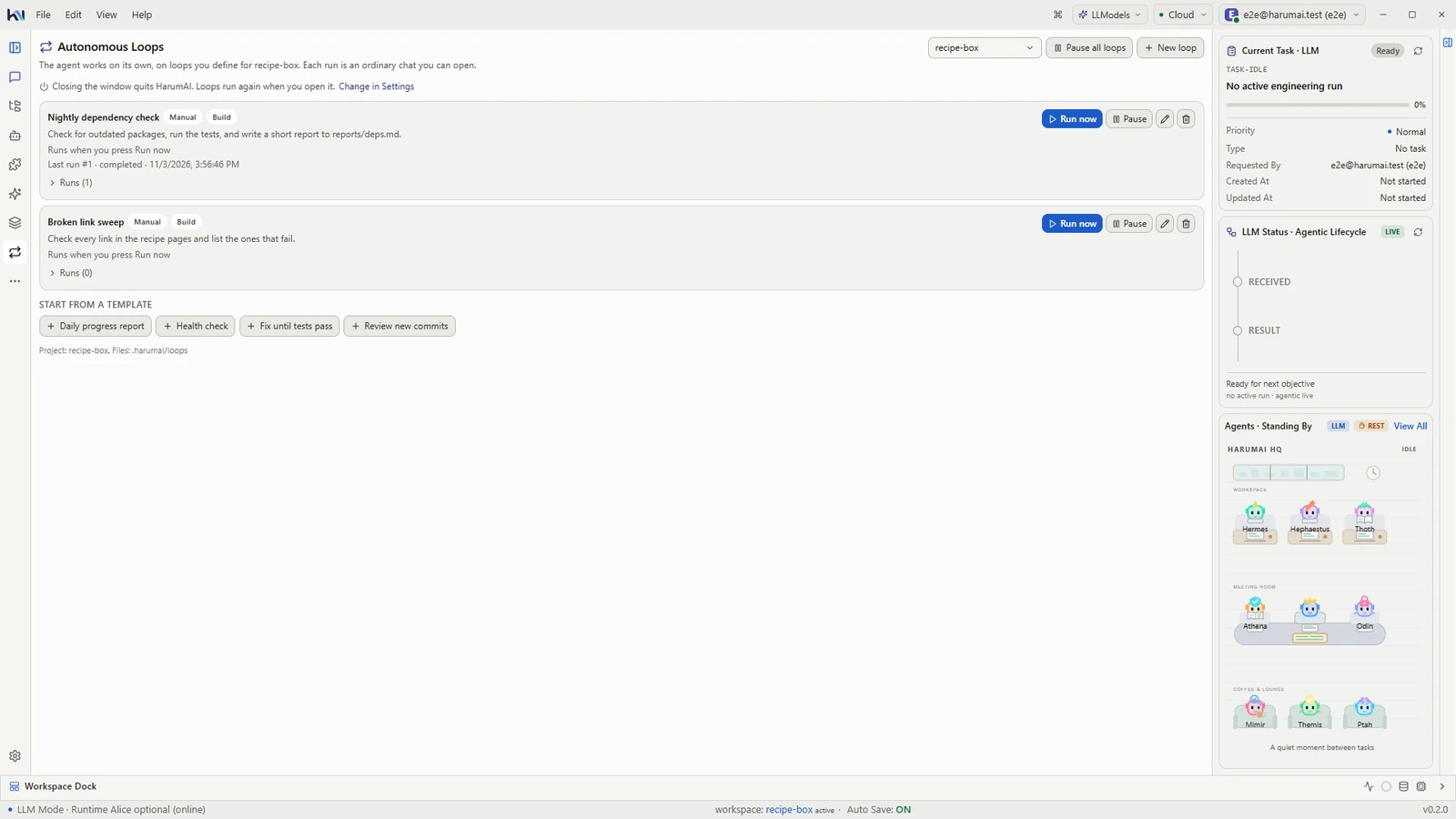
    Run a project task on a schedule or toward a goal while the IDE is open. Set access rules and review requests as needed.

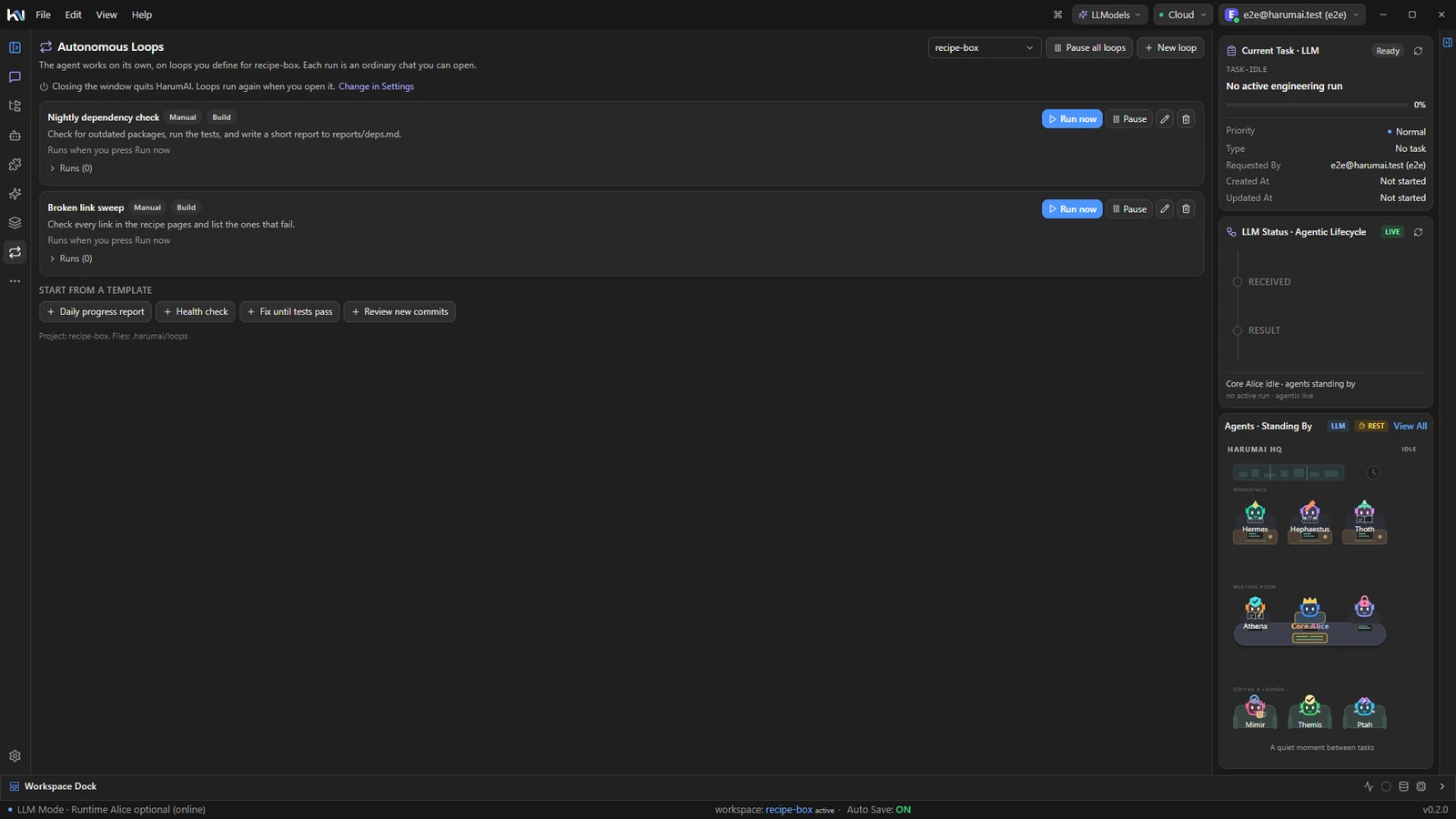
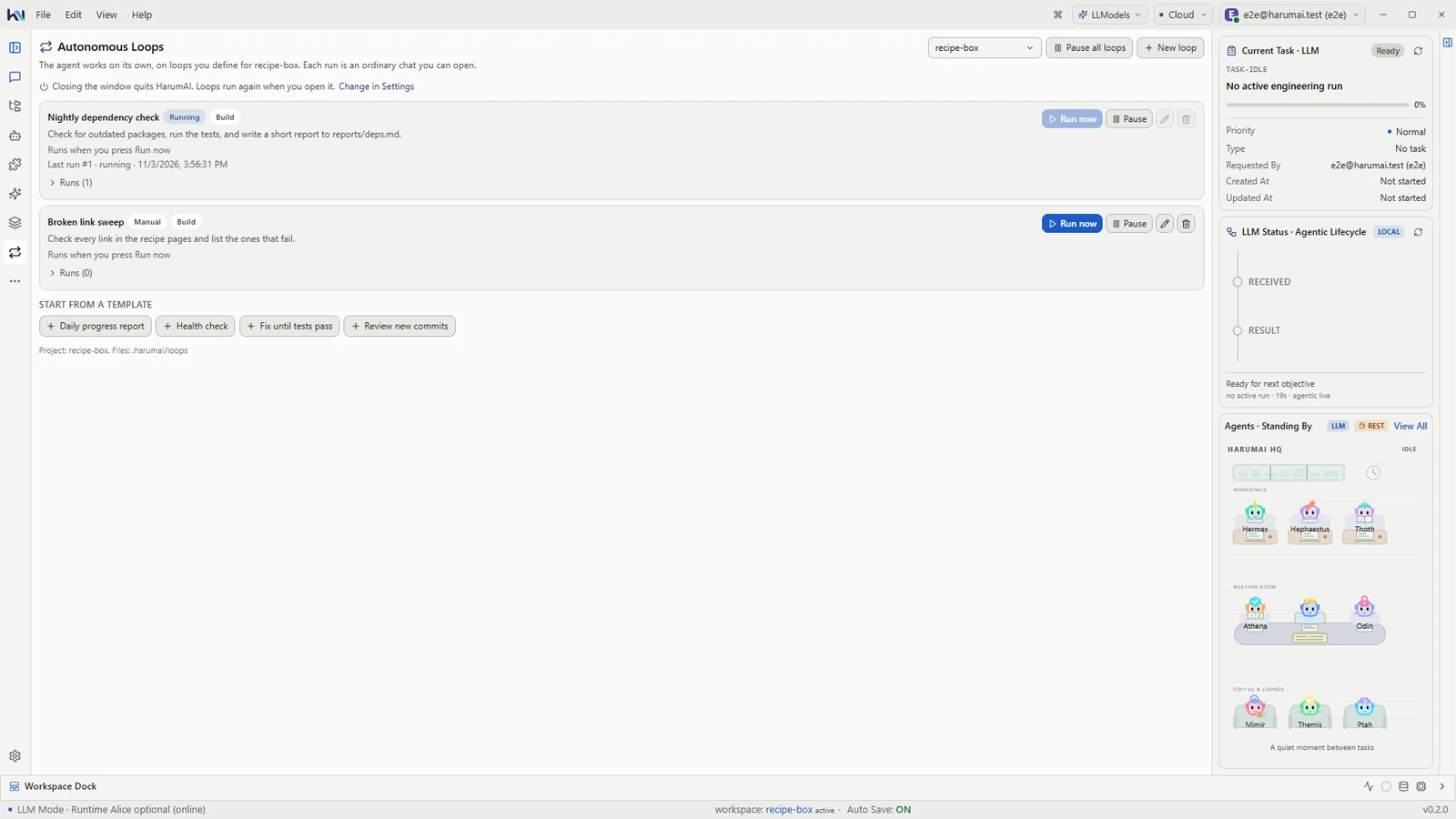
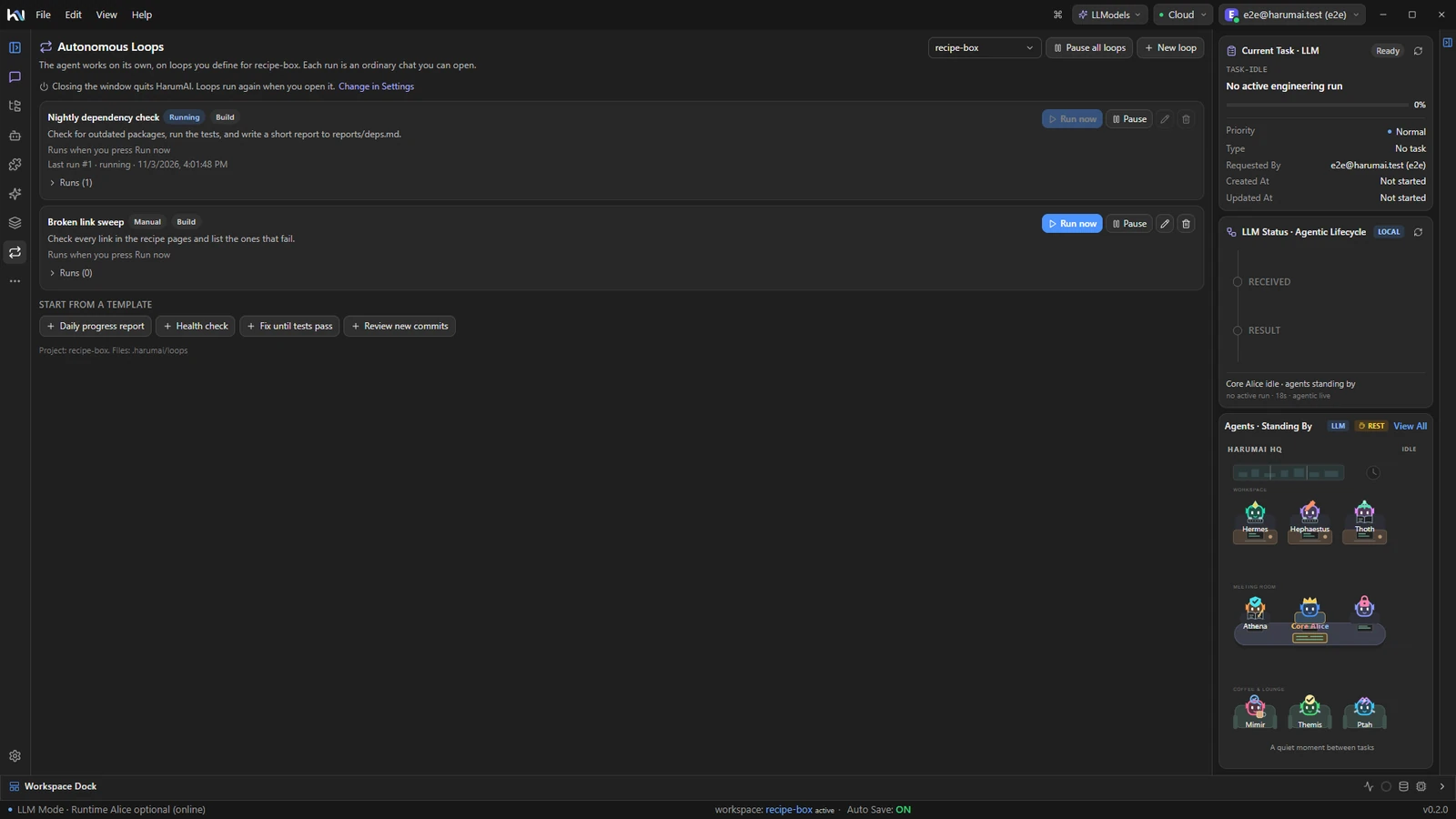
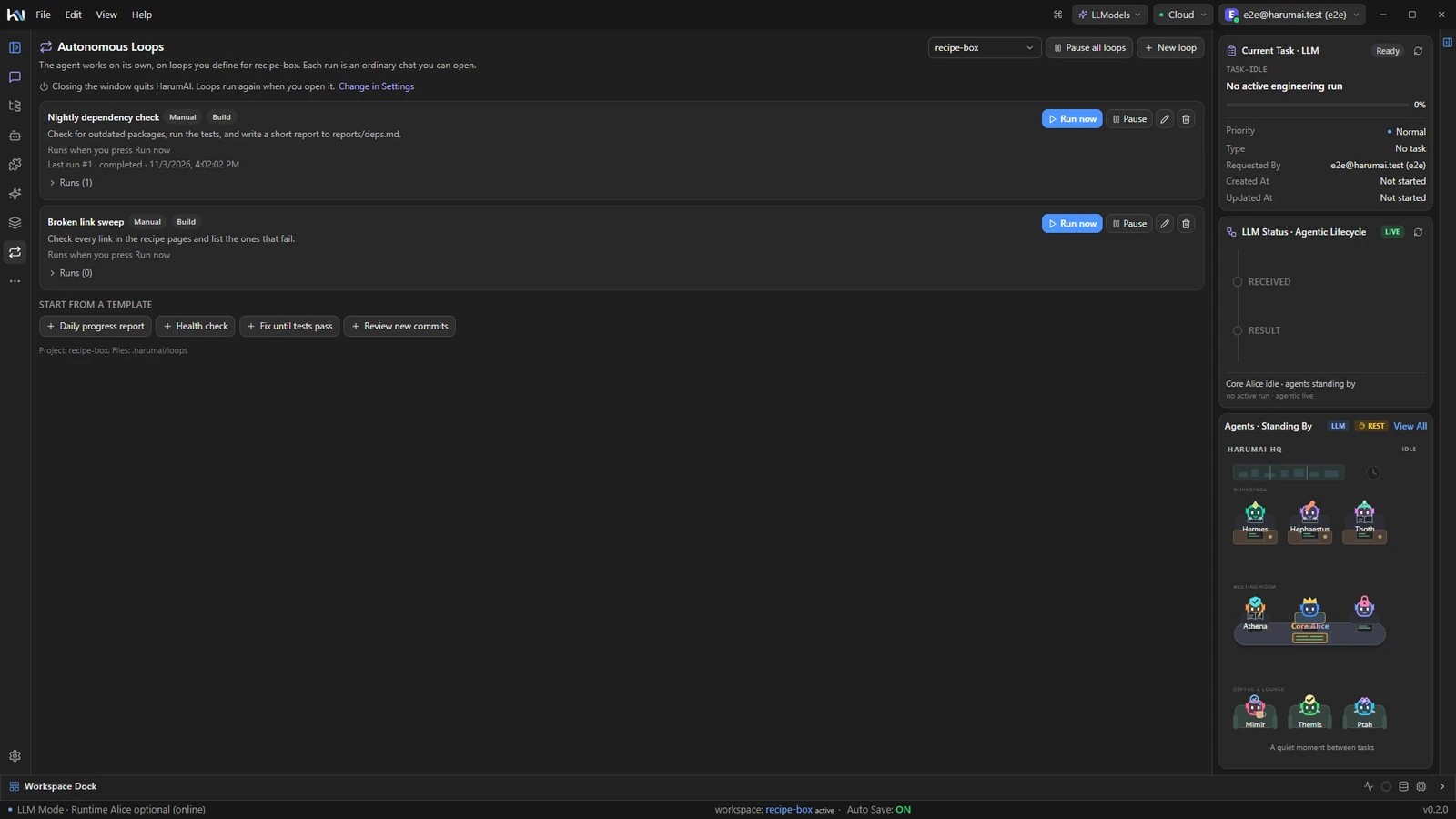
    HarumAI Autonomous Loops page for the recipe-box project: a nightly dependency check and a broken link sweep, each with Run now and Pause.HarumAI Autonomous Loops page for the recipe-box project: a nightly dependency check and a broken link sweep, each with Run now and Pause.
  • Bring project knowledge into the conversation

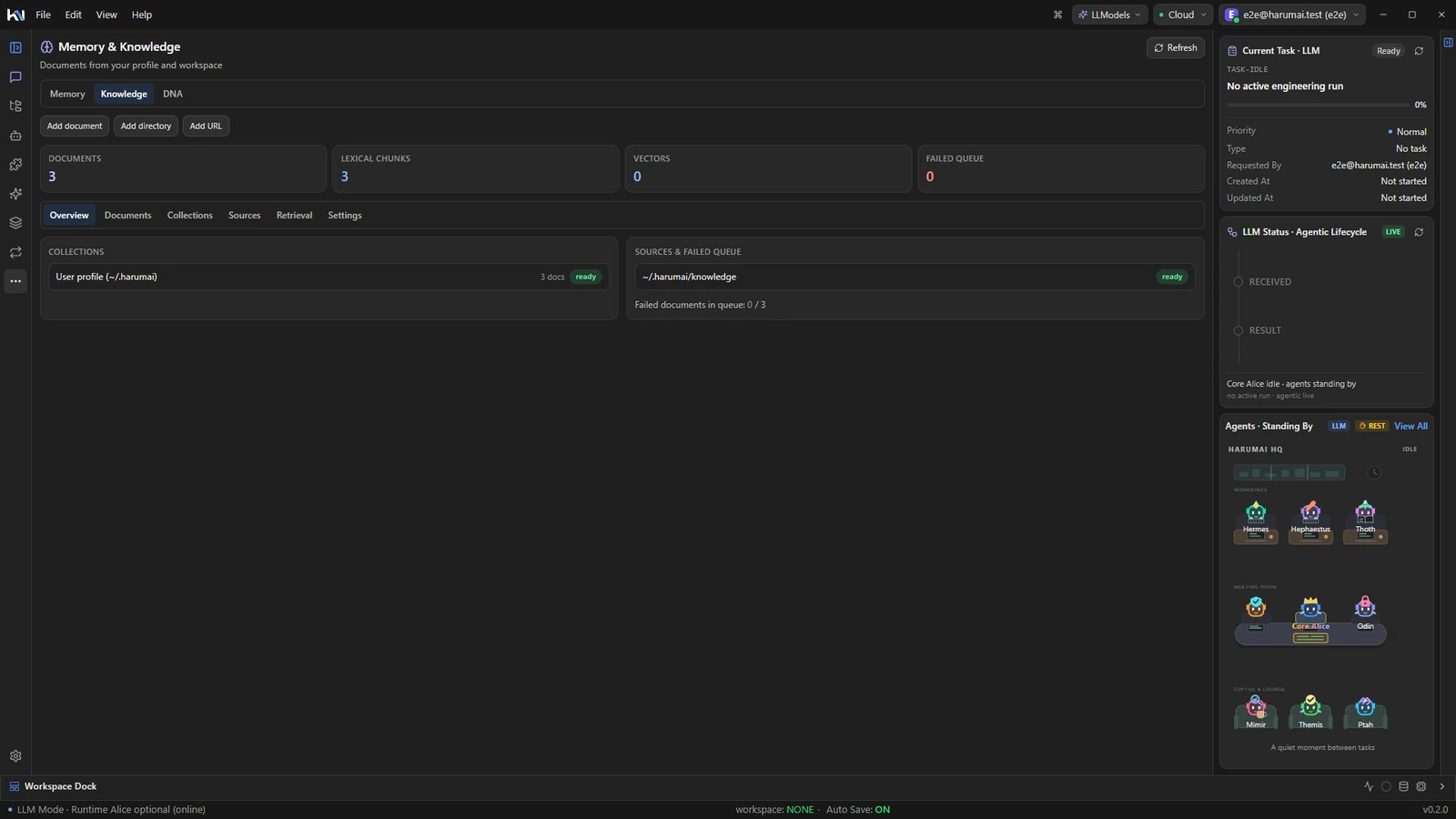
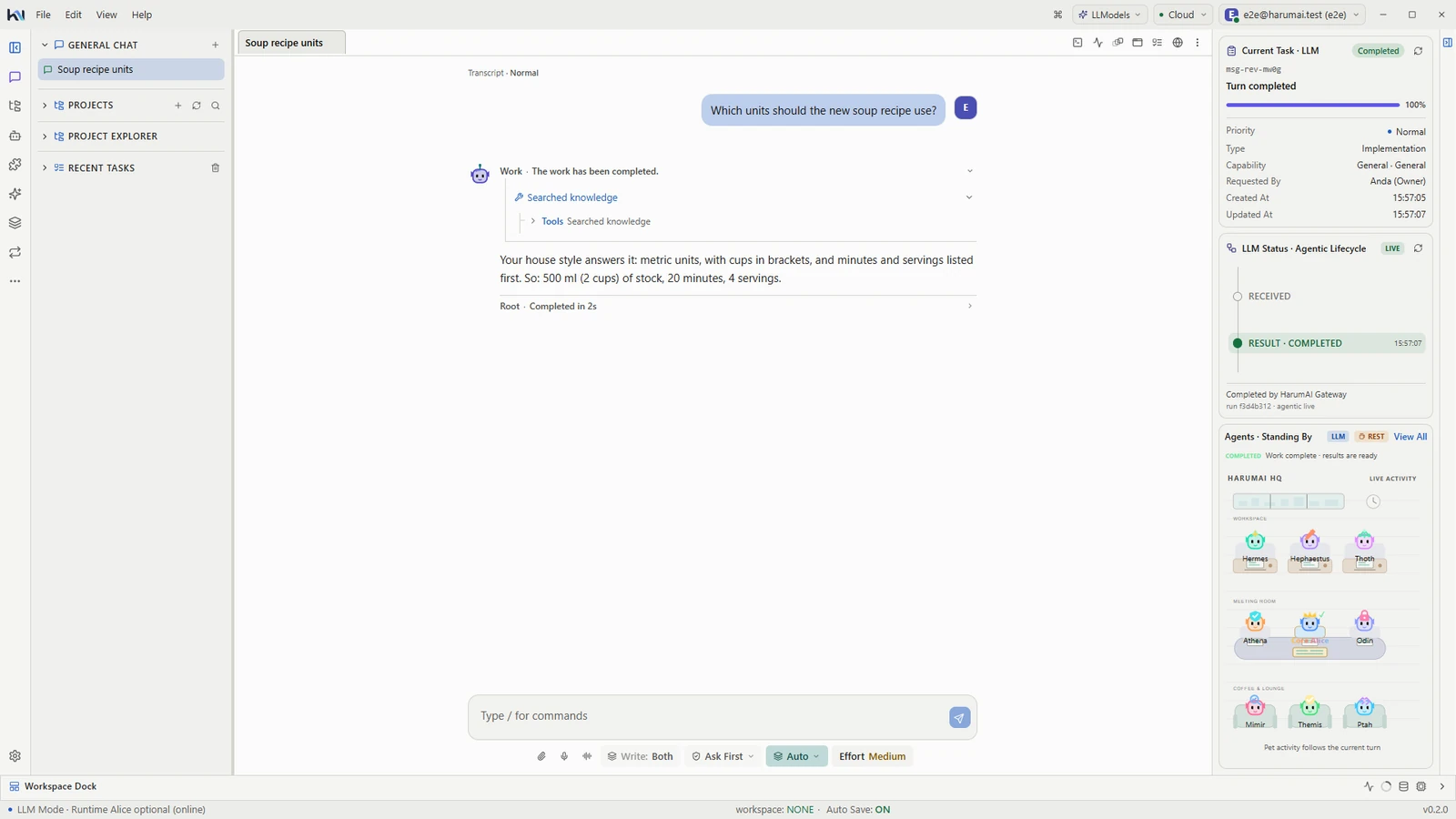
    Add project documents and folders so the agent can search relevant material as it works and refer to its sources.

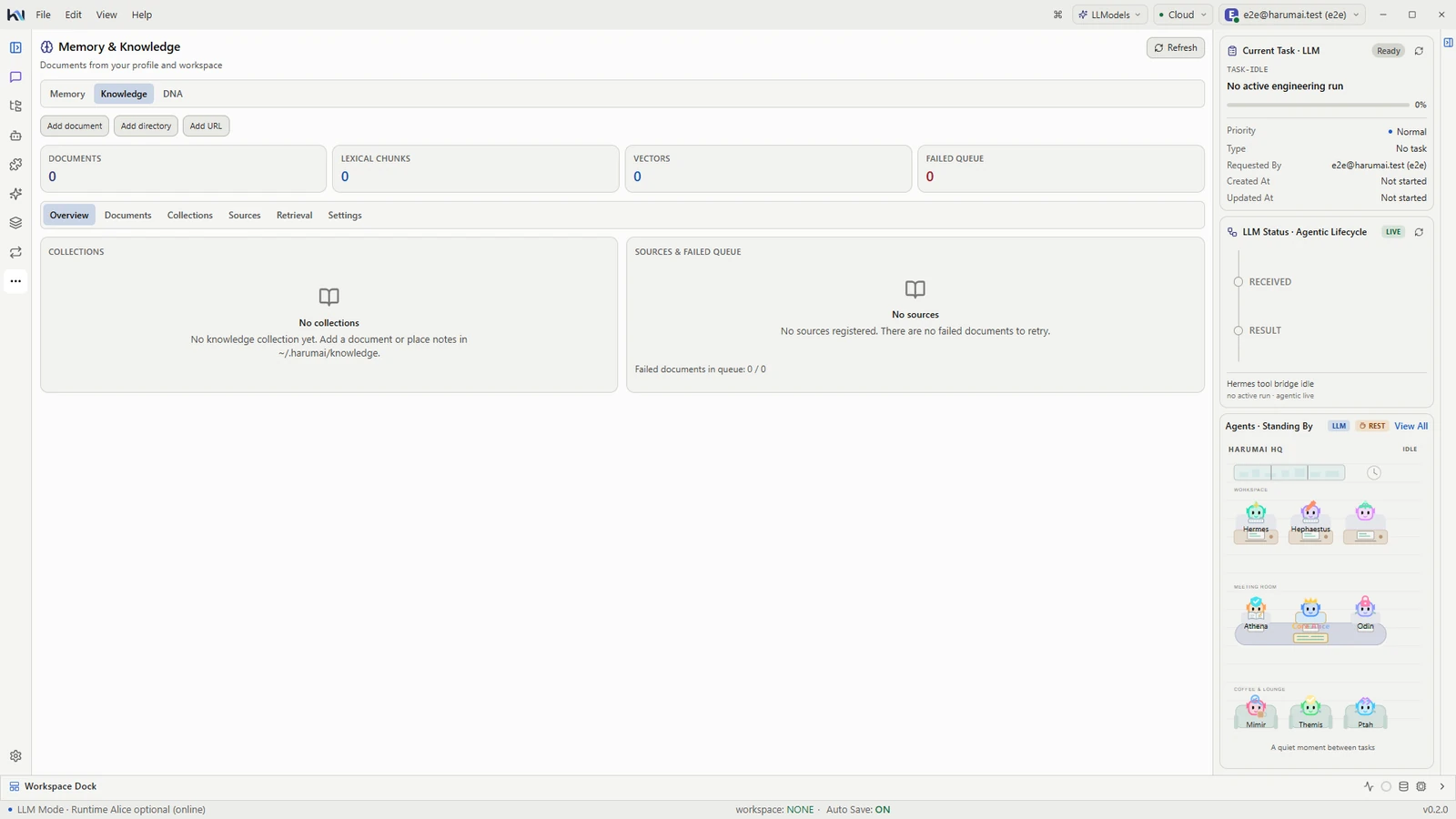
    HarumAI Memory and Knowledge page, Knowledge tab: three documents from the user profile, indexed and ready, with buttons to add a document, a directory or a URL.HarumAI Memory and Knowledge page, Knowledge tab: three documents from the user profile, indexed and ready, with buttons to add a document, a directory or a URL.
  • Discuss images and documents

    Attach images or PDFs to a conversation and discuss them with a compatible model. PDF text can be used when direct file input is unavailable.

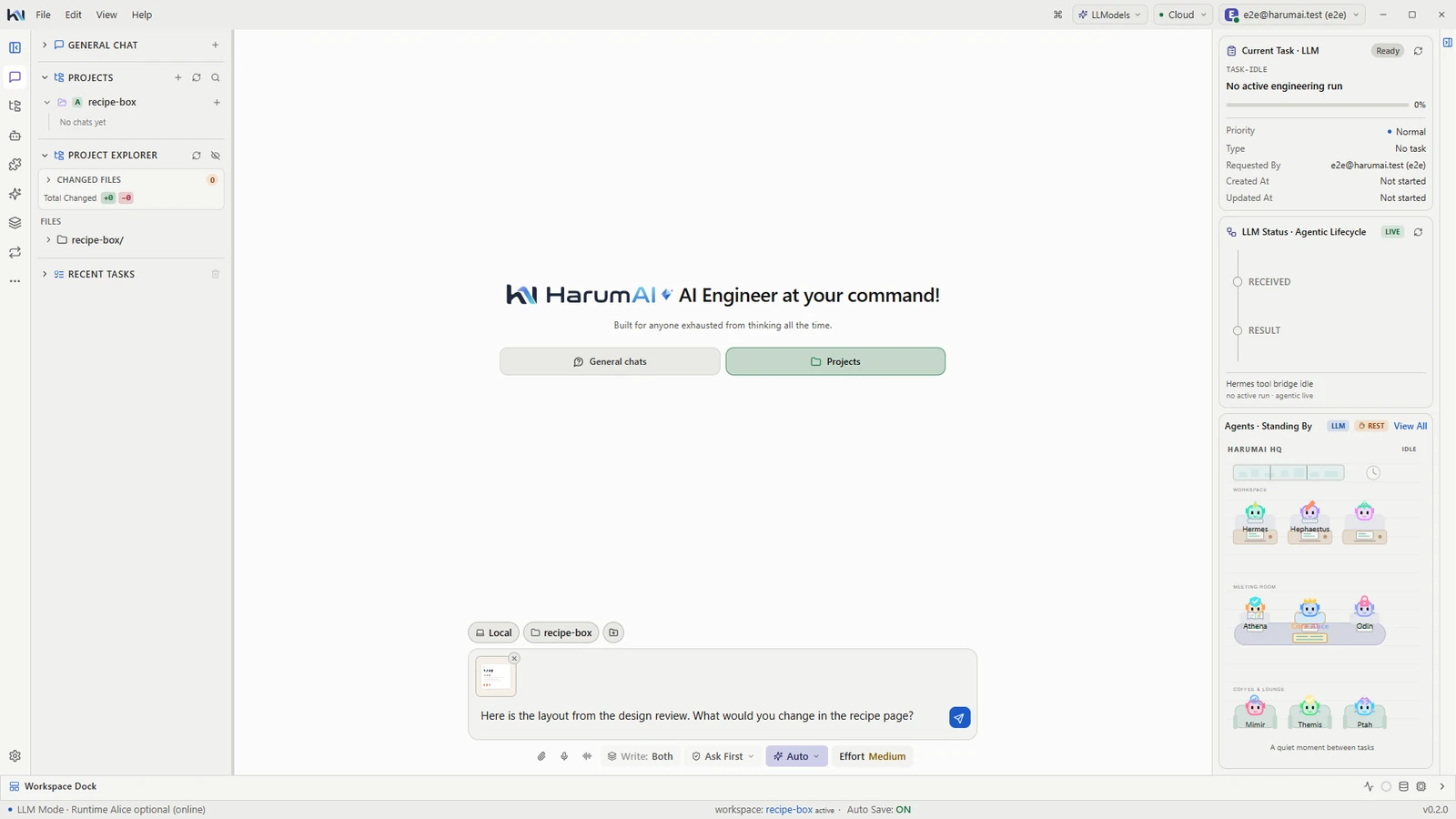
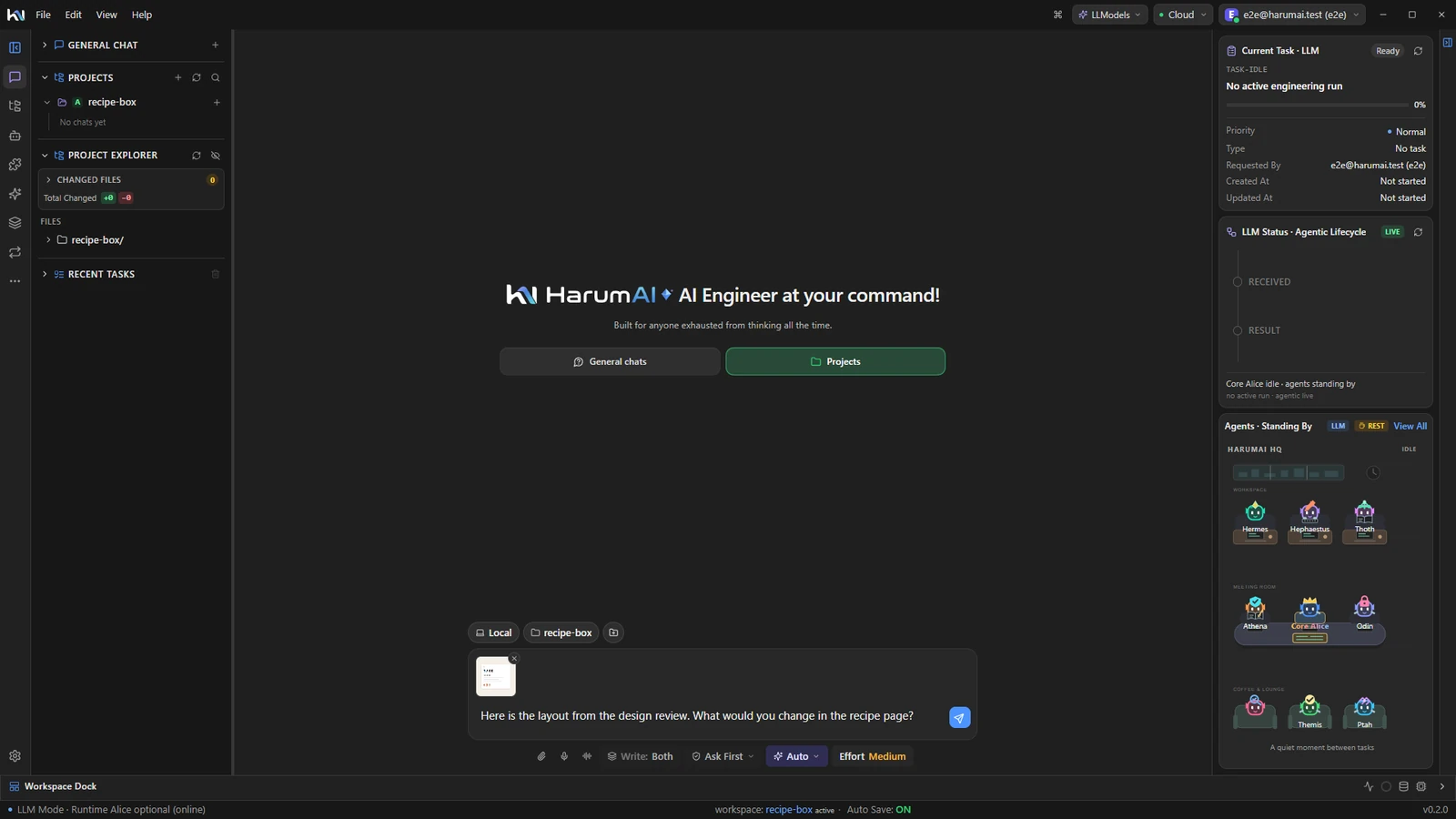
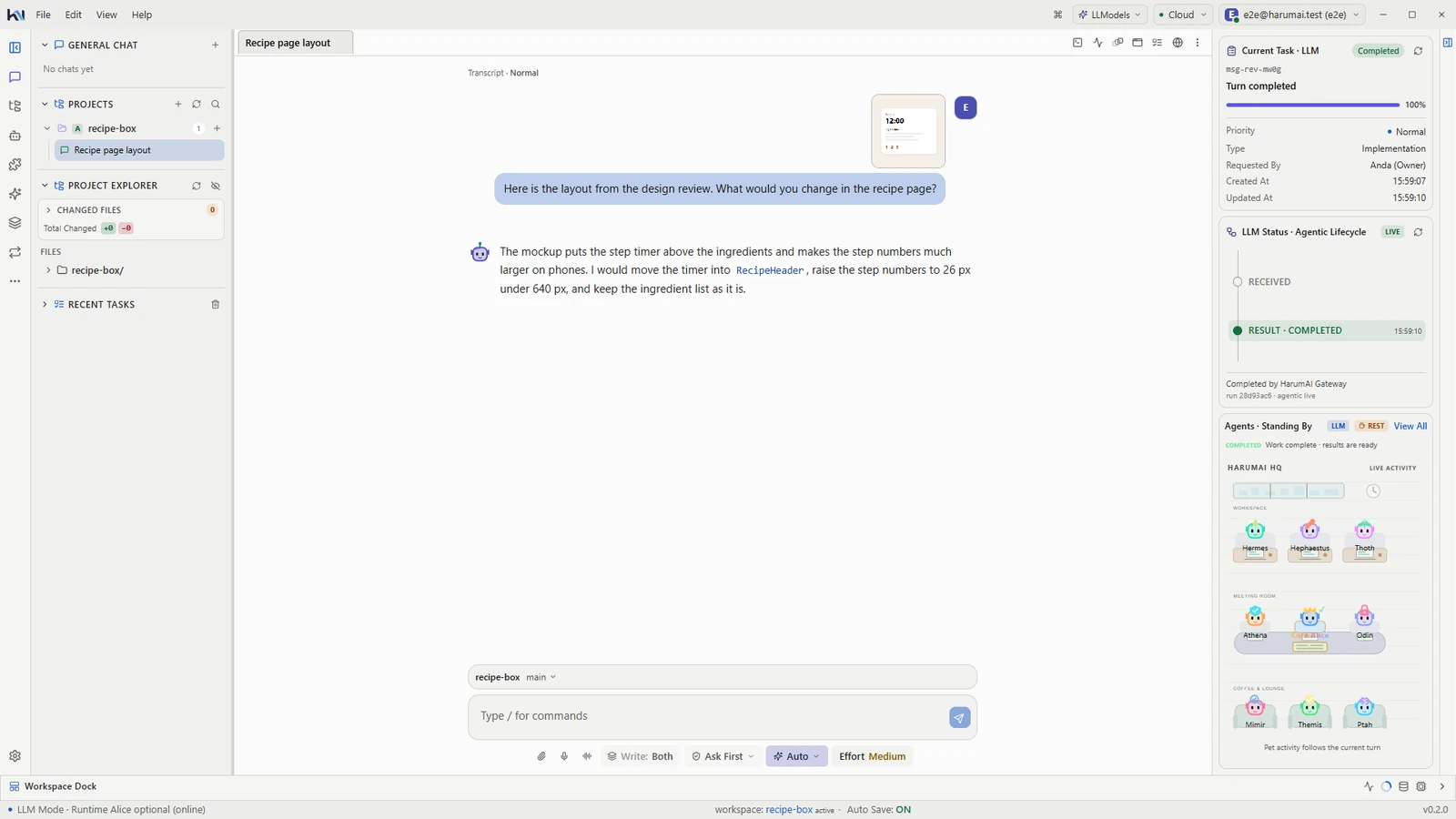
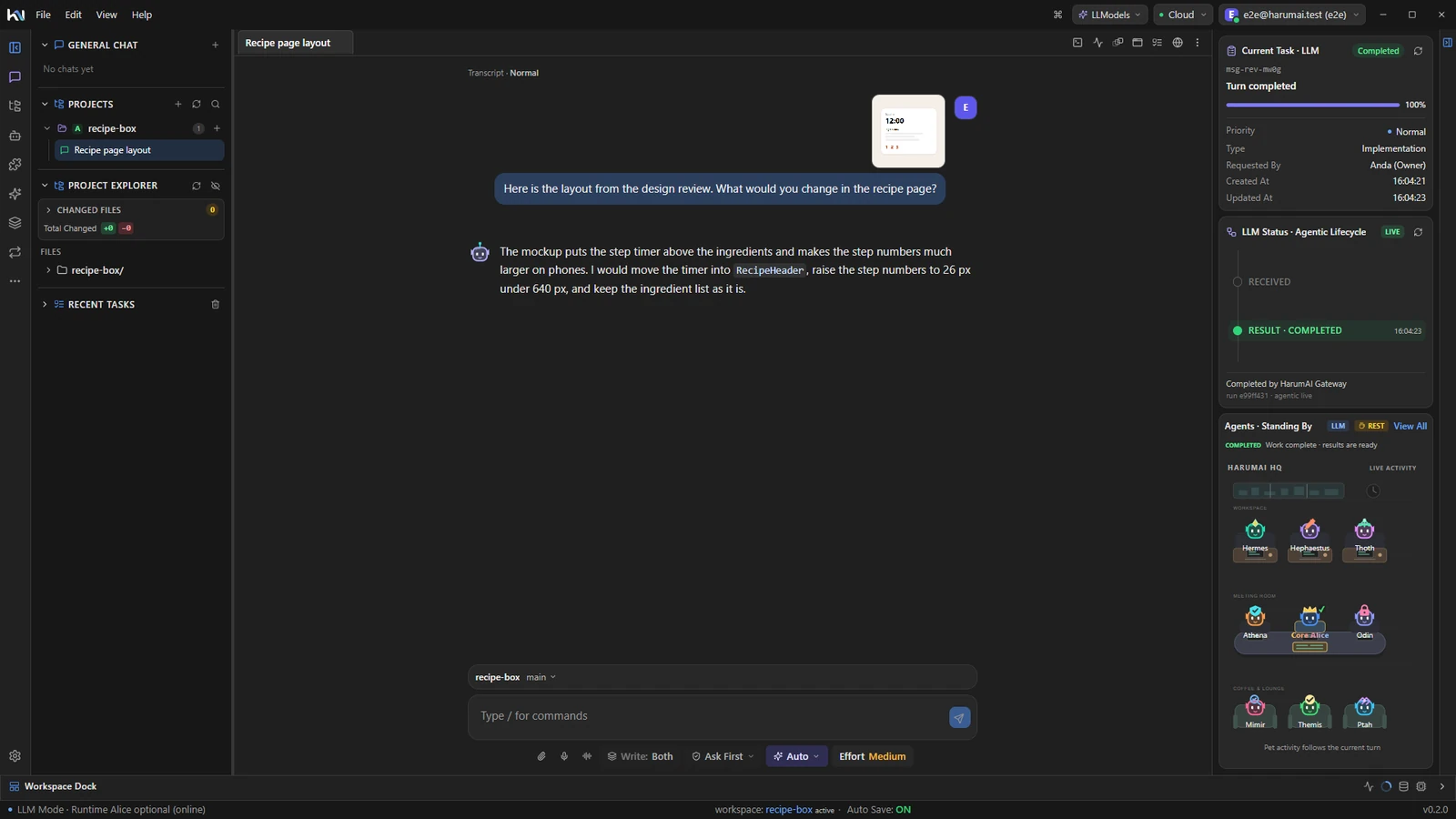
    HarumAI prompt box with a phone layout mockup attached and a question about the recipe page typed under it.HarumAI prompt box with a phone layout mockup attached and a question about the recipe page typed under it.

Pictures of HarumAI IDE working on a demo project, taken step by step by an automated test. The agent's replies were scripted for that test; everything around them is the app.

Your device, your keys

Start building with clear choices for your data, permissions and project changes.

Stays on your computer

  • Provider keys, in the system's encrypted storage
  • Conversations, when you choose Local
  • Files in your local project folder
  • Traces and error reports, unless you choose to send them

Your chosen model provider receives the content sent in a request. Provider keys may pass through HarumAI services for that request, but are not saved there.

Provider keys stay on your device
Your provider keys are stored using your operating system's encrypted storage. When needed for a request, a key may pass through HarumAI services without being saved there.
Cloud or Local, your choice
With Cloud, your conversations are stored with your HarumAI account. With Local, they stay in a database on your computer. Your selected model provider may still receive the request.
Review and undo changes
Review changes to your files and undo a turn. If a file has changed since that turn, Undo refuses to overwrite the newer work.
Choose your permissions
Choose how the agent may work and review requests when approval is required. You can stop a run while it is working.

DownloadHarumAIHarumAI

Free to use. One installer for Windows 10 and 11, 64 bit.

By downloading you agree to the Terms of Services and the Privacy Policy.

  • The installer is not code signed yet, so Windows SmartScreen may say it does not recognise the app. Check the SHA-256 first, then choose More info and Run anyway.
  • macOS and Linux are not available yet.
  • All versions, release notes and checksums

HarumAI Setup for Windows

System
Windows 10 or 11, 64 bit (x64)
Not available yet

Version details could not be read when this page was built. The download index always has the current release.

Questions people ask

All questions
What is HarumAI?

A desktop IDE for Windows with an AI agent built in. The agent reads your project, plans, edits files and runs commands with the model provider you choose. Every edit arrives as a diff you can review and undo, and every command asks before it runs.

Which systems does HarumAI run on?

Windows 10 and Windows 11, 64 bit (x64). From Windows, HarumAI can also work in a WSL distribution or on another machine over SSH. A macOS or Linux app is not available yet.

Which model providers can I use?

Anthropic, OpenAI, OpenRouter and many more. You add your own key for each one in Settings, Providers, and choose the model per task.

Where are my provider keys kept?

On your computer, in the operating system's encrypted storage. A key travels only with the request it is for, only to that provider's own host. HarumAI's server never stores it, not in a database, a log or a transcript.

Can I use HarumAI offline?

Partly. The Local engine checks your account when it can reach HarumAI and keeps working for up to 7 days without that check. The model still has to be reachable: with Local you can point HarumAI at a provider on your own network or your own computer.

Acknowledgements

HarumAI is designed, reviewed and released by its developer. These models helped only with testing: trying the product out, and revising some parts of the code.

Thank you as well to the colleagues who helped test HarumAI IDE by doing real work with it.

  • Fable 5.1Anthropic
  • GPT-6 AstraOpenAI
  • Opus 5.5Anthropic
  • GPT-6.1 SolOpenAI
  • Gemini 4 ArgonGoogle
  • Opus 4.8Anthropic
  • Sonnet 5.5Anthropic
  • DeepSeek V4.1 FlashDeepSeek
  • DeepSeek V4 ProDeepSeek
  • Kimi K3Moonshot AI
  • GLM 5.3Zhipu AI
  • Gemini 3.8 FlashGoogle
  • MiMo V2.6 ProXiaomi
  • GPT-6 LunaOpenAI
  • GPT-6 SolOpenAI

Model names belong to their makers: Claude, Fable, Opus and Sonnet to Anthropic; GPT to OpenAI; Gemini to Google; DeepSeek to DeepSeek; Kimi to Moonshot AI; GLM to Zhipu AI; MiMo to Xiaomi. HarumAI is not affiliated with, sponsored by or endorsed by any of them.